How do I shorten links in bulk from a spreadsheet or CSV?
Steps verified on September 23, 2026
On Pro, Lifetime or Team, you import a CSV file with the columns url, slug, title and tags from the Links page (the three-dots menu, then Import CSV), and each row becomes its own short link, apart from rows that fail (the result message says how many). CSV import is not part of the free plan: on a free account you can shorten up to 10 pasted URLs at a time with the free Bulk URL Shortener instead.
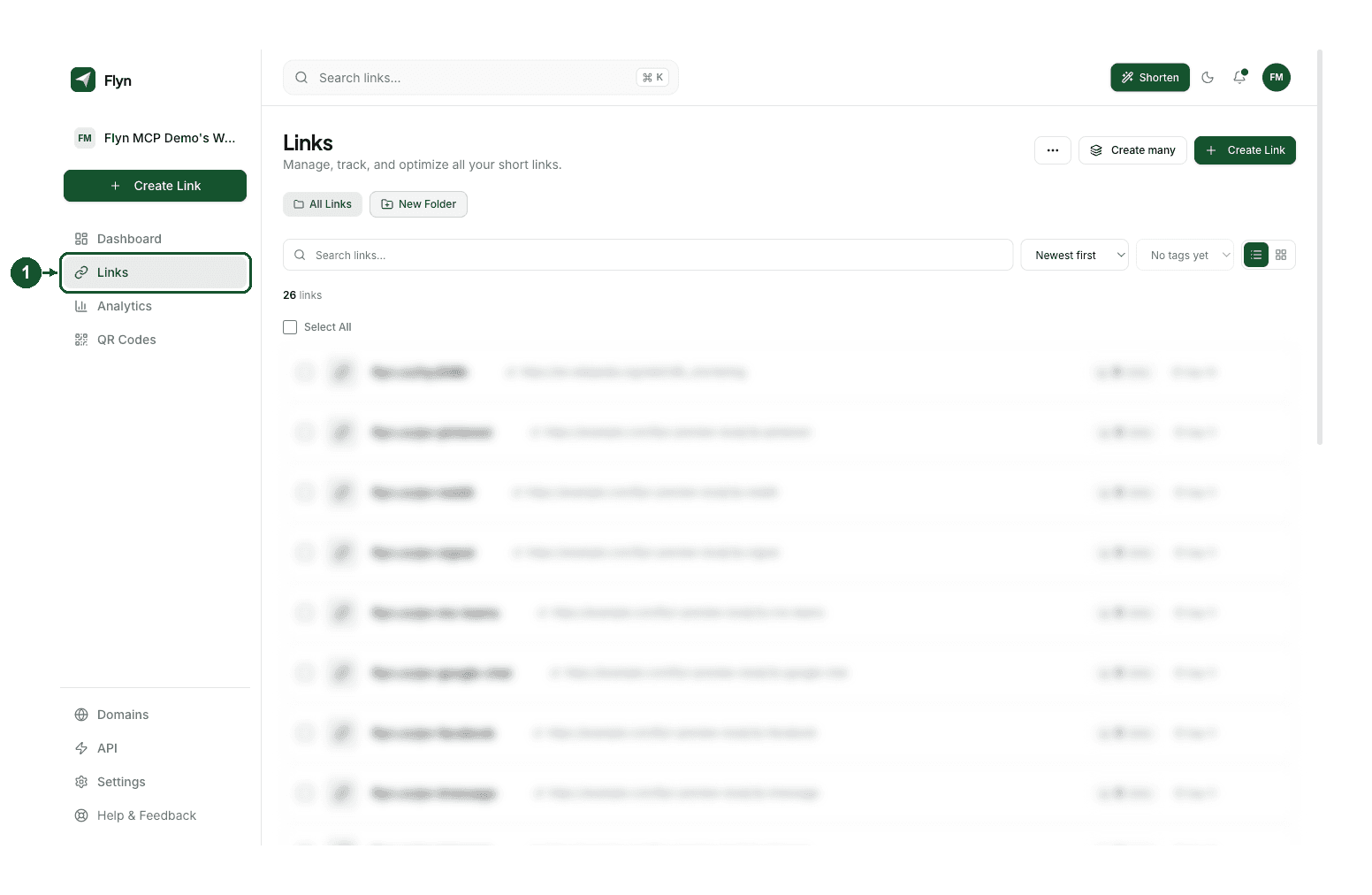
Step 1: open the Links page
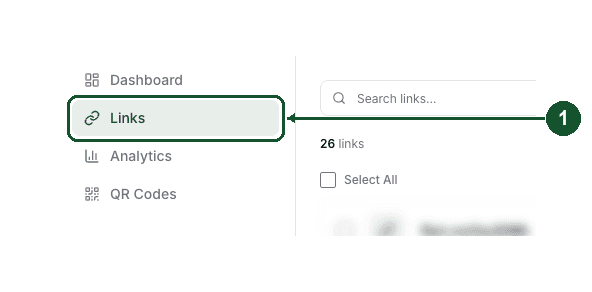
Click Links in the sidebar. The Links page opens with the heading Links and, on a paid plan, three buttons at the top right: a three-dots button, Create many and Create Link. In a team workspace, the three-dots button can take a moment to appear while Flyn checks the team's plan.
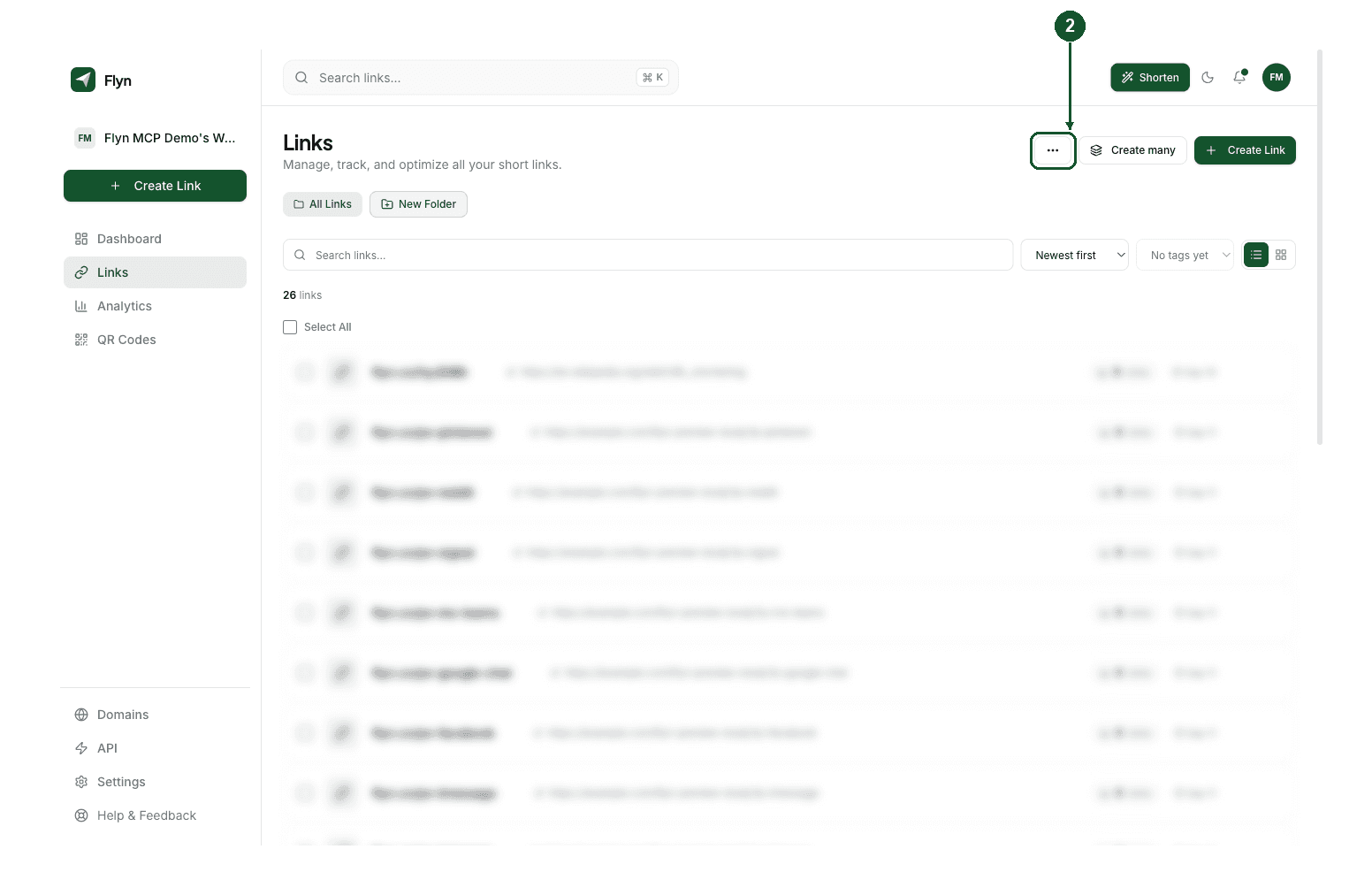
Step 2: click the three-dots button
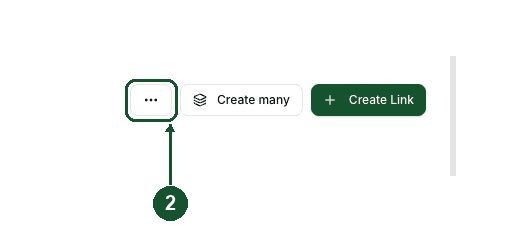
Click the button with three horizontal dots, to the left of Create many. It has no text on it; screen readers announce it as Import and export. A small menu opens under it.
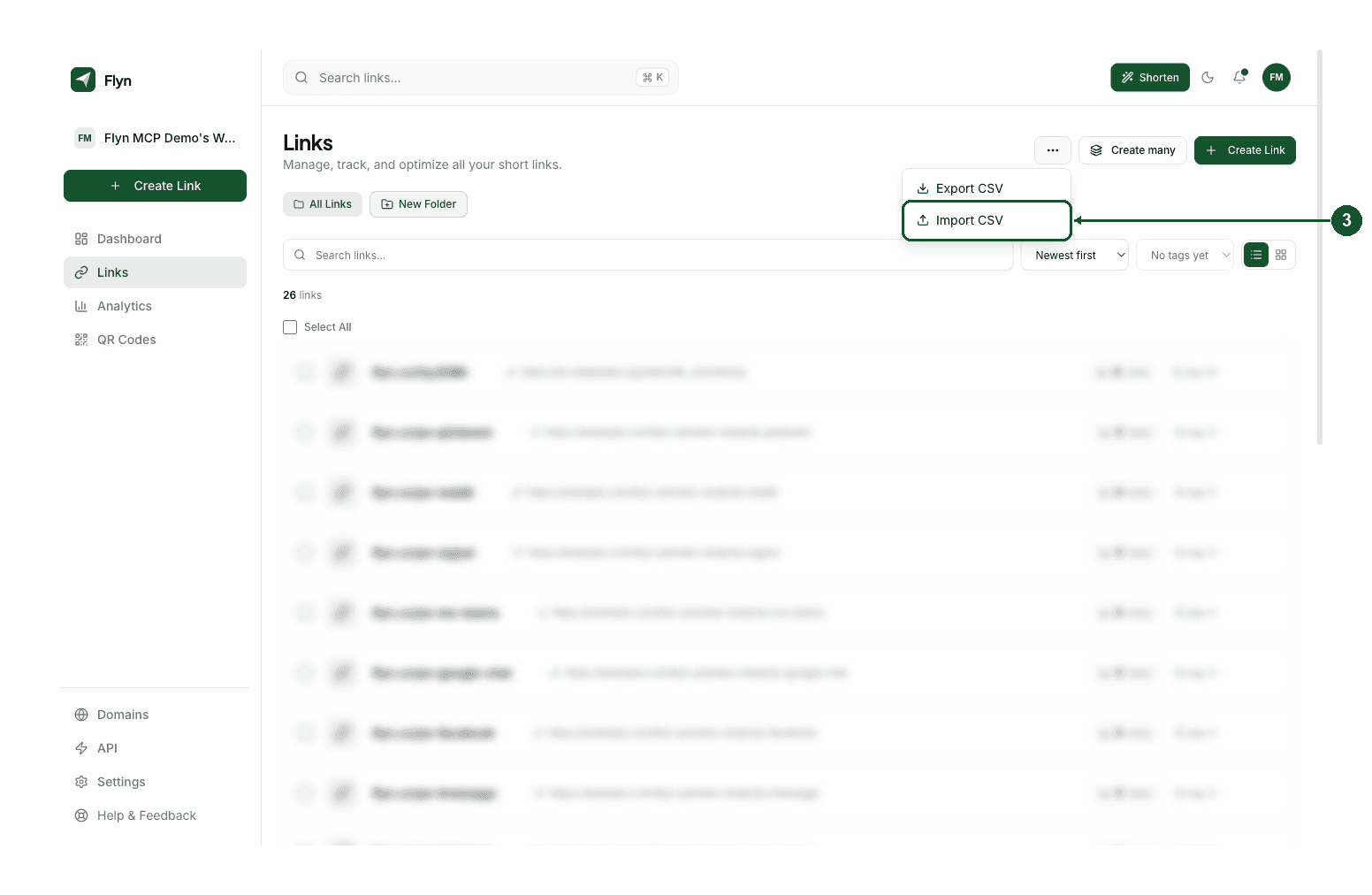
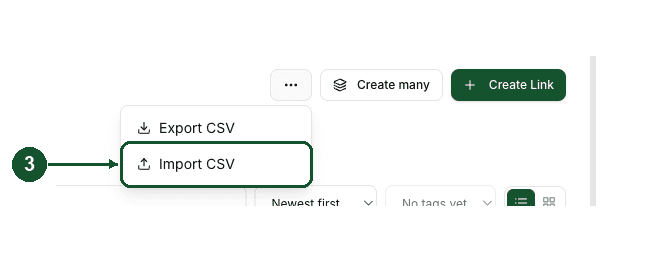
Step 3: click Import CSV
The menu holds two items, Export CSV and Import CSV. Click Import CSV. The menu closes and an import panel opens on the page. Nothing is uploaded yet.
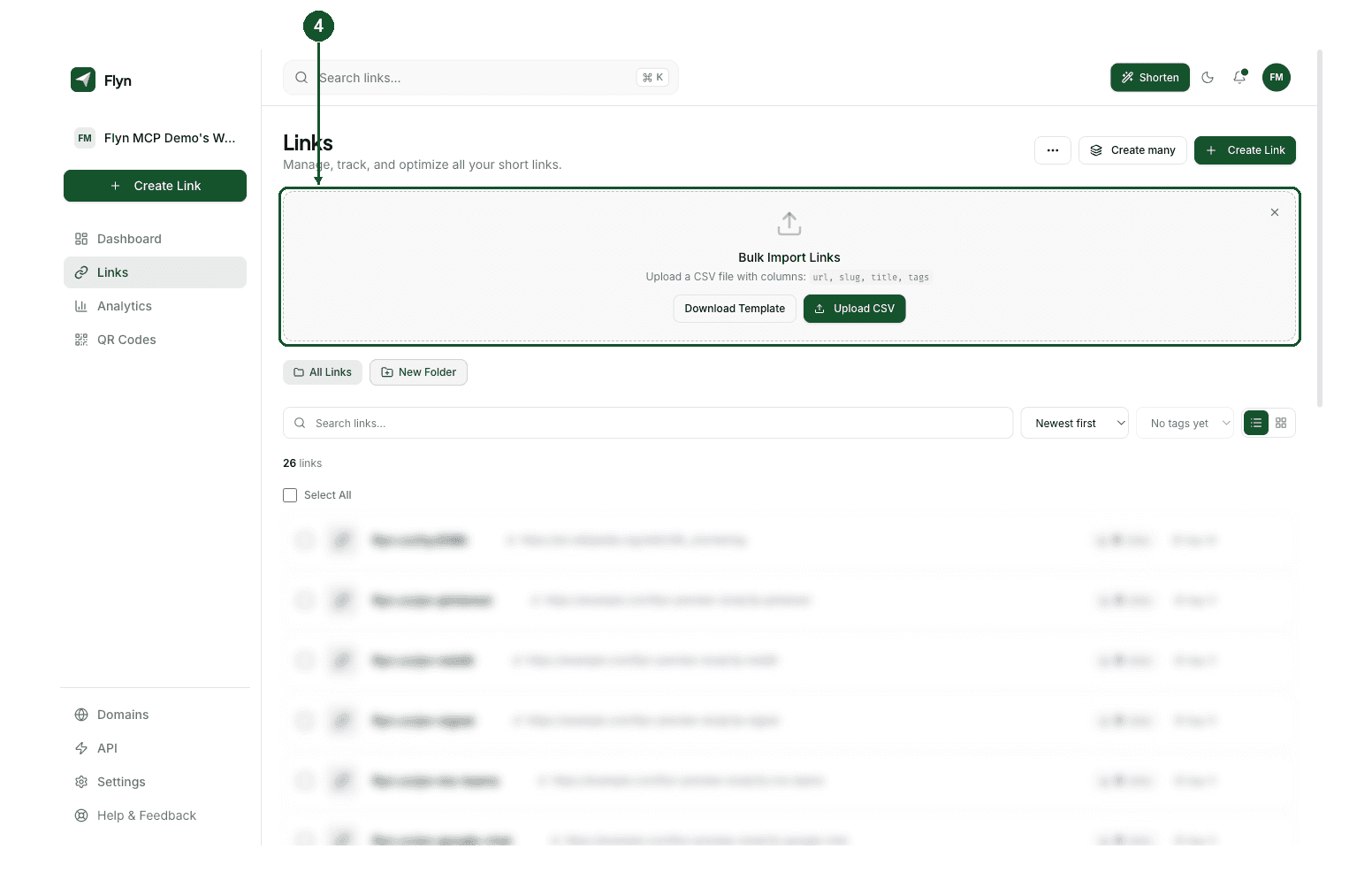
Step 4: find the Bulk Import Links panel
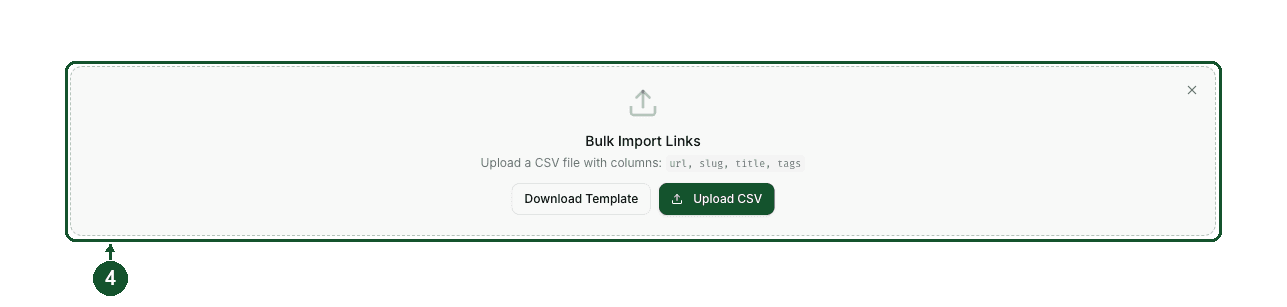
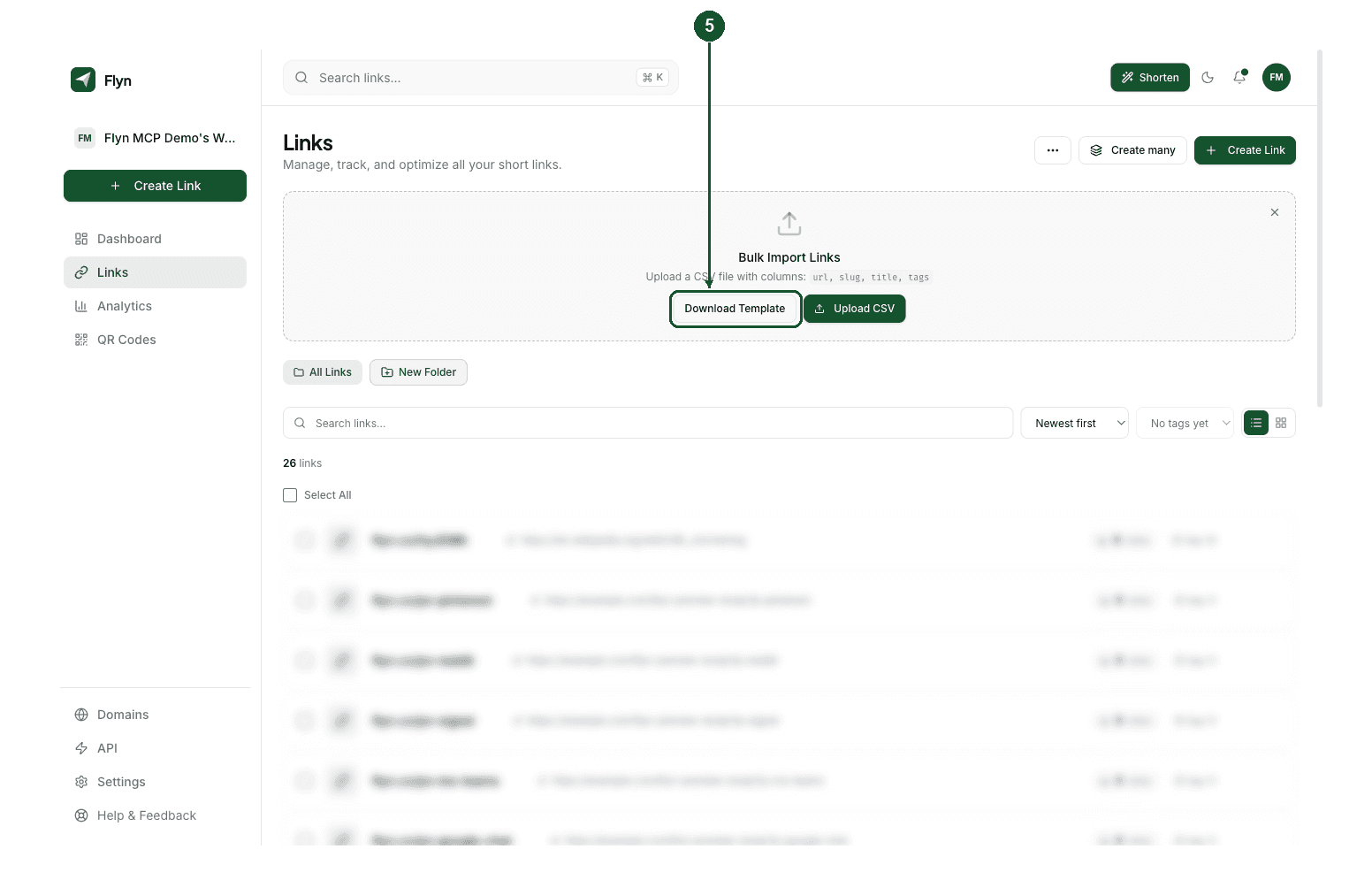
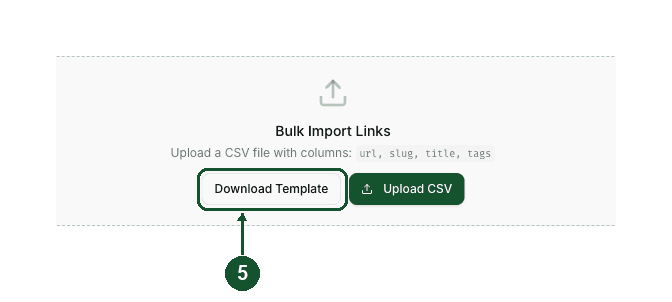
A panel with a dashed border, titled Bulk Import Links, appears above the folder chips. Its helper text reads Upload a CSV file with columns: url, slug, title, tags, and it has two buttons, Download Template and Upload CSV. The X in its top right corner closes it without importing anything.
Step 5: click Download Template
Click Download Template. Your browser saves a file named flyn-import-template.csv: a header row and two sample rows. The same file is available here as flyn-import-template.csv.
Step 6: fill it in Google Sheets or Excel, then save it as CSV
Open the template in Google Sheets or Excel. Keep the header row, delete the two sample rows, and put one destination per row under url. Add a slug, a title and tags where you want them and leave the rest empty. A finished file looks like this:
url,slug,title,tags
https://example.com/spring-sale,acme-spring-sale,Spring sale landing page,campaign;email
https://example.com/pricing,,Pricing page,web
https://example.com/blog/launch,,Launch post,
Then download it as comma-separated values. In Google Sheets choose File, Download, Comma-separated values (.csv); it downloads the sheet tab you have open. In Excel use File, Save As and pick a comma-delimited CSV format, such as CSV UTF-8 (Comma delimited). An .xlsx workbook cannot be uploaded.
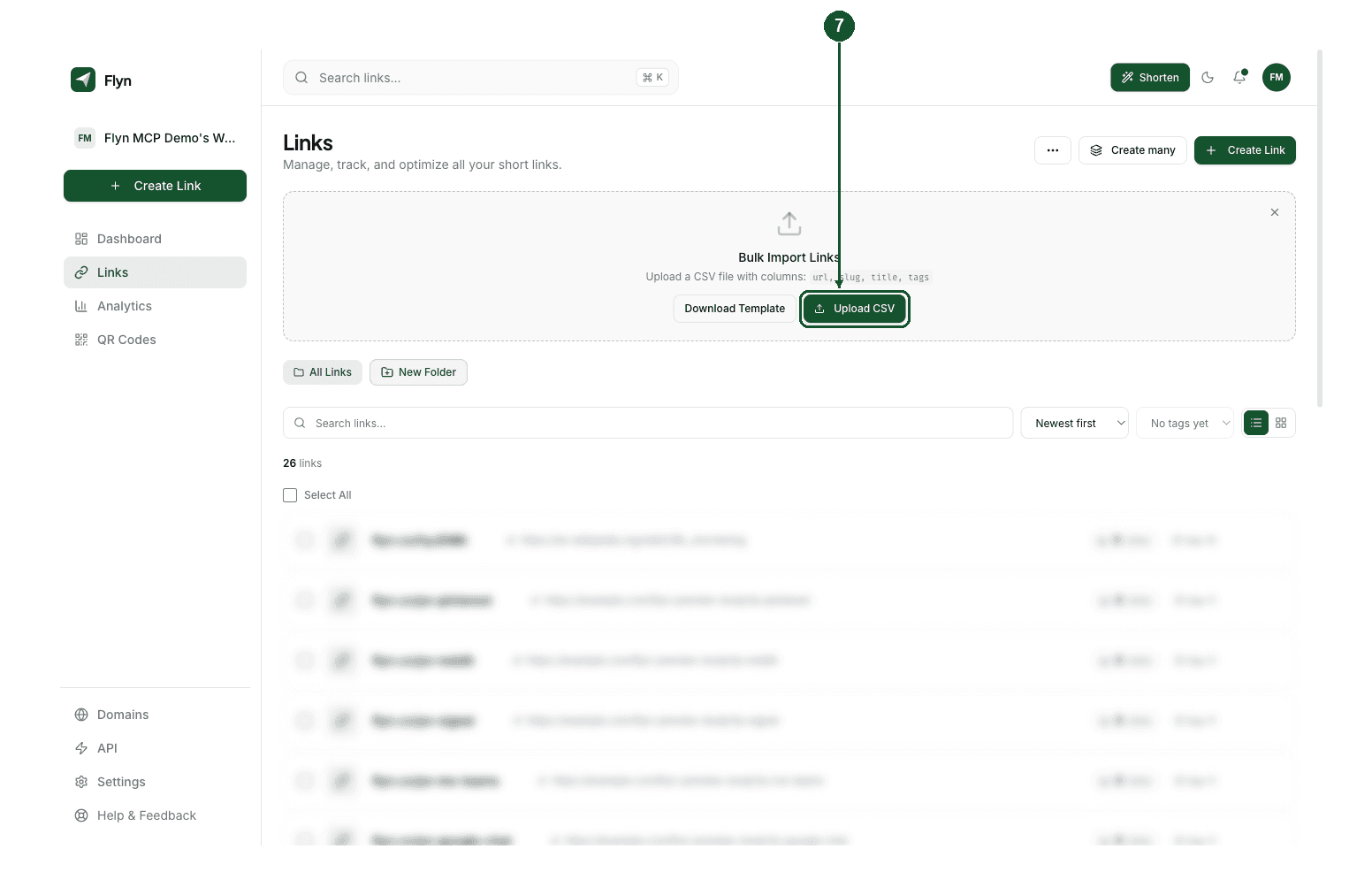
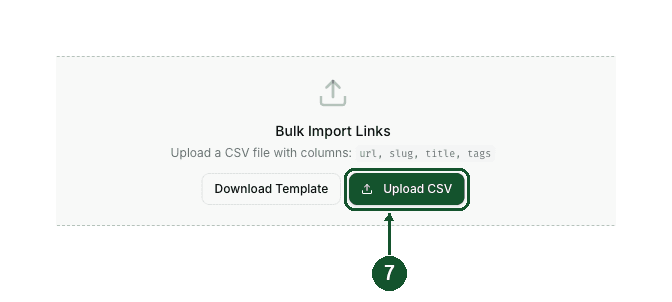
Step 7: click Upload CSV and choose the file
Back in the Bulk Import Links panel, click Upload CSV and pick your file. The import starts as soon as you choose it: there is no preview, column mapping or confirm step. While it runs, the button reads Importing... with a spinner, and there is no progress counter. Keep the tab open until it finishes.
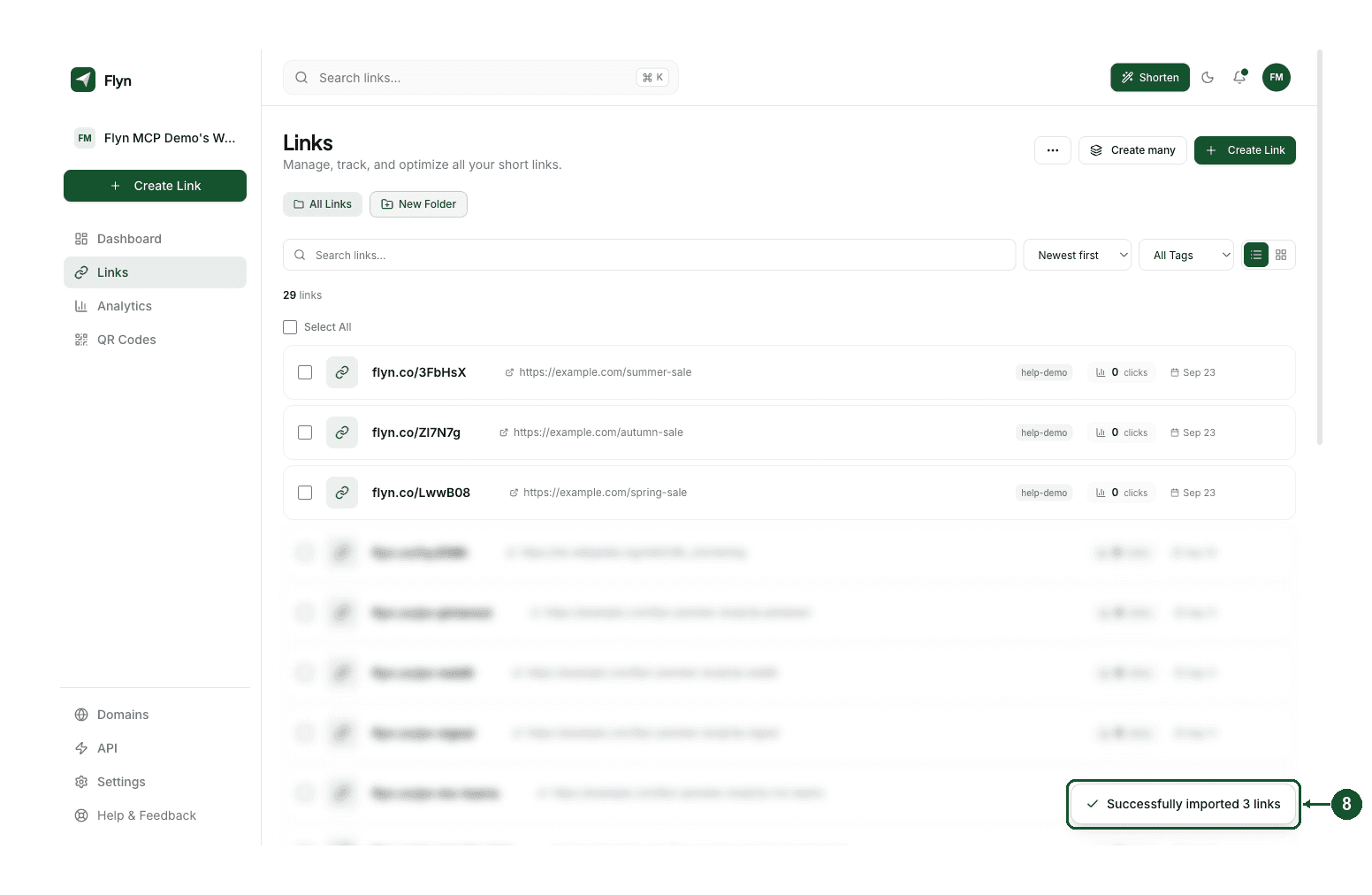
Step 8: read the result message
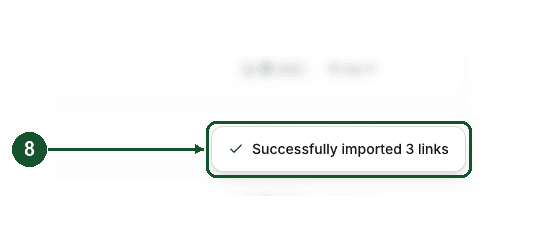
When the import finishes, one message appears at the bottom right for a few seconds, the panel closes, and, if any links were created, the list refreshes to show them. When rows were processed, the message is one of these (messages that refuse the whole file are listed under What the file must look like):
- Successfully imported 120 links: every row worked.
- Imported 118 links, 2 failed (Row 7: That short link is already taken on this domain. Try a different slug. +1 more): some rows failed. This message is green like a success, and it names only one failed row: the first row with an empty url if there is one, otherwise the first row that failed.
- Import failed: Row 2: That short link is already taken on this domain. Try a different slug.: no link was created, and the message names one failed row, chosen the same way.
Row numbers count the header as row 1, so they match your spreadsheet's row numbers as long as the file has no blank lines and no line breaks inside cells.
What the file must look like
The template is exactly these three lines:
url,slug,title,tags
https://example.com,my-link,Example Link,marketing;social
https://another.com,,Another Link,product
- A header row first, with these names. Flyn reads four columns: url, slug, title and tags. Capital letters and extra spaces in the names are fine, and the order of the columns does not matter. Any other column is ignored, and other names for the same thing, such as destination, link or tag, are not recognised. A file with no column named url is refused with CSV must have a "url" column.
- url is required. One destination per row. A row with an empty url cell fails as empty URL. A file with only the header row is refused with CSV must have a header and at least one row, and one whose url cells are all empty with No valid rows found in CSV.
- slug, title and tags are optional. Leave a cell empty to skip it. A row without a slug gets a random one.
- Separate tags with semicolons, as in marketing;social. A comma does not separate tags.
- Comma-delimited only. Depending on the computer's region settings, Excel can save "CSV" files with semicolons between the columns, and a tab-separated file behaves the same way: both are refused with CSV must have a "url" column. If your Excel does this, open the file in Google Sheets and download the CSV from there, which always uses commas. A UTF-8 file from Excel (CSV UTF-8) is fine as long as its columns are separated by commas.
- A .csv file, not .xlsx. The upload only accepts .csv files, so save a workbook as CSV first. If the file cannot be read at all, the message instead starts with Failed to parse CSV, followed by the reason.
- No line breaks inside a cell. A cell that contains a line break is split into two rows: the first is created with the cell cut off, and the second half can become a junk link. Remove line breaks from cells before you save. Commas inside a cell are fine, because Google Sheets and Excel wrap such a cell in quotes when they save the CSV.
- Delete the two sample rows. The sample slug my-link is very likely taken already, so that row would fail, and the other sample row would create a real link to another.com.
- Slugs: letters, numbers, hyphens and underscores only. The import does not check slugs the way the Create Link form does. Stick to those characters, and avoid slugs that match a Flyn page, such as pricing or blog: they are created but do not redirect.
What happens to each row
- Domain. Every link is created on Flyn's default short domain. The import has no domain column or picker, so it never uses a custom domain, even if you have one connected. To make links on your own domain, use Create Link and choose the domain there, or use the API described below.
- Folder. None. New links appear under All Links, even if a folder is selected when you import.
- Workspace. Links are created in the workspace that is active when you upload, the one selected in the workspace switcher in the sidebar. If you belong to a team, switch to the right workspace before you import. You are recorded as the creator of each link.
- Safety check. Each destination goes through the same safety check as a link you create by hand. A refused row fails with the reason, for example Cannot shorten Flyn URLs for a destination that is itself a Flyn link. A link that passes can still be disabled shortly afterwards if a follow-up scan of the page finds a problem, see Why is my short link disabled or not working?.
- https:// is added when missing. A url such as www.example.com/page becomes https://www.example.com/page.
- Duplicates. Flyn does not merge duplicate destinations: two rows with the same url make two separate short links. Slugs must be unique on the domain, so a second row with the same slug, or a slug that is already in use on that domain, fails with That short link is already taken on this domain. Try a different slug.
- Everything else is left at its default. The import sets the destination, slug, title and tags only. Add an expiry date, password, routing, notes or other settings by opening a link afterwards. If you use webhooks, each imported link can send a link.create event to your own webhooks (not a teammate's), but a large import can outrun the rate limit on sending those events, and an event that is dropped is not retried.
After the import
- One message, one failure named. The result message names one failed row and counts the others: the first row with an empty url if there is one, otherwise the first row that failed. There is no downloadable error report.
- Created rows stay. A partly failed import is not rolled back. The rows that worked are live links.
- Retry only the failed rows. Uploading the same file again creates a second copy of every row without a slug, while every row with a slug fails as already taken. Put only the missing rows in a new file.
- Export CSV to get your short links. Open the three-dots menu again and click Export CSV. The file, named flyn-links- followed by the date, holds every link in the active team workspace, or in your personal workspace every link you created (including ones in teams), not just this import, and ignores any search, tag or folder filter on the page. Its columns are url,slug,domain,title,tags,clicks,status,created_at,notes, and it reads up to 10,000 links.
- Build the short URL yourself. The export has no column with the full short URL. A short link is the domain, a slash, then the slug, so in Google Sheets
="https://"&C2&"/"&B2rebuilds it from the exported domain and slug columns.
Limits
- No row cap. The import has no maximum number of rows or file size.
- New accounts: 500 links per 24 hours. For the first 7 days after you sign up, an account can create up to 500 links in any 24 hours, on every plan including Pro. Rows past that fail with New accounts can create up to 500 links per day. This limit lifts after your first week.
- Keep the tab open. The import runs in your browser, a few rows at a time. Closing or reloading the tab stops it partway, and there is no resume: the rows created so far stay, and the rest need a new file. Stay on the Links page until the result message appears.
On the free plan
Free accounts do not see the three-dots menu. In its place, a card under the toolbar reads CSV import/export and bulk operations, with a Pro badge, the text "CSV import, CSV export, and bulk link actions are included with Pro and Lifetime plans." and an Unlock Pro button that opens the upgrade options. Members of a paid team workspace get the import as well, through the Team plan.
On a free account, the Bulk URL Shortener is the bulk option. Paste a column of URLs from your sheet, one per line, and it shortens them together. It has its own limits:
- 10 URLs per batch. Extra lines are skipped. There are no slug, title or tag columns.
- One batch per day per browser.
- Links made without signing in last 24 hours, unless you sign up, or sign in, from the same browser before they expire, which moves them into your account, see Why did my free short link expire?. Links made while signed in go straight into your account and count toward the free plan's 25 links a month.
From Google Sheets
Flyn has no Google Sheets add-on. There are two ways to get a sheet of URLs into Flyn:
- Export the sheet as CSV and import it. Make sure the first row holds the header names url, slug, title and tags, then follow the steps above.
- Script it against the API. Apps Script, or any code, can call
POST /api/linksonce per row with an API key sent asAuthorization: Bearerfollowed by the key. No endpoint you can call with an API key takes a list of different URLs, so it is one link per request, and requests are rate limited, so space them out. You create API keys under Settings, API Keys, which needs Pro, Lifetime or Team. The request fields are documented under Links, and the full OpenAPI spec is at /docs/openapi. Unlike the CSV import, the API accepts a domain field, so a script can put links on a custom domain you have added to Flyn.
For a comparison of the spreadsheet approaches, see Bulk Shorten URLs From a Spreadsheet: CSV vs Formulas.
Many links for one destination
If you need many different short links that all go to the same page, one per ad, pin or partner, you do not need a CSV. The Create many button on the Links page makes 2 to 50 links for a single destination in one step, each with its own click count, on Pro, Lifetime or Team. See Create Many Links for how it works.
If an import fails in a way this page does not explain, email [email protected] with the exact message you saw and the first few rows of your file.
Common questions
Can I import links from a CSV on the free plan?
No. CSV import and CSV export are included with Pro, Lifetime and Team, and on a free account the Links page shows a card with an Unlock Pro button instead of the import menu. For a small batch, paste up to 10 URLs, one per line, into the free Bulk URL Shortener at /bulk-url-shortener. It takes one batch per day per browser. Links made there without signing in expire after 24 hours unless you sign up or sign in from the same browser first.
Can a CSV import put links on my custom domain?
No. Every imported row is created on Flyn's default short domain. The file has no domain column that Flyn reads, and the import panel has no domain picker, so a custom domain is never applied, even when one is connected to your account. To create links on your own domain, use Create Link and choose the domain there, or create them through the API, whose domain field accepts a custom domain you have added to Flyn.
Several rows failed but the message names only one. How do I find the others?
The message after an import names only one failed row and counts the rest: the first row with an empty url if there is one, otherwise the first row that failed. Rows that were created stay created. To find the others, open the three-dots menu, click Export CSV and compare the url column with your sheet. Then upload a file that holds only the missing rows. Re-uploading the whole file creates a second copy of every row that has no slug, and rows that have a slug fail as already taken.
How do I get the new short links back into my spreadsheet?
Open the three-dots menu on the Links page and click Export CSV. In a team workspace the file lists every link in that workspace, and in your personal workspace it lists every link you created, including links you made inside teams. Either way it holds more than the links you just imported. Its columns are url, slug, domain, title, tags, clicks, status, created_at and notes. There is no column with the full short URL: a short link is the domain, a slash, then the slug. In Google Sheets, a formula such as ="https://"&C2&"/"&B2 rebuilds it on each row.
Is there a limit on how many rows one CSV can have?
The import has no row cap. Two things still limit a very large file. Accounts in their first 7 days can create up to 500 links in 24 hours on any plan, Pro included, and rows past that fail with a message saying so. The import also runs inside your browser a few rows at a time, so the tab has to stay open until the result message appears. Closing it stops the import partway, and the rows already created stay.
Related articles
Did this answer it? If not, email [email protected] and a human will help.
Try it yourself
Create a branded, trackable short link free and follow along with this guide.