How do I download the QR code for my short link?
Steps verified on August 3, 2026
Every link in your Flyn account comes with a ready-made QR code. Downloading it takes two steps.
Step 1: open the link's details
Open Links in your dashboard and click the pencil icon on the link's row (it appears when your cursor is over the row). The link's details panel slides open.

Step 2: download the code
Scroll the panel to the QR Code section and click Download. A PNG named after your link's slug saves to your device.
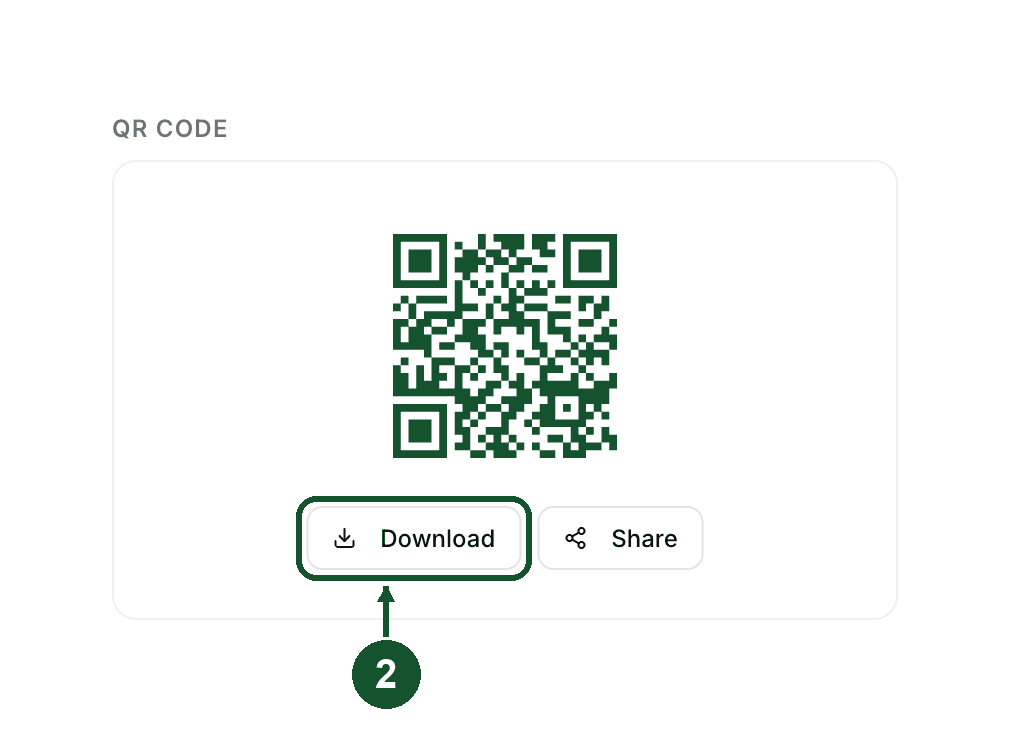
The Share button next to it opens your device's share sheet with the image, or copies the short link on browsers without one. You also see a scannable preview of the code right after creating a link.
Customize the code in the QR editor
The QR Codes page in the dashboard sidebar is a full editor:
- Pick a content type. Link, text, and WiFi codes are on every plan; vCard, email, call, and SMS codes come with Pro.
- Fill in the content, then set the size from 128 up to 512 pixels. The standard Flyn green look is free; picking custom foreground and background colors, or a preset beyond the default, is part of Pro, and the editor warns you if two colors sit too close together for scanners to read.
- Download PNG saves the finished code on any plan, SVG export comes with Pro, and Share sends it straight from your phone.
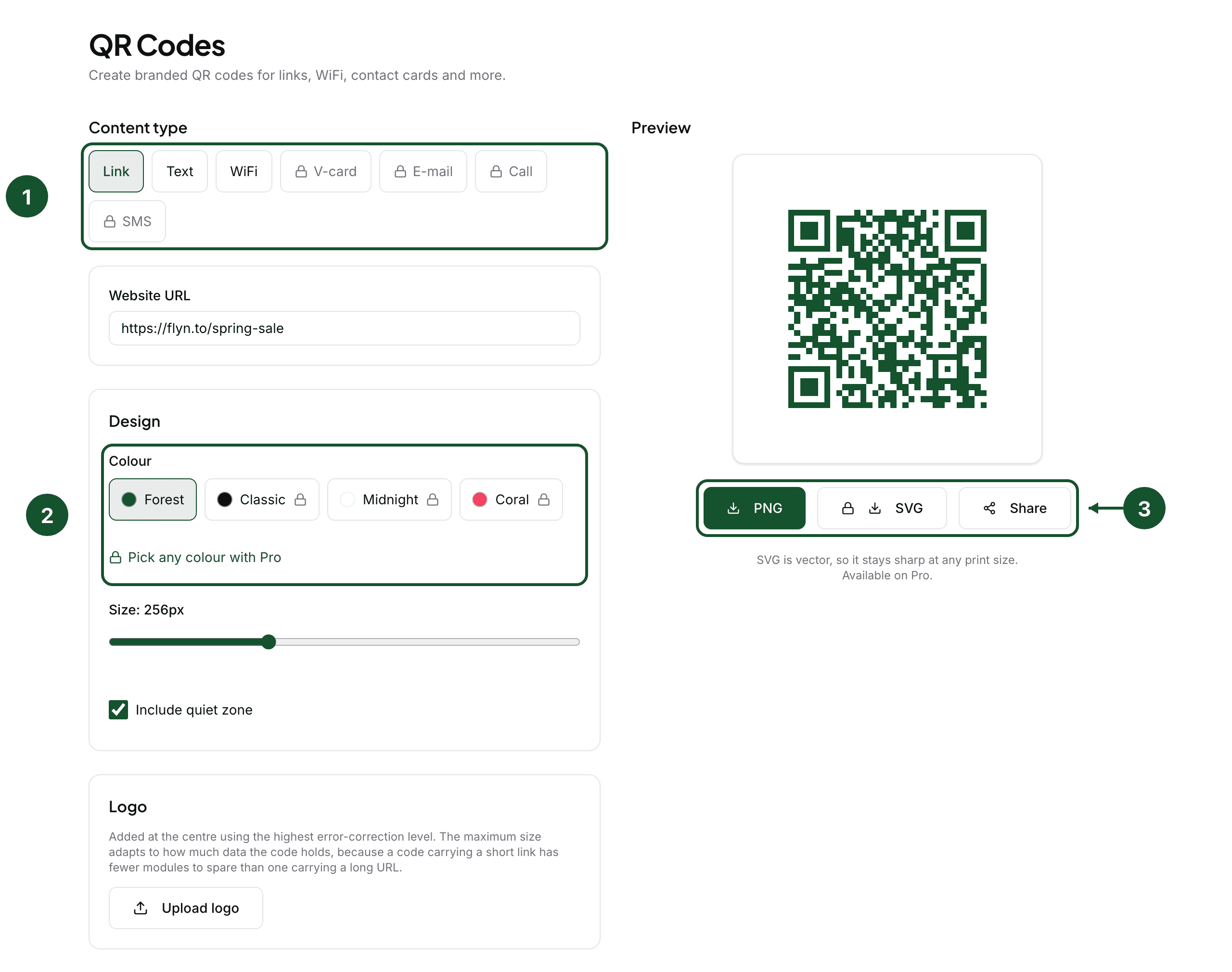
You can also upload a logo for the center of the code on any plan. The editor uses Level H (high) error correction and automatically caps the logo's size against the code's real capacity, so a centered logo does not stop the code from scanning.
The QR code button next to a shortened link works the same way everywhere: the standard Flyn green code is free for everyone, and the other color presets are a Pro feature.
Why the code survives destination edits
Flyn QR codes encode the short link itself, not the destination URL. When someone scans the code, they open the short link and Flyn redirects them. That has three useful consequences:
- You can edit the destination at any time (open the link's details and change the Destination URL). Every printed code follows the new destination on the next scan, with nothing to reprint.
- Every scan is recorded as a click on the link, so your click counts include QR traffic.
- The code keeps working as long as the link redirects. Links in your account are never deactivated over plans or billing, so a printed code does not die with a subscription change. It stops only if you delete the link, if an expiry date or click limit you set on it runs out, or if the safety system disables a link pointing somewhere unsafe.
No account? Use the free generator
The QR code generator works without signing in and downloads both PNG and SVG. Codes made there encode your content directly (URLs, text, WiFi, vCards, and more), so they never expire, but they also cannot be re-pointed once printed. Tools that create an anonymous short link for you, like the dynamic QR code generator, give you a re-pointable code, but the anonymous link behind it expires after 24 hours; claim it into a free account to keep it and edit its destination. For anything you plan to print, create the link while signed in.
If a downloaded code will not scan, or you are not sure which of these surfaces fits your case, email [email protected] with the exact short link.
Common questions
Do I need to reprint my QR code if I change the link's destination?
No. The QR code encodes your short link, not the destination, so you can edit where the link points at any time and every printed code follows the new destination on the next scan. The code stops working only if the link itself stops redirecting, for example if you delete it or if an expiry date or click limit you set on it runs out.
Do QR code scans show up in my analytics?
Yes. Each scan opens your short link, so it is recorded as a click. Click counts are included on every plan; country, device, and referrer breakdowns are part of Pro.
Can I create a QR code without a Flyn account?
Yes. The free QR code generator at flyn.to/qr-code-generator works without an account, and its codes never expire because they encode your content directly. The trade-off is that a static code cannot be re-pointed later; the dynamic QR code generator instead creates an anonymous short link for you, and that link expires after 24 hours unless you claim it into an account.
Related articles
Did this answer it? If not, email [email protected] and a human will help.
Try it yourself
Create a branded, trackable short link free and follow along with this guide.