How do I password protect a short link?
Steps verified on July 31, 2026
Password protection puts a gate in front of a short link: visitors must enter the password you chose before Flyn redirects them to the destination. It is a Pro feature, included on all paid plans, and takes under a minute to set up.
Add a password to a new link
Step 1: open the link creator
In your dashboard, open Links and click Create Link in the top right corner.

Step 2: set the password
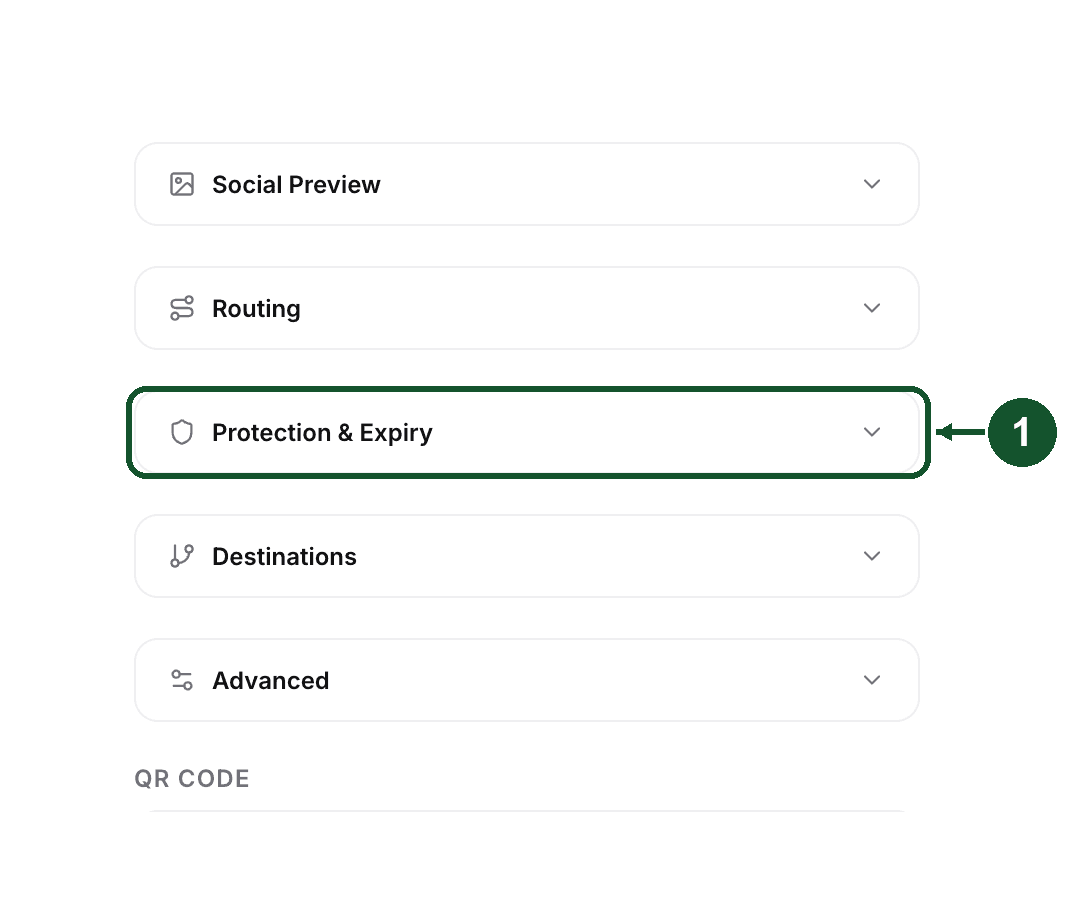
Enter your destination URL, open the Protection & Expiry tab, next to Routing near the top of the form.
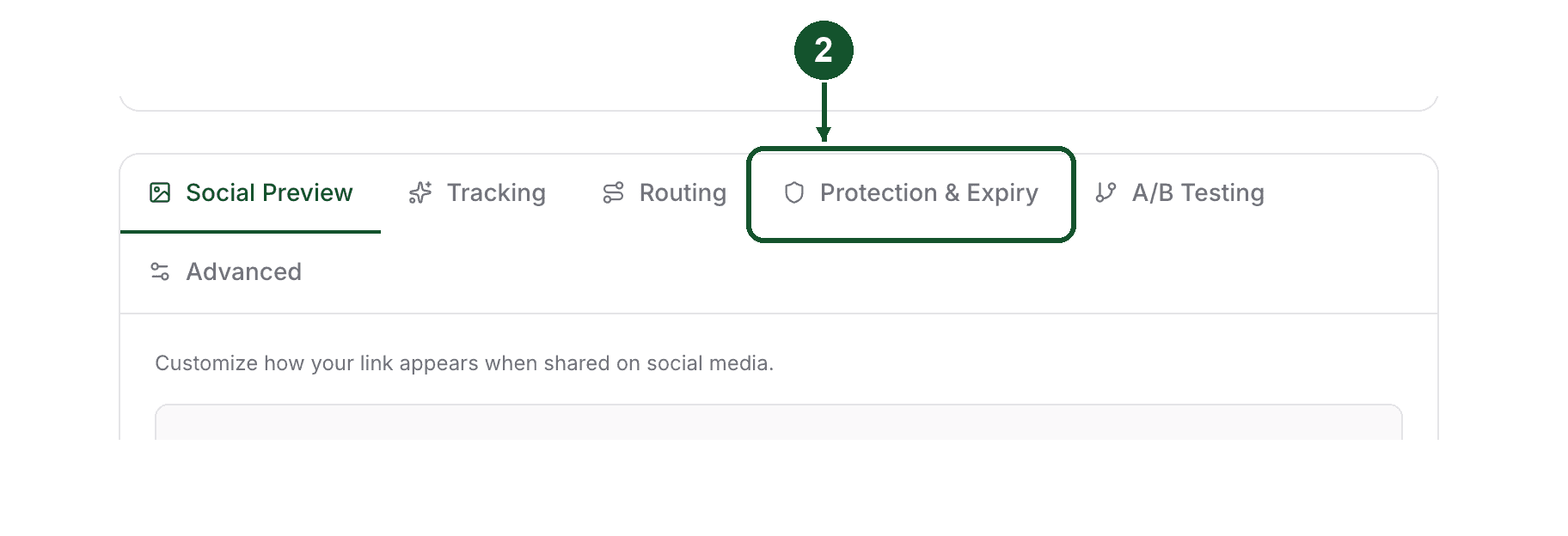
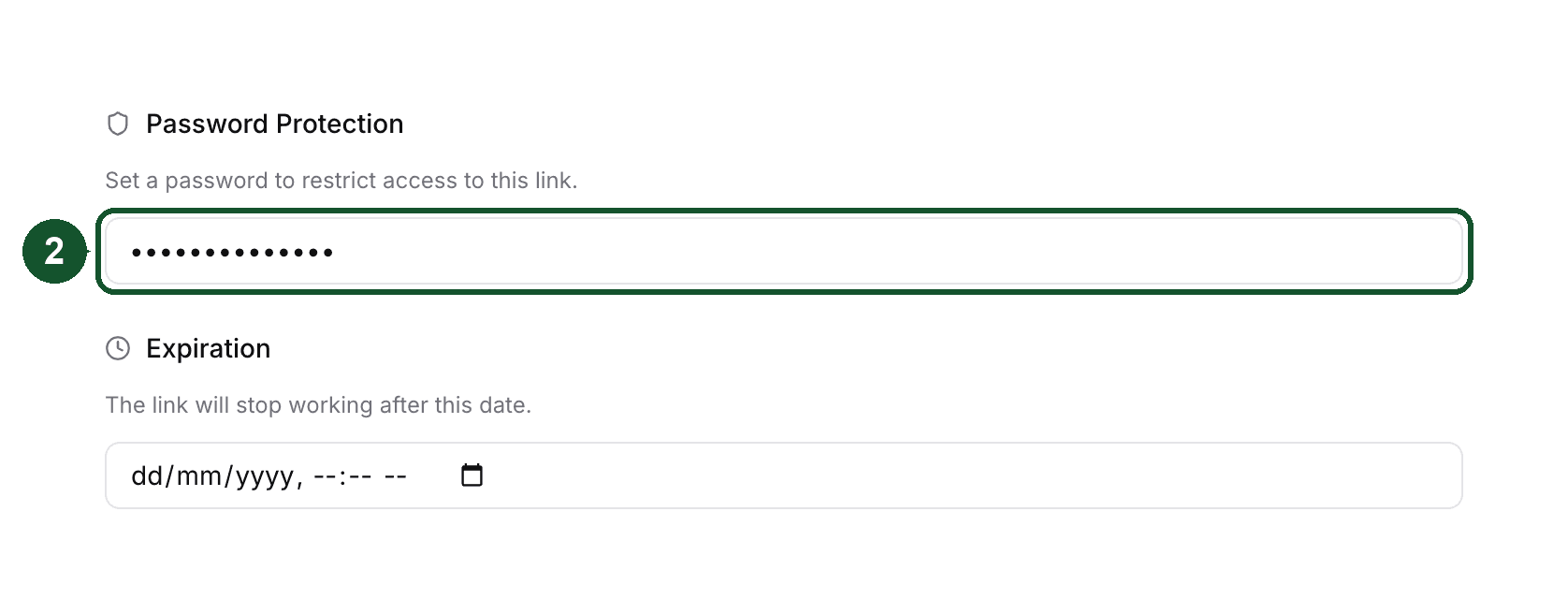
Type a password in the Password Protection field. The same section also holds the optional expiration date.
Step 3: create the link
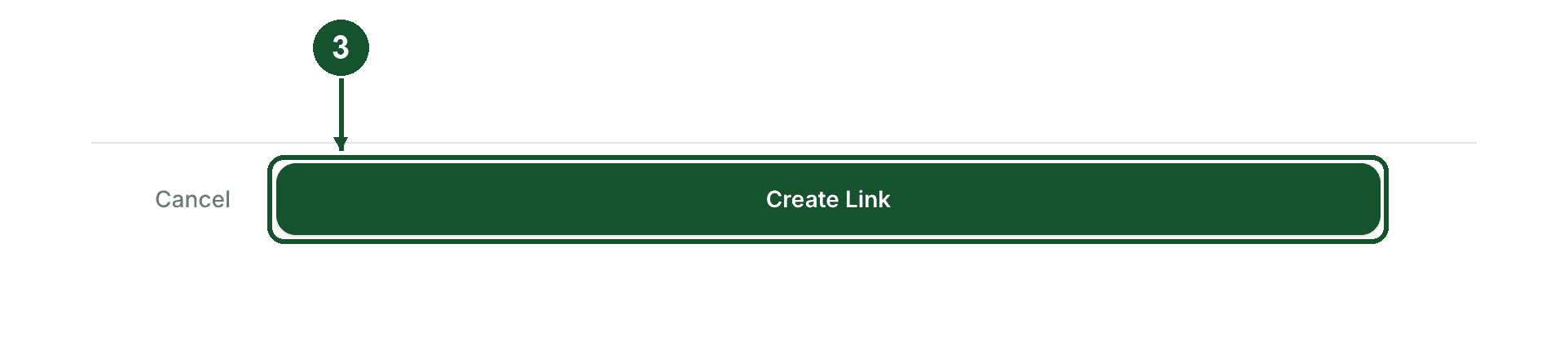
Click Create Link at the bottom of the form. The password takes effect the moment the link exists.
To protect a link you already created, click the pencil icon on its row on your Links page.
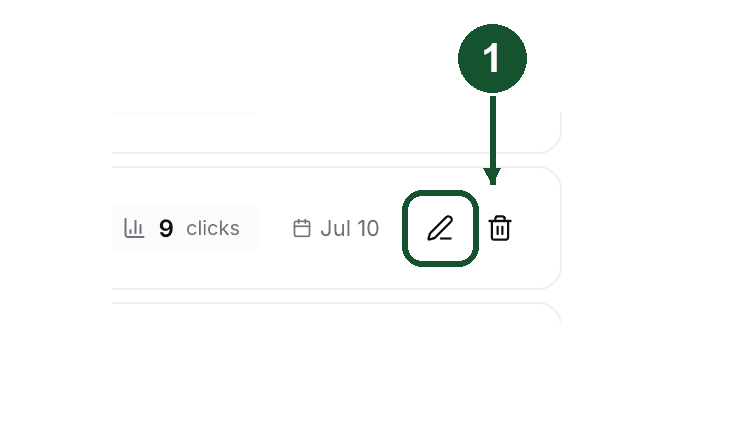
In the Link Details panel, scroll to the Protection & Expiry section, type a password, and save.
On a free plan the Protection tab shows password protection as locked with an upgrade prompt. Free links can still use expiration dates: only the password itself is Pro.
Change or remove a password
Passwords are write-only. Flyn stores only a bcrypt hash, so the editor never shows the current password, just a placeholder confirming one is set.
- Edit the link and scroll to the Protection & Expiry section.
- To change the password, type the new one and save.
- To remove it, clear the field and save. The editor warns you that the password will be removed.
What visitors see
A visitor who opens the link lands on a Flyn page explaining that the owner added a password, with a single password field and an unlock button. On the correct password they are redirected to the destination; query parameters they appended to your short link are carried through as long as Forward Query Parameters (on by default, in the link's Advanced tab) stays on. Each successful unlock is recorded as a click in your analytics.
The destination URL is not revealed before unlock. When the link is shared on social media, the preview shows a generic "Password Protected Link" card unless you set custom social preview fields on the link, in which case your custom title, description, and image are used.
Wrong passwords and brute force
Two protections run automatically:
- Each visitor gets 5 password attempts per minute.
- Too many failed attempts on the same link, even from different networks, temporarily lock that link for everyone. The lock expires on its own.
A disabled or expired link shows an error instead of the password gate, so a protected link that has expired never accepts a password. See Why is my short link disabled or not working? if yours stopped working.
Trying it without an account
The free password-protected link generator creates a working protected link with no sign-up, as a preview: those anonymous links self-destruct after 3 hours. Protected links created in a paid account have no such timer and are never deactivated over plans or billing.
Stuck, or locked out of your own link? Email [email protected] and include the exact short link.
Common questions
Is password protection free on Flyn?
No. Password protection is a Pro feature, included on all paid plans. You can try it without an account using the free password-protected link generator, but those anonymous links expire after 3 hours. Protected links created in a paid account are never deactivated over plans or billing.
Can I see the password already set on a link?
No. Passwords are stored only as bcrypt hashes, so they can never be displayed again. To change one, type a new password in the link's Protection & Expiry settings and save. To remove it, clear the field and save.
What happens when someone enters the wrong password repeatedly?
Flyn limits each visitor to 5 attempts per minute, and too many failed attempts on the same link put it in a temporary lock for everyone. The lock clears on its own after a short cooldown, and the correct password works normally again.
Related articles
Did this answer it? If not, email [email protected] and a human will help.
Try it yourself
Create a branded, trackable short link free and follow along with this guide.