How do I invite my team to Flyn?
Steps verified on July 31, 2026
You invite teammates from Settings, then the Team tab. Team workspaces are part of the Pro plan. Your Pro subscription covers your own seat plus 2 teammates, so a workspace of 3 costs nothing extra. Every person after that is $4 per month: your first extra seat starts a monthly seat subscription, and seats you add later are prorated. On the lifetime deal the seat covered is your own, so teammates are $4 per month from the first one.
When every seat is taken, add a seat from the Seats panel on the Team tab, then send the invitation within a day. A pending invitation keeps its seat until your teammate accepts. A paid seat with no member and no pending invitation, because the invitation was never sent or was revoked, declined, or expired, is released automatically once a day has passed since you last bought or changed seats. Extra seats come off your bill. Your last paid seat runs to the end of the period you paid for and then stops renewing. While a seat is set to end it cannot take a new invitation, so click Keep my seat in the Seats panel first.
Send an invitation
Step 1: open the Team tab
Open Settings and select Team in the settings menu.
Step 2: click Invite Member
Only the team owner and admins see this button.

Steps 3 to 5: email, role, send
Enter your teammate's email address (3), choose a role (4): Admin, Member, or Viewer (the Owner role cannot be assigned, there is one owner per team), then click Send Invite (5).

Your teammate receives an invitation email from Flyn (sent from [email protected]) with a link to join. The invitation expires after 7 days; after that you need to send a new one.
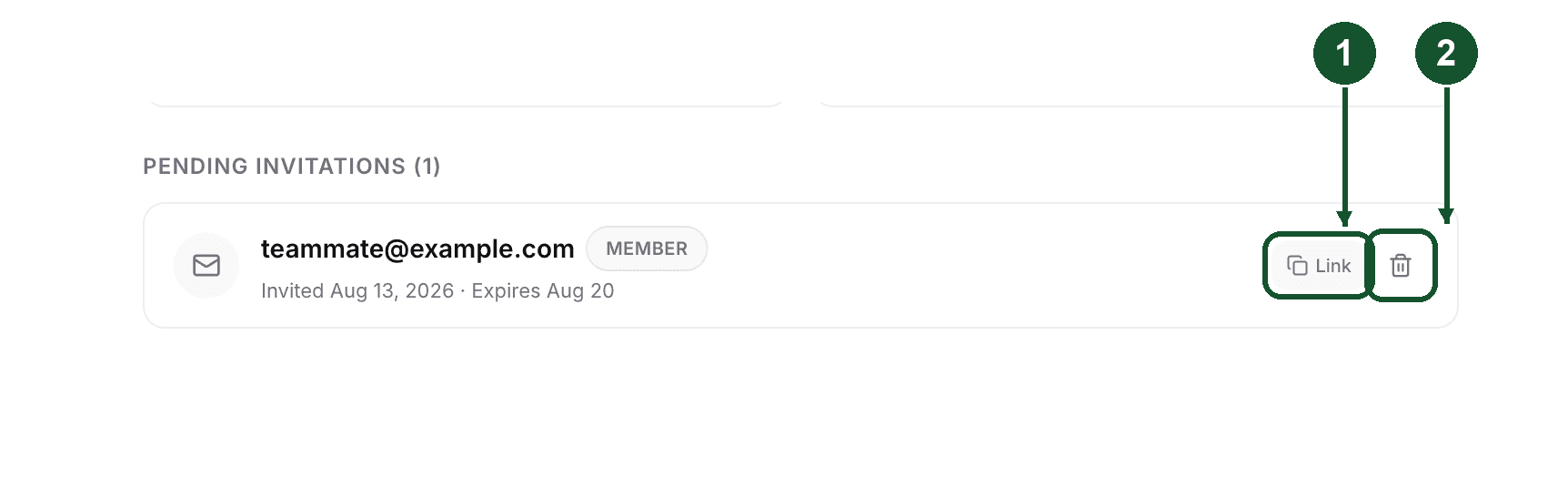
If the email does not arrive, open Pending Invitations at the bottom of the Team tab and use the Link button (1) to copy the invite link, then share it directly. You can also revoke a pending invitation (2) from the same list.
Accepting the invite
Your teammate opens the link and signs in, or creates a Flyn account first. One rule trips people up: they must sign in with the same email address the invitation was sent to. This is a security check, so an invite link forwarded to someone else, or opened under a personal account instead of a work one, is rejected. If your teammate uses a different address, revoke the invite and straight away send a new one to the address they actually sign in with, so the seat it held is not released in between.
What each role can do
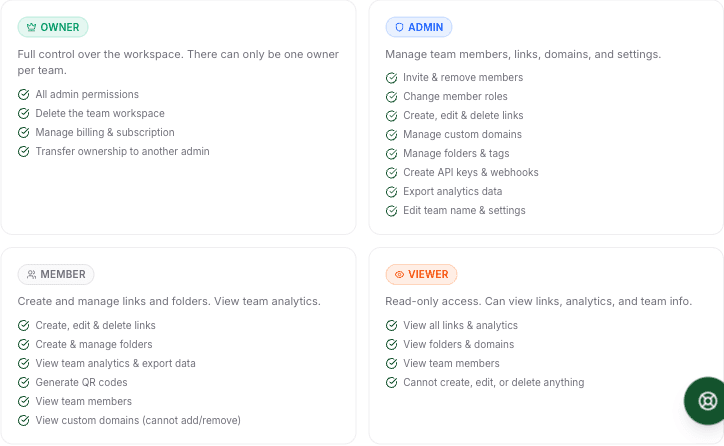
- Owner: everything, plus billing, deleting the team, and transferring ownership. One per team.
- Admin: invite and remove members, change roles, manage links, custom domains, folders, and team settings.
- Member: create, edit, and delete links and folders, and view team analytics.
- Viewer: read-only access to links, analytics, folders, and domains.
The owner and admins can change a member's role or remove a member from the Team tab, with two limits: only the owner can change or remove another admin, and nobody can change or remove the owner.
What your team shares
Everyone in the workspace works from the same pool of links, custom domains, folders, and analytics, filtered by what their role allows. Retargeting pixels are shared too: teammates whose role lets them edit links can see and attach any of the team's pixels, but only the person who created a pixel can edit or delete it.
Links belong to the workspace, and like all account links they are never deactivated over plans or billing.
If an invitation keeps failing or a seat charge looks wrong, email [email protected] with the teammate's email address and we will look it up directly.
Common questions
How much does adding a team member cost?
Nothing for your first 2 teammates on Pro. Your Pro subscription covers your own seat plus 2 teammates, and each teammate after that is $4 per month. On the lifetime deal your own seat is covered and each teammate is $4 per month from the first one. Your first extra seat starts a monthly seat subscription, and seats you add after that are prorated. Team workspaces need Pro or the lifetime deal, so the free plan cannot add seats.
Why can't my teammate accept the invitation?
They must be signed in to Flyn with the exact email address the invitation was sent to. An invite opened while signed in with a different email is rejected on purpose. Invitations also expire after 7 days, so an old link may need to be re-sent.
Can I change someone's role after they join?
Yes. The owner can change any member's role between Admin, Member, and Viewer from the Team tab, or remove them. Admins can do the same for members and viewers, but only the owner can change or remove another admin. The Owner role itself cannot be assigned this way.
Related articles
Did this answer it? If not, email [email protected] and a human will help.
Try it yourself
Create a branded, trackable short link free and follow along with this guide.