How do I set up conversion tracking on my short links?
Steps verified on July 31, 2026
Conversion tracking shows which of your short links produce signups and sales, not just clicks. It is available on Pro and Lifetime plans, and setup is two steps: flip a toggle on the link, then add one line of code to your website.
Step 1: turn it on for the link
Create a new link and open the Advanced tab, or edit an existing link from your dashboard. Flip the Conversion tracking toggle to On; on an existing link the change saves immediately.

Tracking is per link and off by default. Only links with the toggle on add a click id to your destination URL; every other link's destination stays untouched.
Step 2: add the tag to your site
As soon as the toggle is on, the panel shows the exact tag with a Copy button. Add it to every page of your website, once, in the head or before the closing body tag:
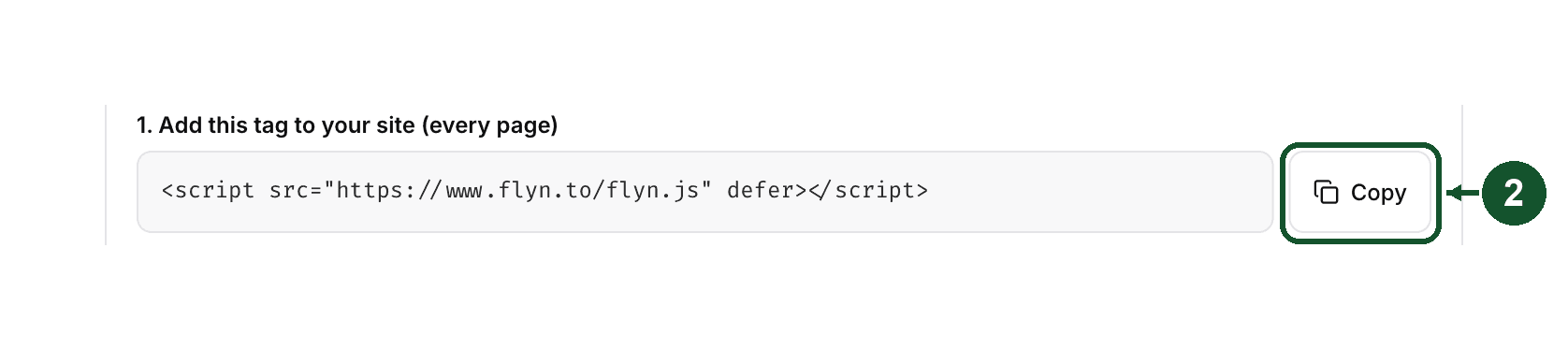
<script src="https://www.flyn.to/flyn.js" defer></script>
The tag is identical for every site, so there is no account id to configure. When someone clicks your tracked link, Flyn appends ?flyn_id=... to your destination URL; the tag stores that id in first-party storage and removes it from the address bar.
Step 3: mark the page that means "converted"
On the page a customer reaches after converting (a thank-you or order-complete page), use the panel's second tag instead:
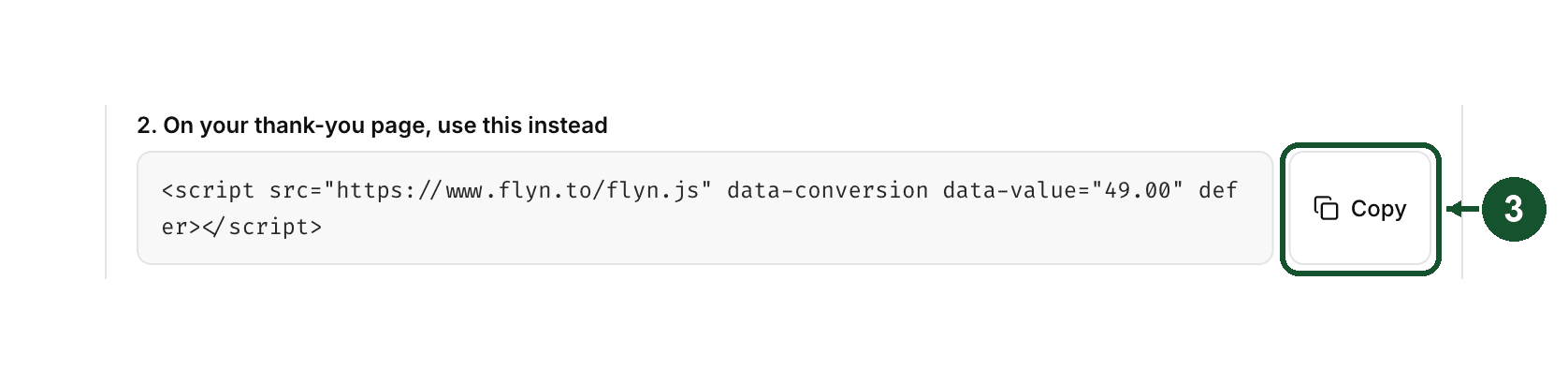
<script src="https://www.flyn.to/flyn.js" data-conversion data-value="49.00" defer></script>
Change data-value to the real order value, or drop it for goals without a value. If the value is only known at runtime, fire the conversion from code after the tag has loaded:
window.flyn('conversion', { value: 49.00, currency: 'USD', event: 'sale' })
Step 4: test it
Click your own short link, then complete the goal. The link's page shows "Listening for your first conversion" until the first one arrives, then the conversion count and total value.
Refunds and affiliate postbacks
A refund is a conversion with a negative value, and it must be sent under event=refund or its own txid. A refund that reuses the sale's event and txid counts as a duplicate and changes nothing.
Affiliate networks can skip the tag entirely and ping a server postback:
https://www.flyn.to/api/postback?click_id=REPLACE&value=OPTIONAL&event=OPTIONAL&txid=OPTIONAL
Swap REPLACE for your network's click-id macro. A repeat ping with the same txid is never double counted. The full parameter and status-code reference lives in the developer docs.
Good to know
- Conversions count against human clicks only, within 30 days of the click. Safari and iOS may shorten the browser tag's window to about 7 days; server postbacks are unaffected by browser storage, only by the 30 days.
- The tag is tiny (under 2 KB compressed), first-party, and stores no personal data.
- Not sure whether the feature fits your setup? The feature page covers what it does and who it is for.
Stuck on the setup? Email [email protected] with your short link and the page where you installed the tag, and we will check both ends.
Common questions
Is conversion tracking free on Flyn?
No. Conversion tracking is a Pro and Lifetime feature. Click counts are free on every plan; conversion tracking and the geo, device, and referrer breakdowns are Pro.
Why are my conversions not showing up?
Check that the link's Conversion tracking toggle is on, the flyn.js tag is on every page of your site, and the thank-you page uses the data-conversion variant. Conversions only count within 30 days of the click, and only for clicks Flyn counted as human.
How do I record a refund?
Send the same conversion with a negative value, under event=refund or its own txid. It subtracts from both the link's conversion count and its total value. A refund sent with the same event and txid as the sale is treated as a duplicate and changes nothing.
Related articles
Did this answer it? If not, email [email protected] and a human will help.
Try it yourself
Create a branded, trackable short link free and follow along with this guide.