How do I send visitors to different URLs by country or device?
Updated August 15, 2026
Routing rules are exceptions to the default destination, not a replacement for it. You set the link's Destination URL as usual, then add rules for the cases you want handled differently: iOS, Android, and specific countries. Visitors who do not match a rule land on the Destination URL. Smart routing is a Pro feature and lives under Routing in the link editor.
Start with the default destination
This is the part people miss. Rules cover the cases you list, and visitors who match none of them fall through to the link's Destination URL. That includes:
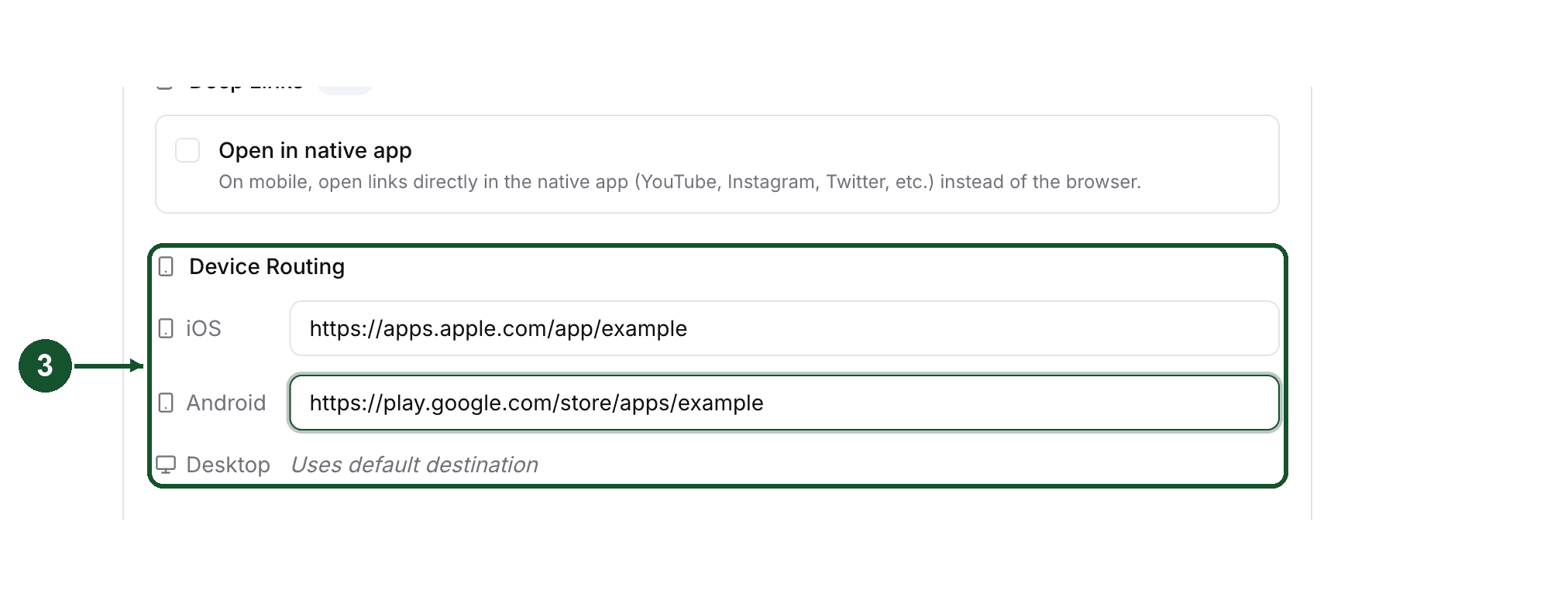
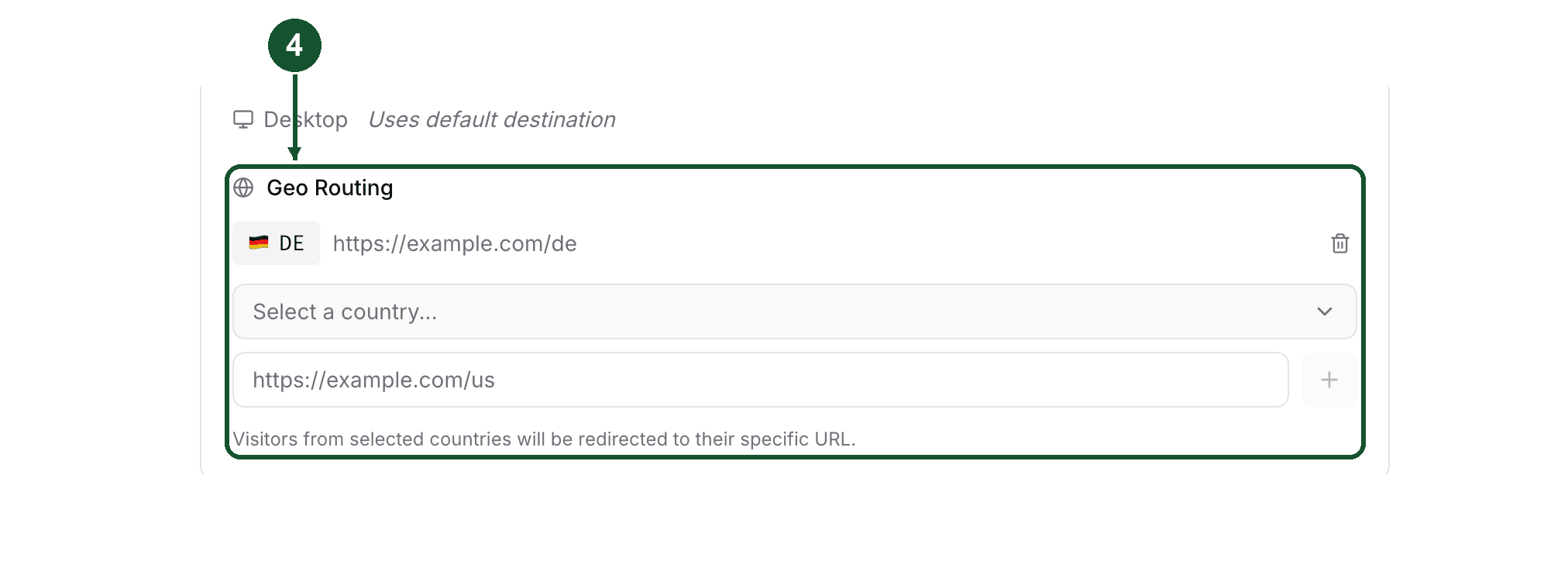
- Desktop visitors. Device Routing has an iOS field and an Android field, and the Desktop row reads "Uses default destination".
- Countries you did not add a rule for.
- Visitors whose country Flyn cannot determine at the network edge.
- User agents on Flyn's crawler list, such as the Slack, WhatsApp, LinkedIn and Telegram link previewers. Routing is skipped for them.
So put your general audience URL in Destination URL first, then layer rules on top.
Route a new link
Step 1: open the link creator
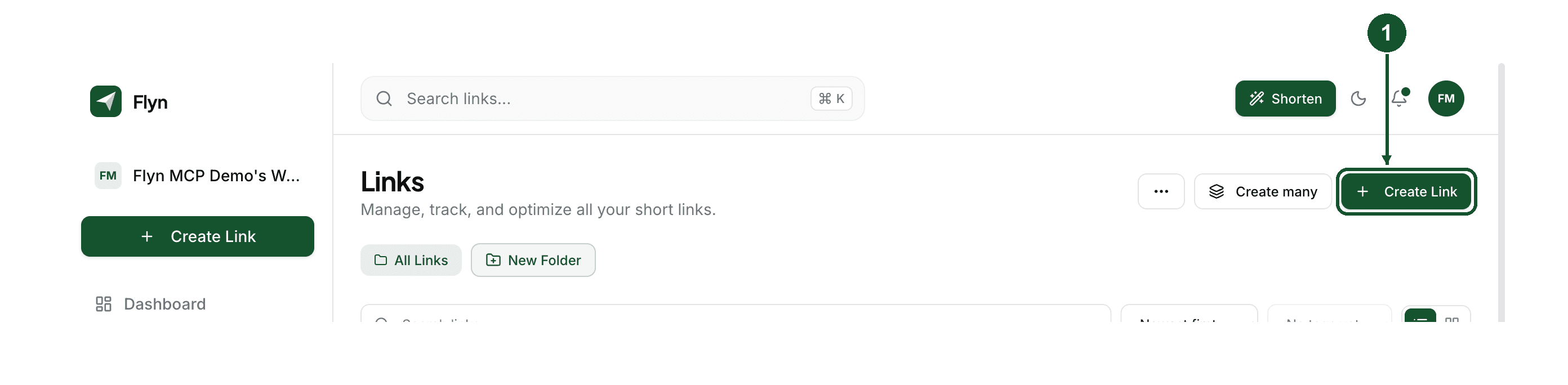
In your dashboard, open Links and click Create Link in the top right corner.
Step 2: set the default destination
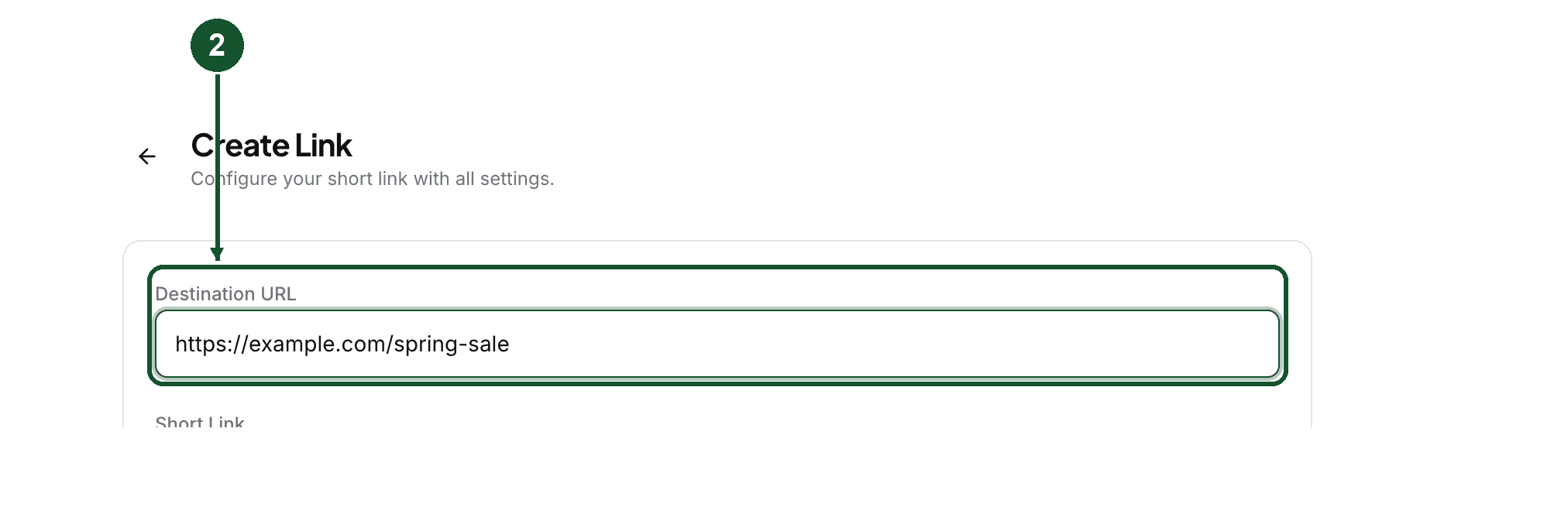
Enter the URL that everyone should get by default in Destination URL. This is your fallback for the whole link.
Step 3: add device rules
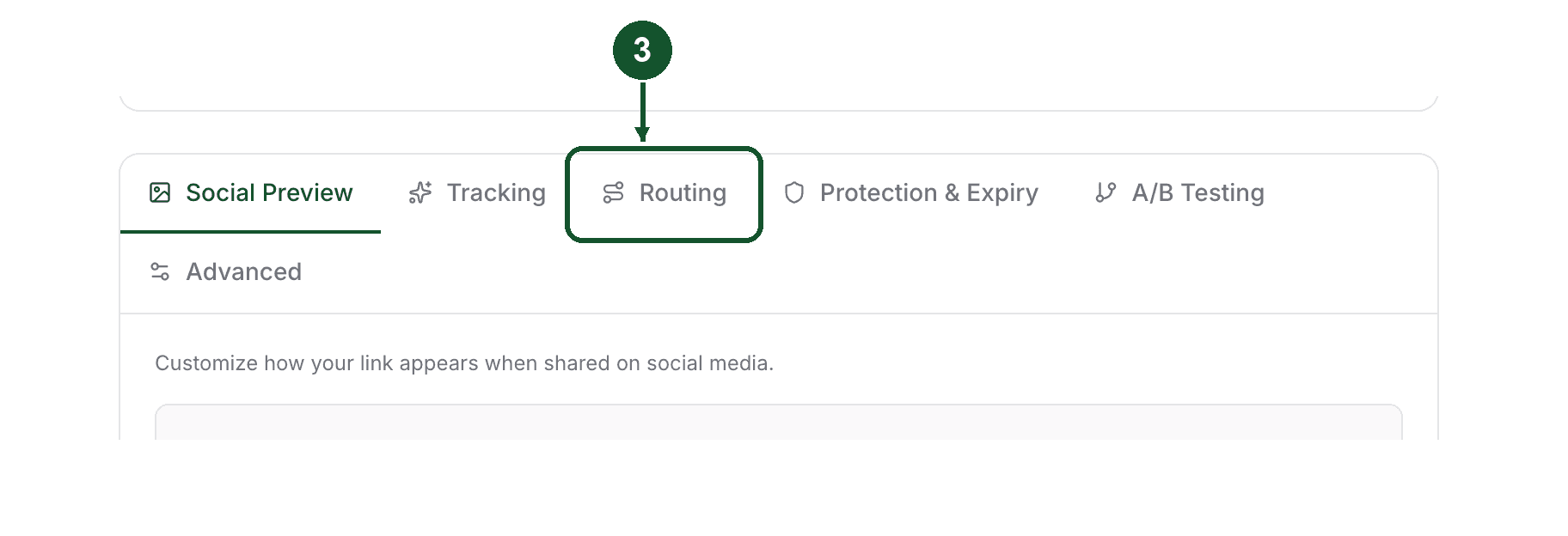
Open the Routing tab, next to Social Preview and Tracking near the top of the form.
Under Device Routing, put your App Store URL in the iOS field and your Play Store URL in the Android field. A blank field is simply not sent, so that platform is not matched by a device rule and falls through to whatever rule comes next (a country rule, then an A/B split, then the default destination), not straight to the default. See "Which rule wins" below before you leave a field blank.
Step 4: add country rules
Under Geo Routing, click Select a country... and pick a country (the dropdown has a search box), type that country's URL in the field below, then click the plus button. The saved rule appears as a row above the picker. Repeat for each country. A country you have already used drops out of the list.
Step 5: create the link
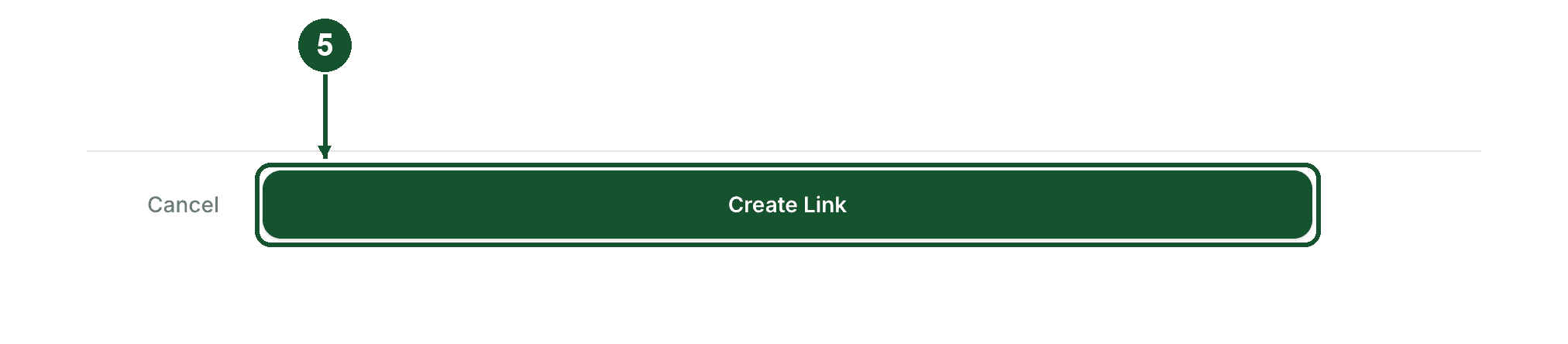
Click Create Link at the bottom of the form. The Routing tab carries an "On" badge once anything in that tab is set, including the Deep Links checkbox, so open the tab itself if you want to confirm which rules are filled in.
Add routing to a link you already have
- On the Links page, click the pencil icon on the link's row to open its detail panel.

- Scroll to the Routing section.

- Fill in iOS Redirect URL, Android Redirect URL, or click Add country rule and choose a country and a URL.
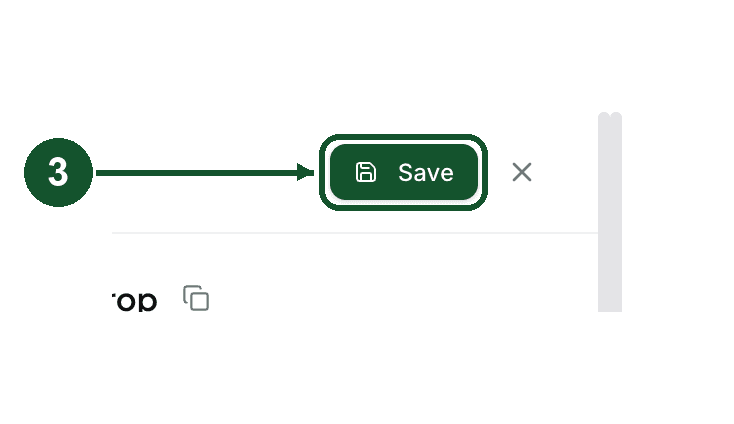
- Click Save. The button appears in the panel header once you change something.
Which rule wins
The order is fixed: device rules first, then country rules, then an A/B split if the link has one, then the default destination.
An example. The link has an iOS rule pointing at the App Store, an Android rule pointing at Google Play, and a Germany rule pointing at your German landing page.
- iPhone in Germany: App Store, because a device rule matched first.
- Desktop in Germany: your German landing page.
- Desktop in France: the default destination.
Routing is not A/B testing
These are different tabs answering different questions, and they get confused constantly.
- Routing is deterministic. A matching device or country gets the destination you assigned it, not a random one.
- A/B Testing is random. You add up to 12 destinations, each with a weight, and every click is drawn against those weights by chance.
They can coexist on one link: the split only runs for visitors that no routing rule matched. Use routing when a group of people should see a specific page. Use the A/B Testing tab when you want to spread the same audience across several pages, whether that is two pages you are comparing or a set you want to keep. See rotating a link between destinations.
Details worth knowing
- Country comes from the visitor's IP address as reported at the network edge, not from their browser language. A visitor on a VPN is routed by wherever that VPN exits.
- iOS and Android are detected from the user agent, with the browser's platform hint as a backup.
- The country picker lists 54 countries.
- Routing URLs go through the same safety scan as a normal destination when you save, and a URL that fails the scan blocks the save.
- Sending EU visitors to a different country version of a shop is regulated by the EU Geo-blocking Regulation. Are Geo-Redirects Legal in the EU? covers which country routing patterns are allowed.
- Command line tools like curl match the same bot list as link preview crawlers, so a plain curl test shows the default destination rather than a routed one. Test on a real device.
- The same section holds the Open in native app checkbox, shown as Deep Links in the edit panel. That is a separate Pro feature that opens supported links in the native mobile app instead of the browser, and device routing does not need it.
Check it is working
Open the short link on an iPhone and on an Android phone and confirm each lands where you expect. Country rules are harder to test from one desk: ask someone in that country to open the link, or check the Locations panel on your Analytics page, which breaks your clicks down by country and tells you whether a country is worth a rule at all. That breakdown is part of Pro analytics.
Rules saved but visitors still landing on the default? Email [email protected] with the exact short link, the device or country you tested from, and where you expected to land.
Common questions
Is routing by country or device free on Flyn?
No. Smart routing is a Pro feature. On a free plan the Routing tab of the link editor shows an upgrade prompt instead of the device and country fields, so you cannot set new rules. If a link already has routing rules from when the account was Pro, downgrading does not clear them, the redirect still applies those rules, it just locks the tab so you cannot see or edit them without upgrading again.
Where does a visitor go if no routing rule matches them?
To the link's default Destination URL. That covers desktop visitors, countries you did not write a rule for, and visitors whose country cannot be determined at the network edge. Routing rules sit on top of the default, so a visitor who matches nothing still gets a working link.
What happens if a visitor matches both a device rule and a country rule?
The device rule wins. Flyn checks device routing first, then geo routing, then any A/B split, then the default destination. Someone opening your link on an iPhone in Germany gets the iOS URL even when a Germany rule exists.
Is smart routing the same as A/B testing?
No. A/B testing splits traffic randomly across the destinations on the link, up to 12 of them, each with a weight you set, so the same person can land on a different one each time. Smart routing is deterministic, so a given device or country gets the URL you assigned it. Both are Pro, and on a link that uses both, the split only applies to visitors that no routing rule matched.
Related articles
Did this answer it? If not, email [email protected] and a human will help.
Try it yourself
Create a branded, trackable short link free and follow along with this guide.