How do I rotate one link between several destination URLs?
Steps verified on August 14, 2026
One short link can serve up to 12 destination URLs, each with a weight you choose. Every human visitor gets one of them, drawn at random in proportion to those weights. It is a Pro feature.
The editor has two names for one thing. On a new link it is the A/B Testing tab. On a link you already have it is the Destinations section of the edit panel. Two destinations is an A/B test, more than two is a rotation, and both are the same feature.
On a free plan you can still build a self hosted rotating page with the free link rotator, which splits traffic but reports nothing back. Hosted rotation with the click report needs Pro. For what rotation is and when it beats an A/B test, see what link rotation is.
Set up a rotation on a new link
Step 1: open the link creator
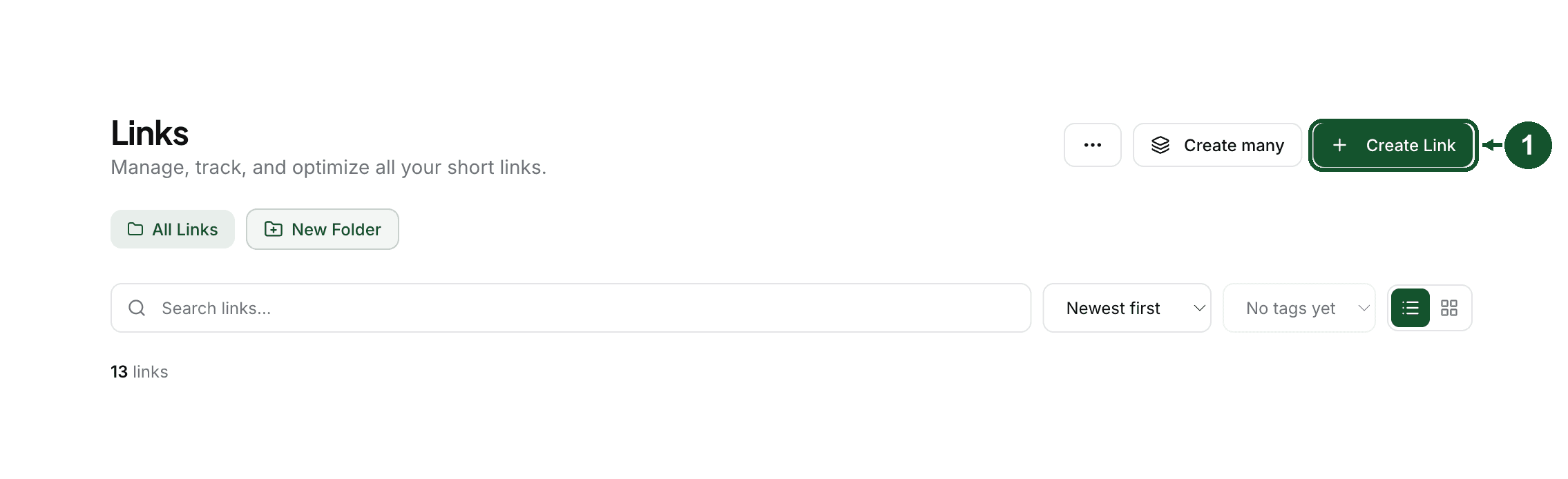
In your dashboard, open Links and click Create Link in the top right corner. The Create Link button in the sidebar takes you to the same form.
Step 2: enter your first destination
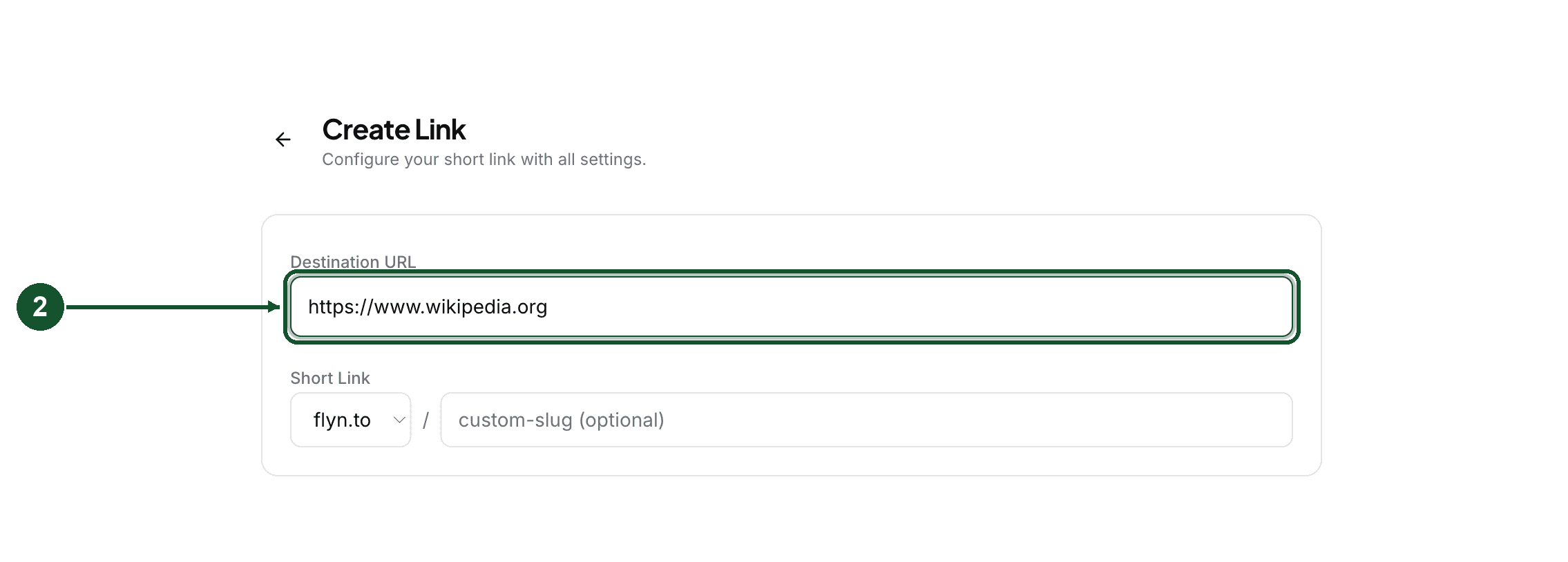
Put your main URL in Destination URL. This becomes destination number one, not a separate fallback, so pick the URL you want most of the traffic to reach.
Step 3: open the A/B Testing tab
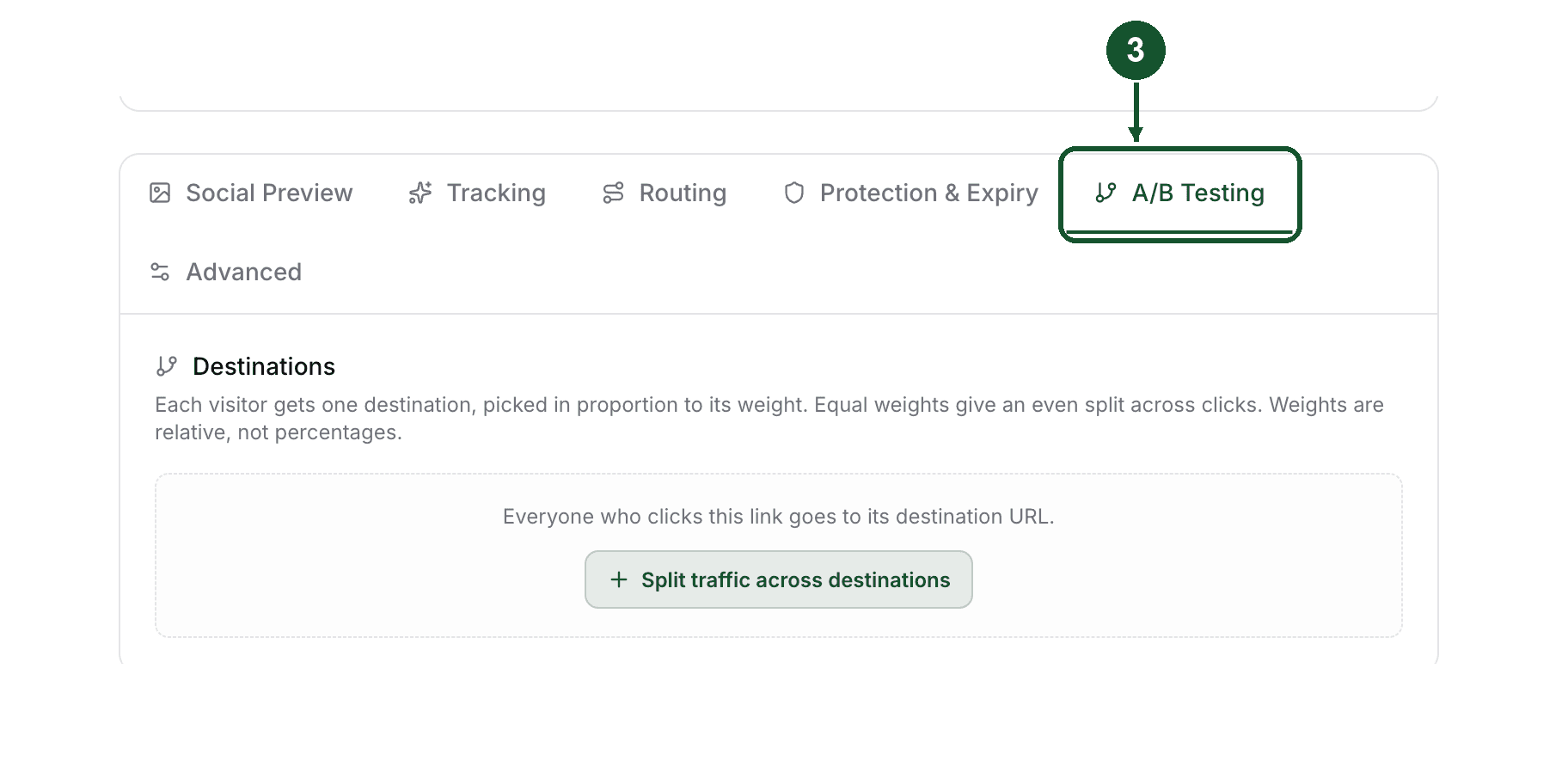
It sits in the tab row with Social Preview, Tracking, Routing, Protection & Expiry and Advanced. This one tab is the rotation editor, whether you end up with two destinations or twelve.
Step 4: turn the split on
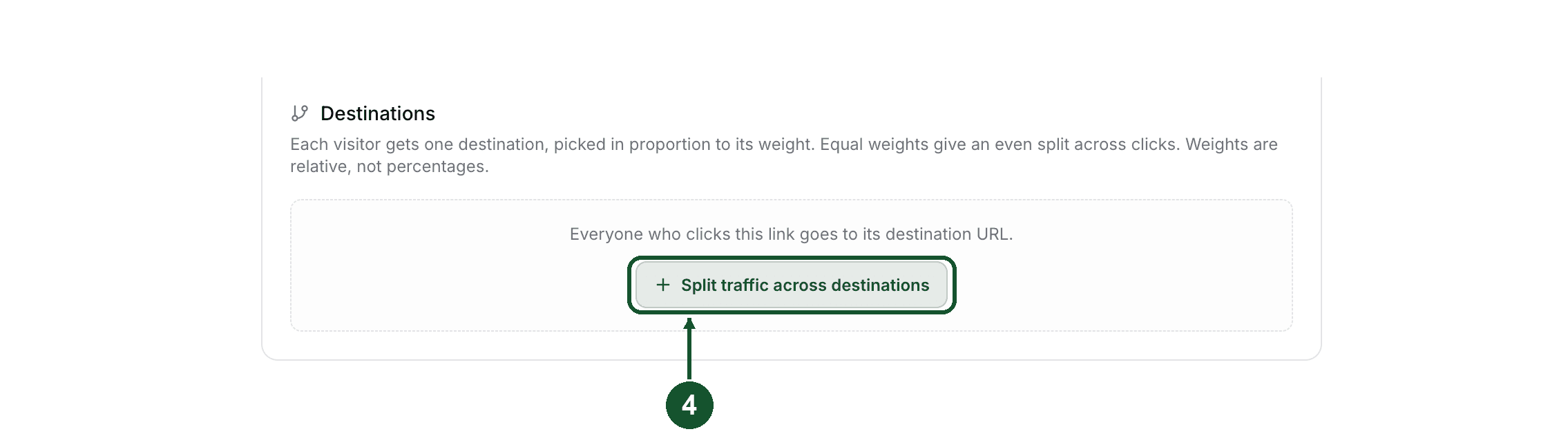
The tab starts with a single button, Split traffic across destinations, under a line telling you everyone currently goes to the destination URL. Click the button.
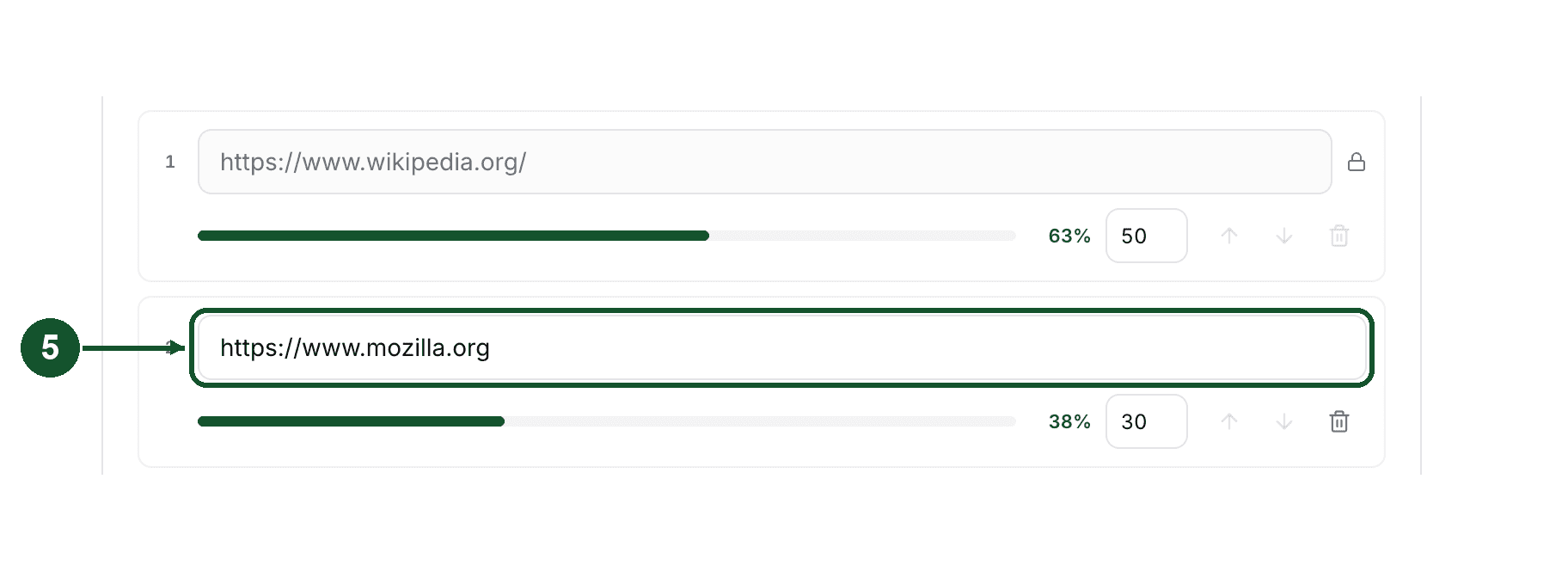
Step 5: fill in your second destination
The editor opens with two rows already there. Row 1 is your Destination URL and row 2 is empty and waiting. Type your second URL into row 2.
Row 1's URL is not editable here, and shows a small padlock. It is pinned to whatever is in the Destination URL field above, so change it there and the row follows. The note under the rows says the same thing.
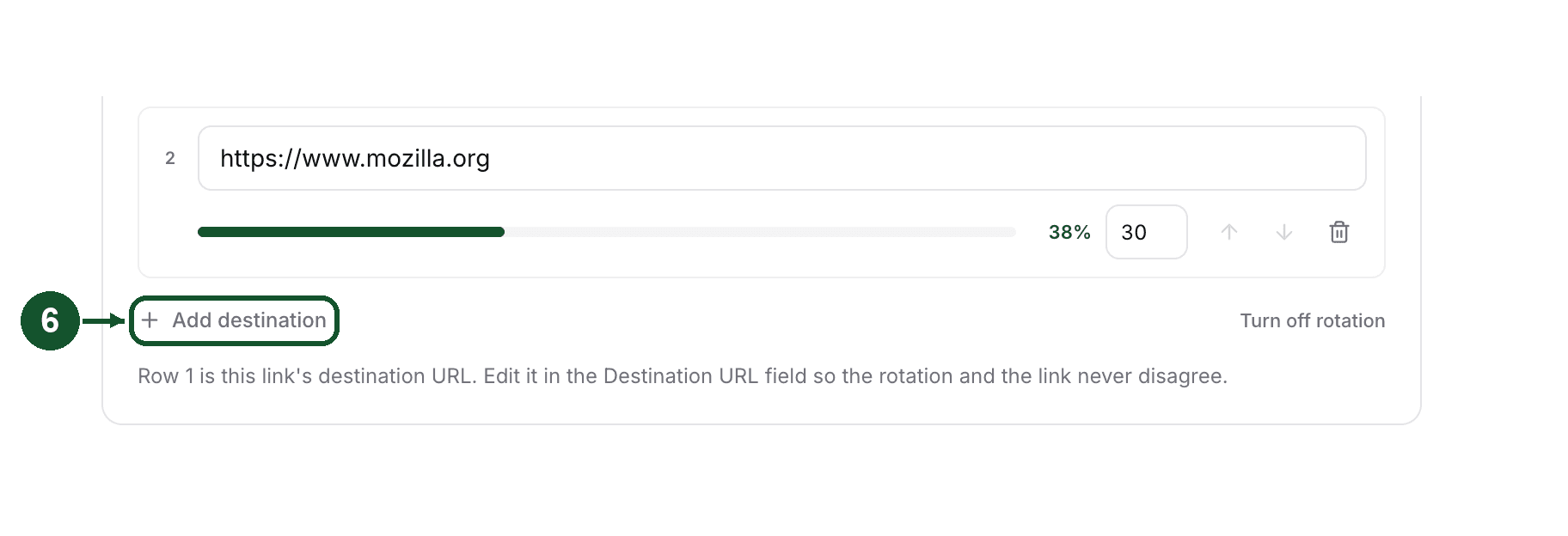
Step 6: add any further destinations
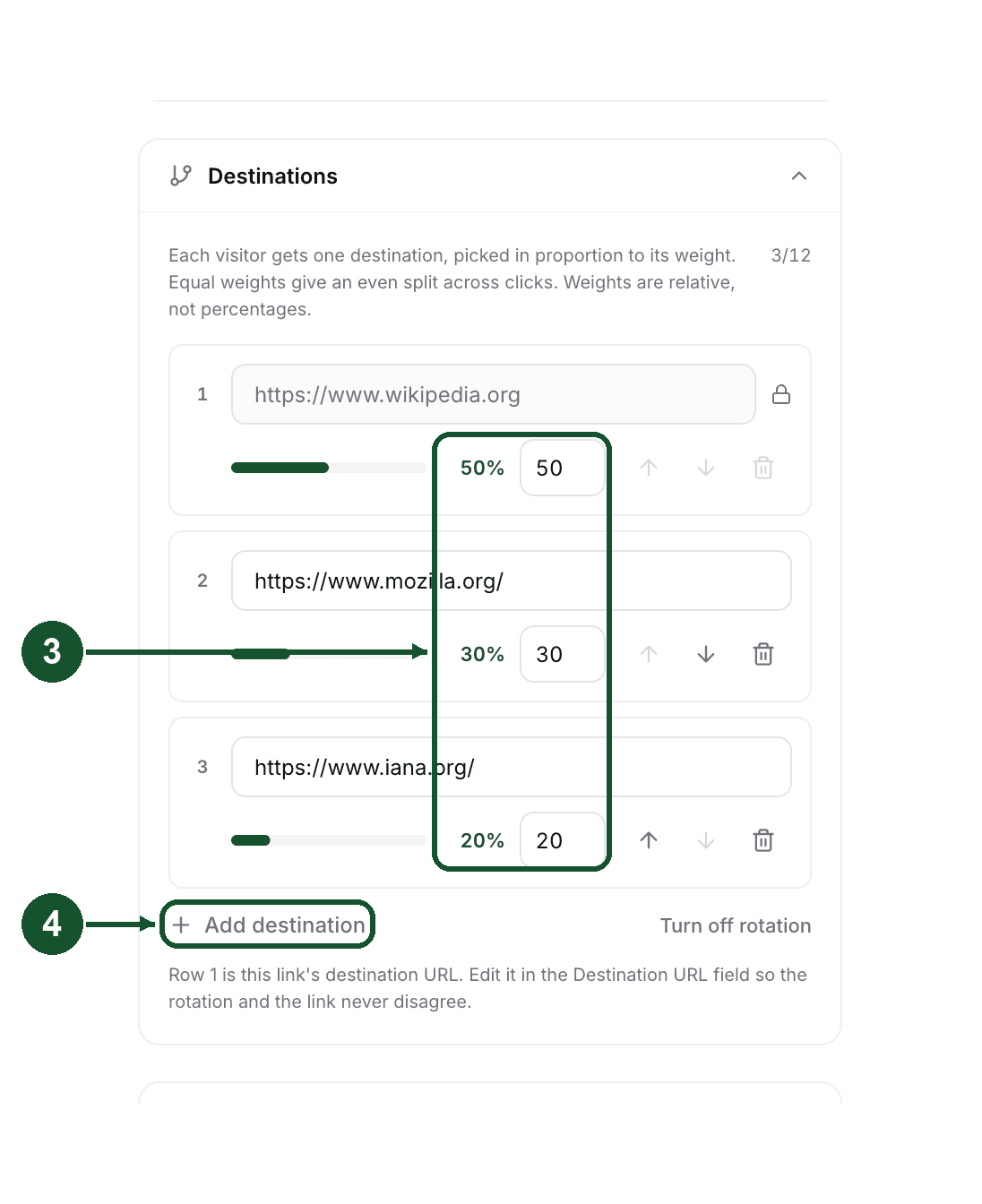
From the third destination onward, click Add destination. The counter in the top right of the panel tracks how many you have, up to 12 rows in total including row 1.
Step 7: set the weights
Type a whole number from 0 to 999 next to each destination. The editor prints the share that weighting produces to the left of each box and redraws it as you type, so 50, 30 and 20 read as 50%, 30% and 20%.
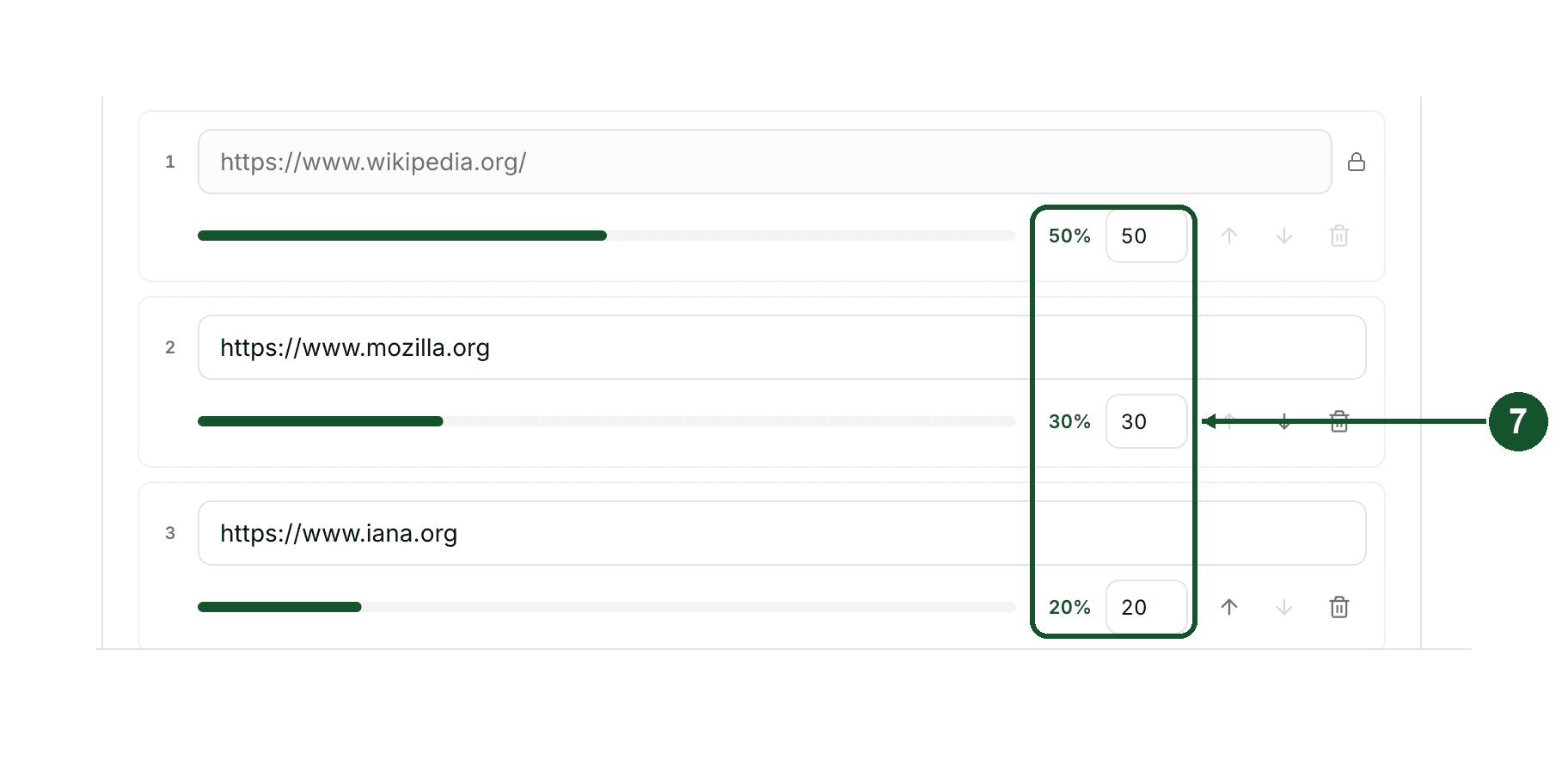
Weights are relative, not percentages. These all split evenly:
- 50 and 50
- 1 and 1
- 250 and 250
And these all send three times as much traffic to the first destination:
- 75 and 25
- 3 and 1
- 300 and 100
The arrows on rows 2 and below change the display order only. Row 1 is pinned as the primary, so its arrows are greyed out. The split comes from the weights, so moving a row up does not send it more traffic.
Step 8: create the link
Click Create Link at the bottom of the form.

Once the split is on, the tab carries a badge with the total number of destinations, counting your Destination URL as one. It reads 2 as soon as you add your first extra URL. On a free plan that badge reads Pro instead.
Share the short link as normal. Everything happens at the redirect, so nothing on your destination pages needs to change.
Add destinations to a link you already have
Step 1: open the link's edit panel
On the Links page, hover the link's row and click the pencil icon on the right. The row also carries a small badge counting the destinations, 3 URLs in the picture below, which is how you spot rotating links in the list at a glance.

Step 2: open the Destinations section
The panel opens on the right. Scroll to Destinations and click it to expand.
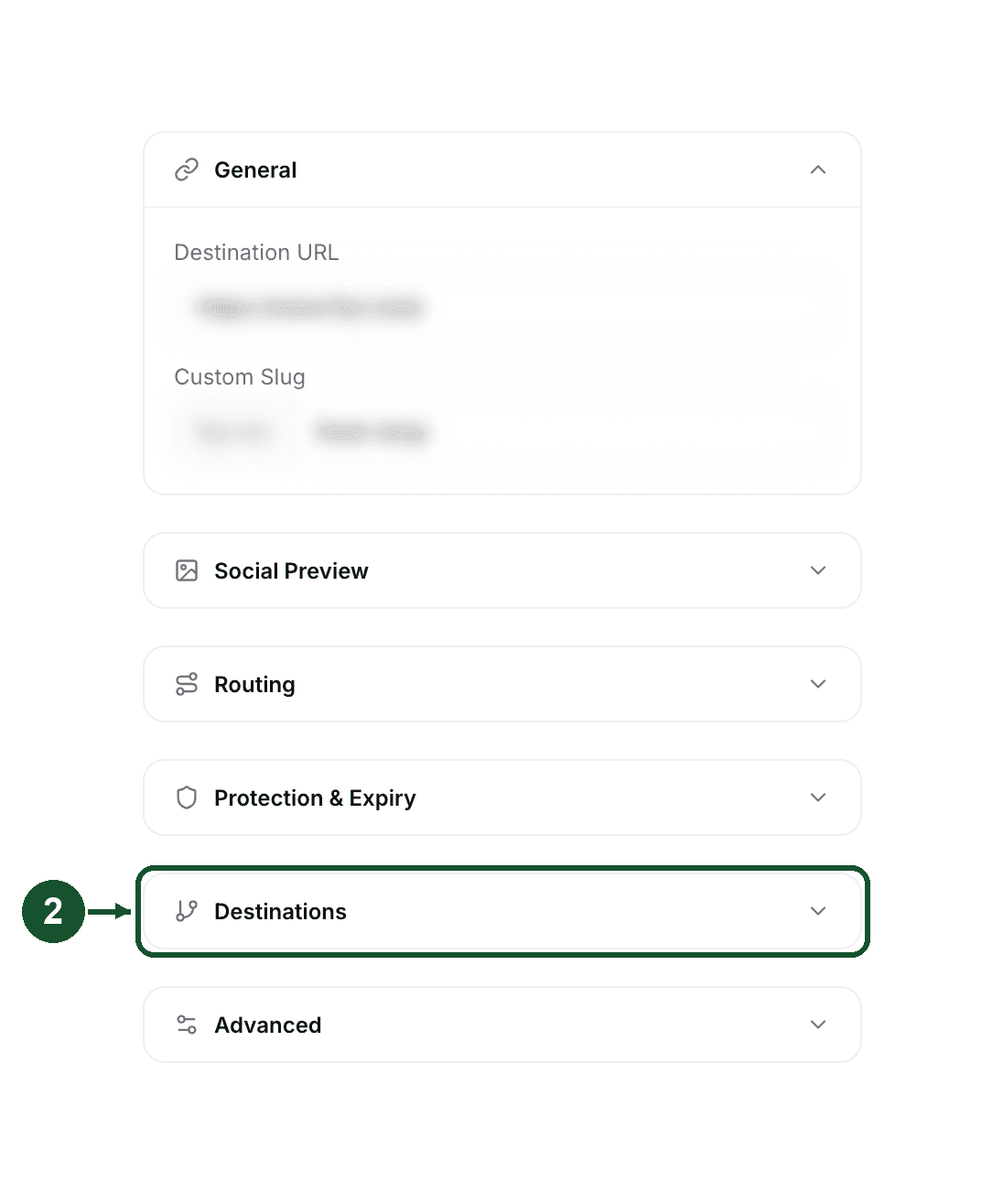
Step 3: add rows and set weights
The same editor appears, with the same rules: row 1 is locked to the Destination URL above, Add destination adds a row, and each weight is a whole number from 0 to 999. On a link with no split yet, click Split traffic across destinations first.
Step 4: save
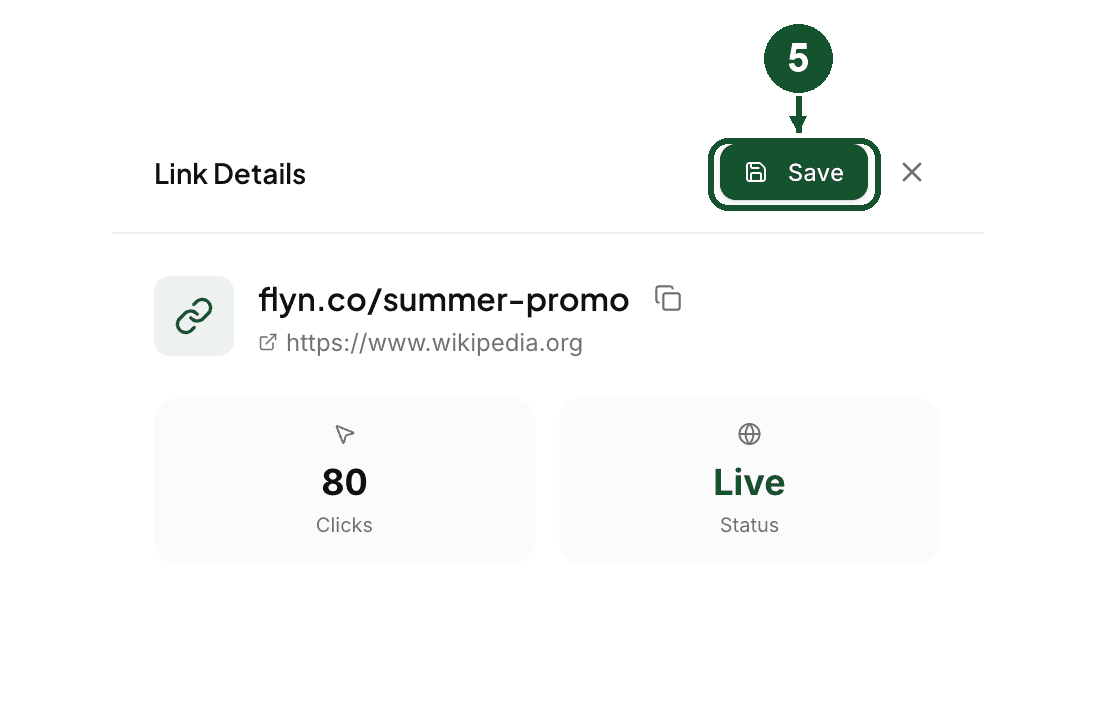
Save appears in the panel header as soon as you change something. Nothing is written until you click it, and closing the panel without saving discards the change.
Read the split
Step 1: open the link's analytics
On the Links page, click the click count on the link's row, the small chip with a bar chart icon and the number of clicks. Clicking the row itself opens the editor instead, which is the wrong place.

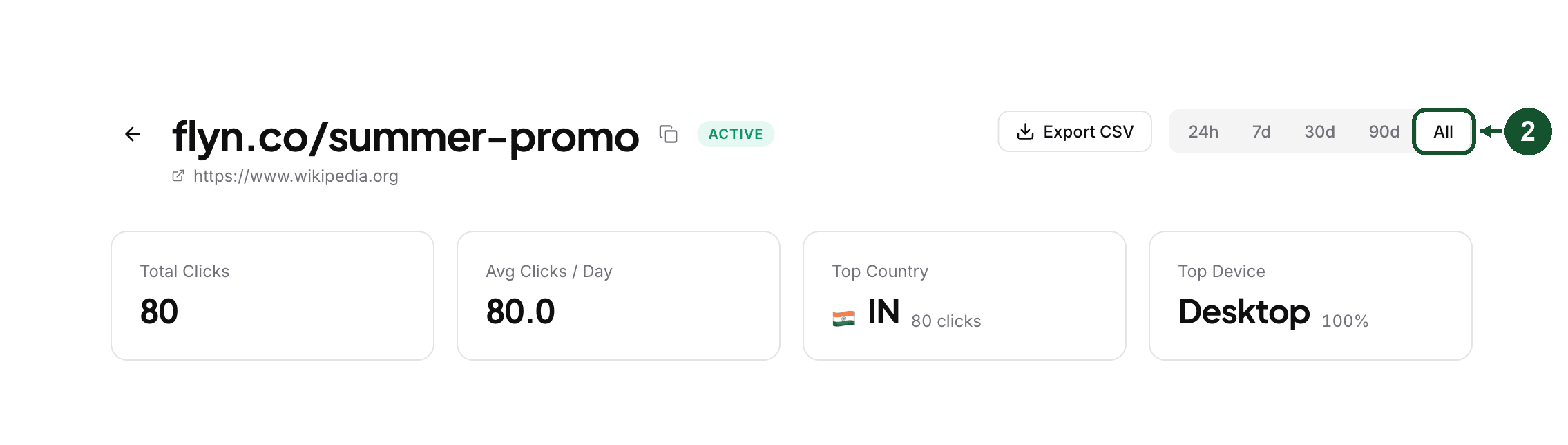
Step 2: set the time range to All
The buttons in the top right run 24h, 7d, 30d, 90d and All, and the page starts on 7d. Switch it to All before you read anything into the numbers, or you are comparing a week against weights you set months ago. The Destination Performance panel follows this selector like every other panel on the page.
Step 3: read the Destination Performance panel
Scroll to Destination Performance. There are no column headings. Each destination gets a row showing its URL and a bar, then on the right its click count, the share it actually took, and the share its weight asked for, printed as 50% intended. The line underneath names the number of clicks the shares are calculated from.
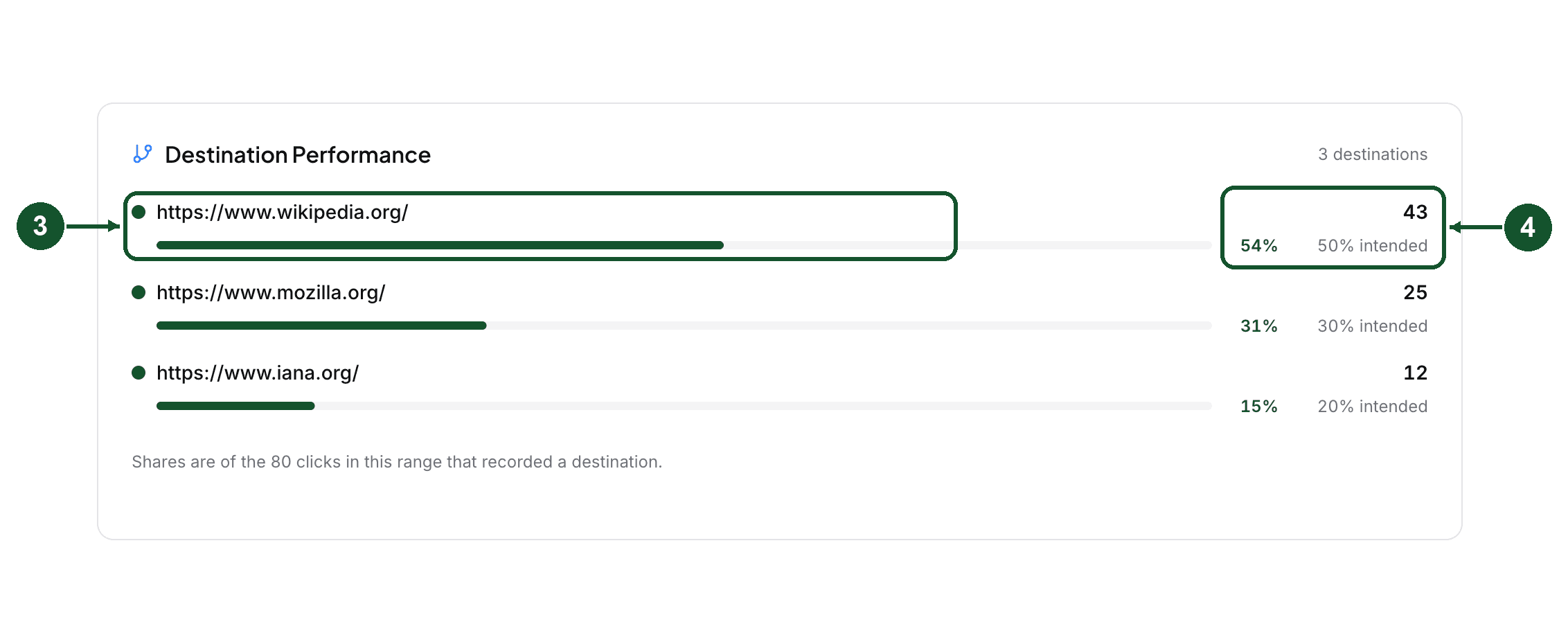
Reading actual against intended is the point. When the two diverge, the usual causes are:
- Too few clicks. Every click is an independent draw, so small samples wobble. A 50/50 split can easily read 60/40 over 20 clicks.
- Weights changed mid-flight. The panel compares clicks already banked against the weights as they are now. Edit a weight and the history does not retroactively change.
- A destination joined late, or sat at weight 0 for part of the period.
A broken destination page will not show up here. Flyn counts the click at the redirect, before the visitor reaches your page at all, so a dead URL or a slow page still counts a click. Checking that every destination still loads is a separate job.
On a very busy link the panel reads from the most recent clicks rather than the full history, and it says so underneath the rows when that happens.
Removing a destination does not erase its history
Take a destination out and its past clicks stay in the report, on a greyed row named Removed destination with not in rotation where the intended share would be. That is on purpose. The split you ran last month is still part of what happened.
For affiliates rotating referral links
Put each full URL in as its own destination, including its own ref or subid parameter, and give them equal weights for an even spread.
Set the time range to All, or to the window your network reports on, before comparing the panel against the network's own dashboard. Flyn counts clicks, not commissions, so the network remains where the money is confirmed. Some networks also restrict rotating their links, so check the programme terms you work under.
Rotation and smart routing on the same link
Smart routing runs first. If a device or country rule matches a click, that rule decides the destination and the split never sees that click. Everything no rule claimed falls through to the split.
So they compose as a filter and a remainder. You can send iOS traffic to the App Store and split whatever is left across two landing pages from one link. What you cannot do is run a split inside a rule, so there is no separate desktop split and mobile split on a single link. If you need that, use one link per segment. See routing by country or device for the full order.
What this does not do
- It counts clicks per destination, not conversions or revenue. Conversion tracking attributes to the link as a whole.
- It does not declare a winner and runs no significance test.
- The report lives on each link's own page. The account wide Analytics page does not break a rotation down, with one exception: a two URL A/B test created before rotation existed still appears in the A/B Test Performance widget there.
- No API or MCP call returns the finished breakdown. The API can set and read the destinations, and each click records which destination served it.
Check it is working
Open your short link in a browser several times and watch where you land. It should vary, and over enough clicks settle near your weights. A handful of clicks will not match the ratio, which is normal for a random draw.
Testing with curl will not work. Command line tools match the same list as link preview crawlers, so they always receive the primary destination. Use a real browser.
Split set but everyone still landing on the same page? Check the other destinations have a weight above 0, then email [email protected] with the exact short link.
Common questions
Where is link rotation in the Flyn dashboard?
It has two names for one editor. On a new link it is the **A/B Testing** tab of the create form. On a link that already exists it is the **Destinations** section of the edit panel. Two destinations is an A/B test and more than two is a rotation, which is why the create form still calls the tab A/B Testing. A free plan sees an upgrade card there headed "Link rotation" instead of the fields.
How many destinations can one link have?
Up to 12, and your Destination URL counts as one of them. The editor shows a running count such as 3/12 in the corner. Sending more than 12 through the API returns an error naming both numbers rather than silently keeping the first 12.
Are the weights percentages?
No. In the editor you type a whole number from 0 to 999 for each destination and the editor shows the share it produces. Only the ratio matters, so 50 and 50, 1 and 1, and 300 and 300 all split evenly.
Does the same visitor always get the same destination?
No. Every click is an independent draw against the weights, with no cookie and no stored visitor assignment, so the same person clicking twice can land on different destinations. Plan the split around clicks rather than around unique people.
Can I stop sending traffic to one destination without deleting it?
Yes. Set that one destination's weight to 0. It stops receiving clicks, keeps its row, and keeps its click history in the report. Do not set every weight to 0, because a rotation with no servable destination is stored as no rotation at all, which clears the list and returns the link to serving its Destination URL alone.
Do Google and other crawlers get put into the split?
No. Bots, crawlers and link preview fetchers always receive the primary destination. That is deliberate, because sampling a search crawler into one destination while human visitors get another is cloaking, and it puts the whole domain at risk.
Related articles
Did this answer it? If not, email [email protected] and a human will help.
Try it yourself
Create a branded, trackable short link free and follow along with this guide.