How do I change the title and image my link shows when shared?
Steps verified on August 26, 2026
When your short link is pasted into a post, a group chat or a message, the app fetches it and builds a preview card: a title, a description and an image. By default all three come from the destination page. That works when you own the page and its tags are good. It goes wrong when you are linking to a page you do not control, or one whose tags are blank, stale or off-brand.
The Social Preview fields let you override all three on the link itself, so the card reads the way you want no matter where the link travels.
This works on every plan, including free. If you have hunted for it and come up empty, you are looking in the right editor at a collapsed section.
Set a preview on a link you already created
Step 1: open the link editor
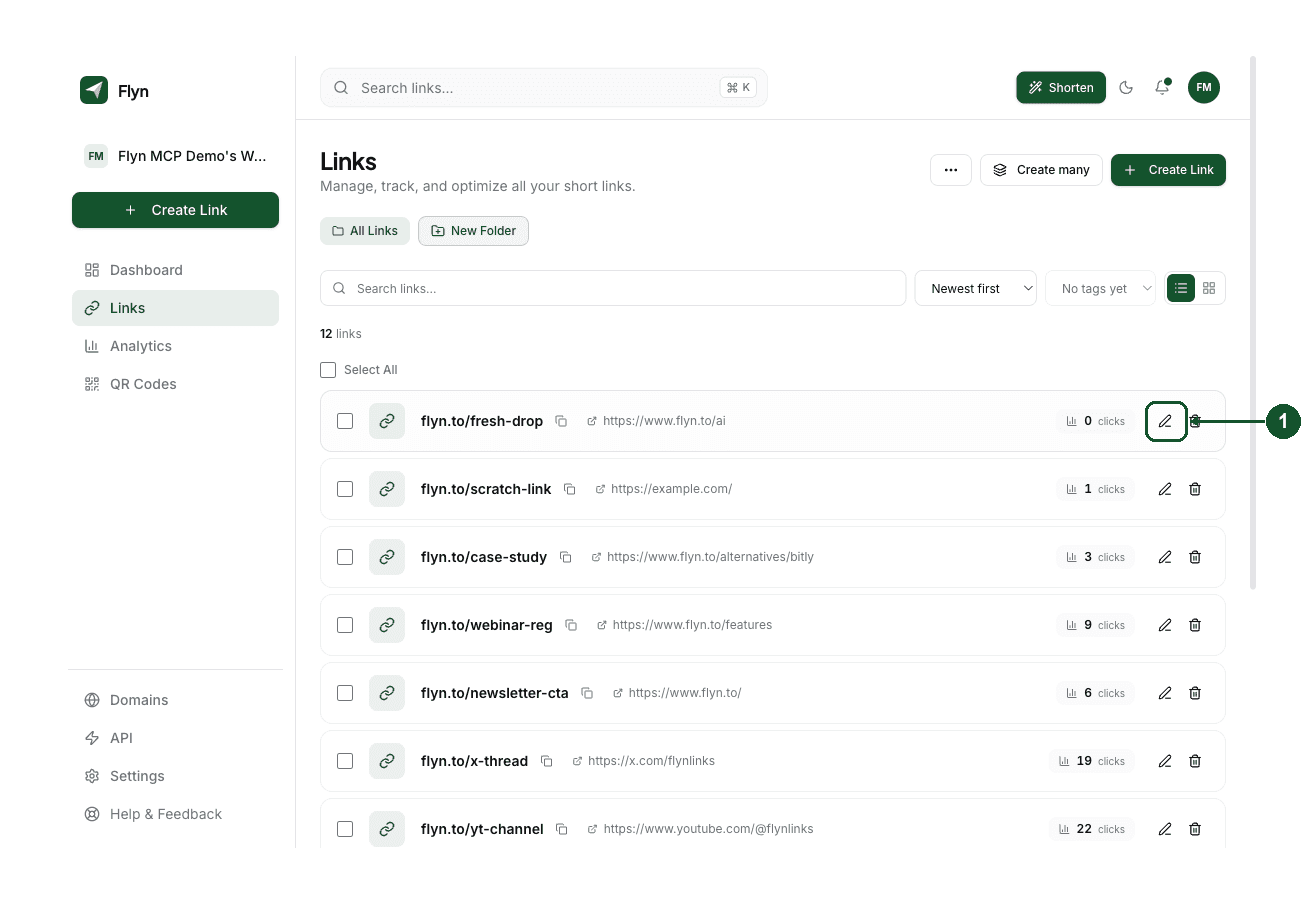
Go to Links in your dashboard and hover over the row for the link you want. Two icons appear on the right of that row: a pencil and a bin. Click the pencil.
Clicking the link name does something different, it opens that link's stats page, so use the pencil.
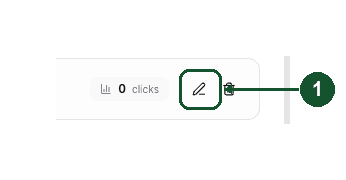
A panel headed Link Details slides in from the right.
Step 2: open the Social Preview section
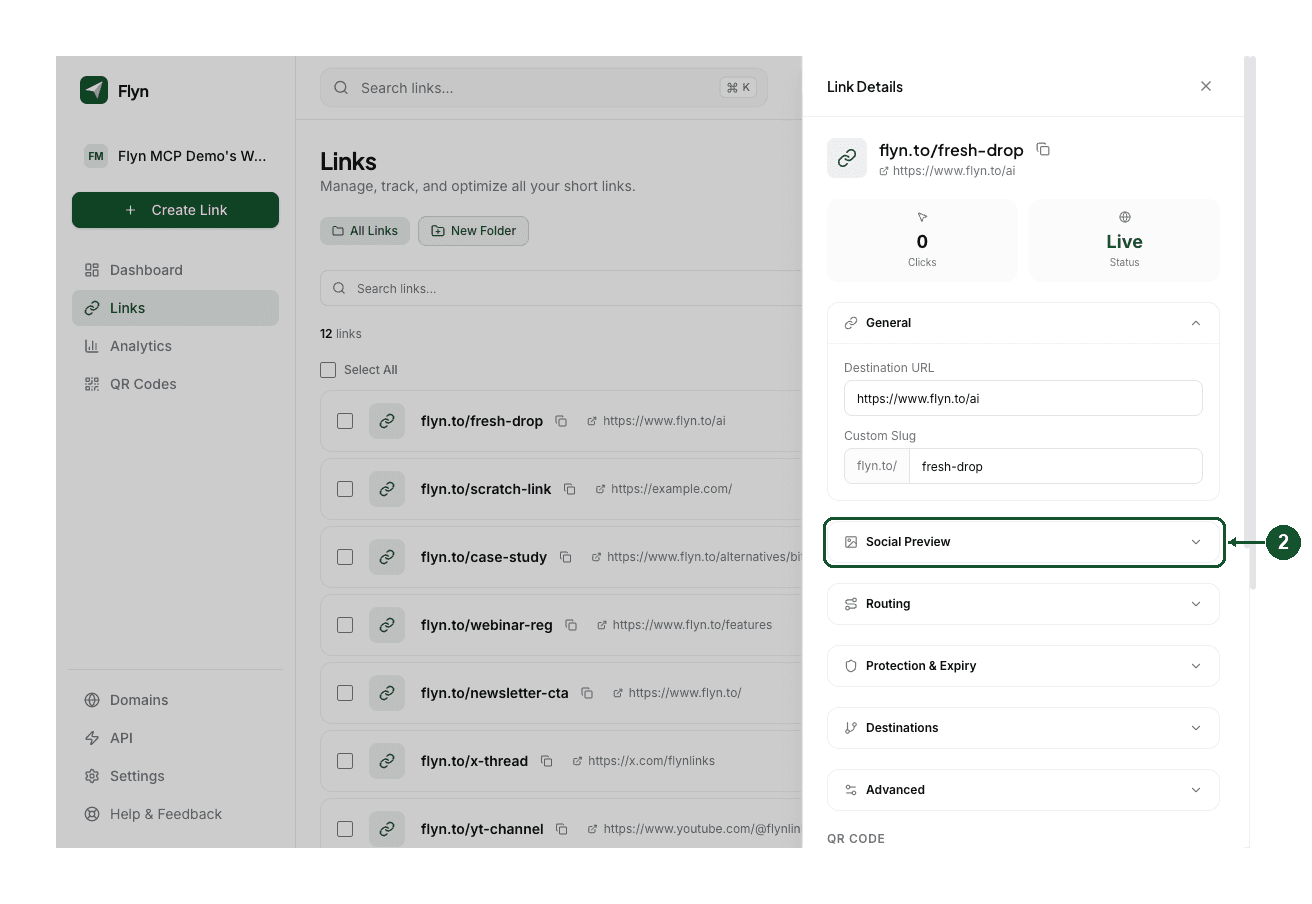
The panel is a stack of collapsible sections: General, Social Preview, Routing, Protection & Expiry, Destinations and Advanced. Only General is open when the panel first appears.
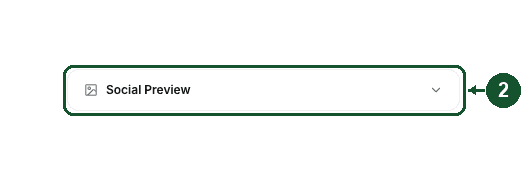
Click Social Preview to expand it.
Step 3: fill in the three fields
The section holds OG Title, OG Description and OG Image. Each text field has a live character counter and a recommended length underneath.
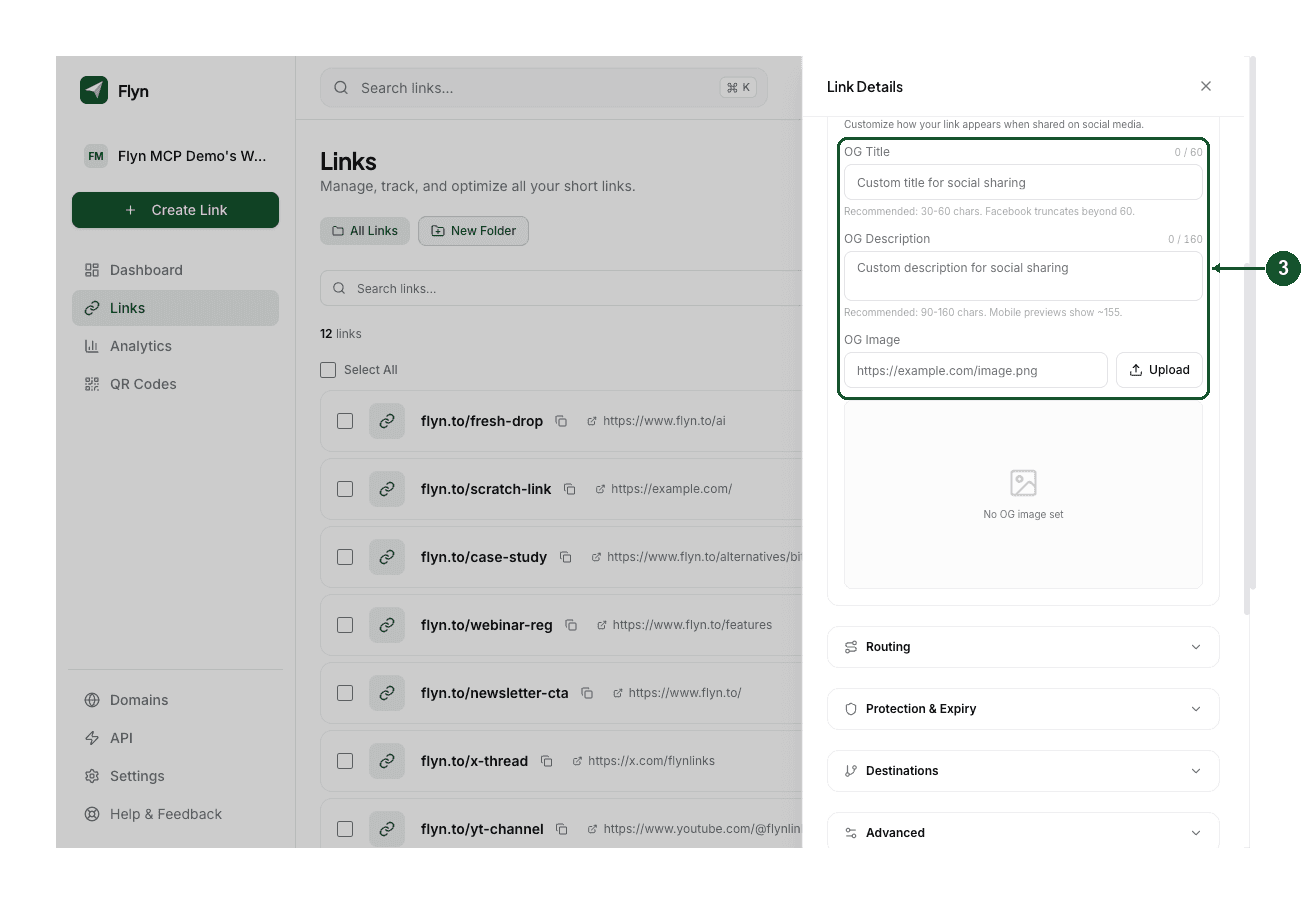
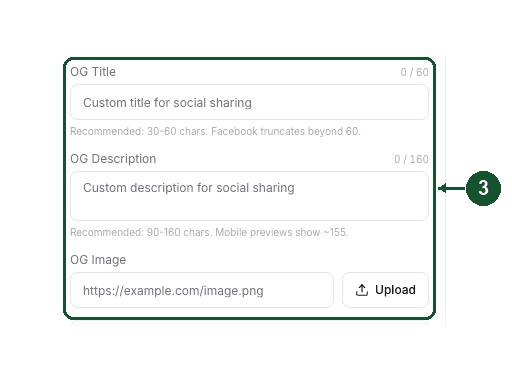
- OG Title, up to 60 characters. Aim for 30 to 60. Facebook truncates past 60, so a longer title is not wrong, it is just cut.
- OG Description, up to 160 characters. Aim for 90 to 160. Mobile previews show around 155, so put the point first.
- OG Image. Paste an image URL, or use Upload to send one from your machine so you do not have to host it yourself. A live preview appears underneath, and reads "No OG image set" until you add one.
You can set one field, two or all three. Anything you leave blank falls back to the destination page.
Step 4: save
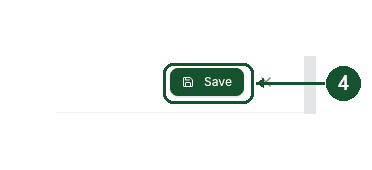
Save appears at the top of the panel, next to the close X, and only after you have changed something. It is not at the bottom, which is where people tend to look for it.
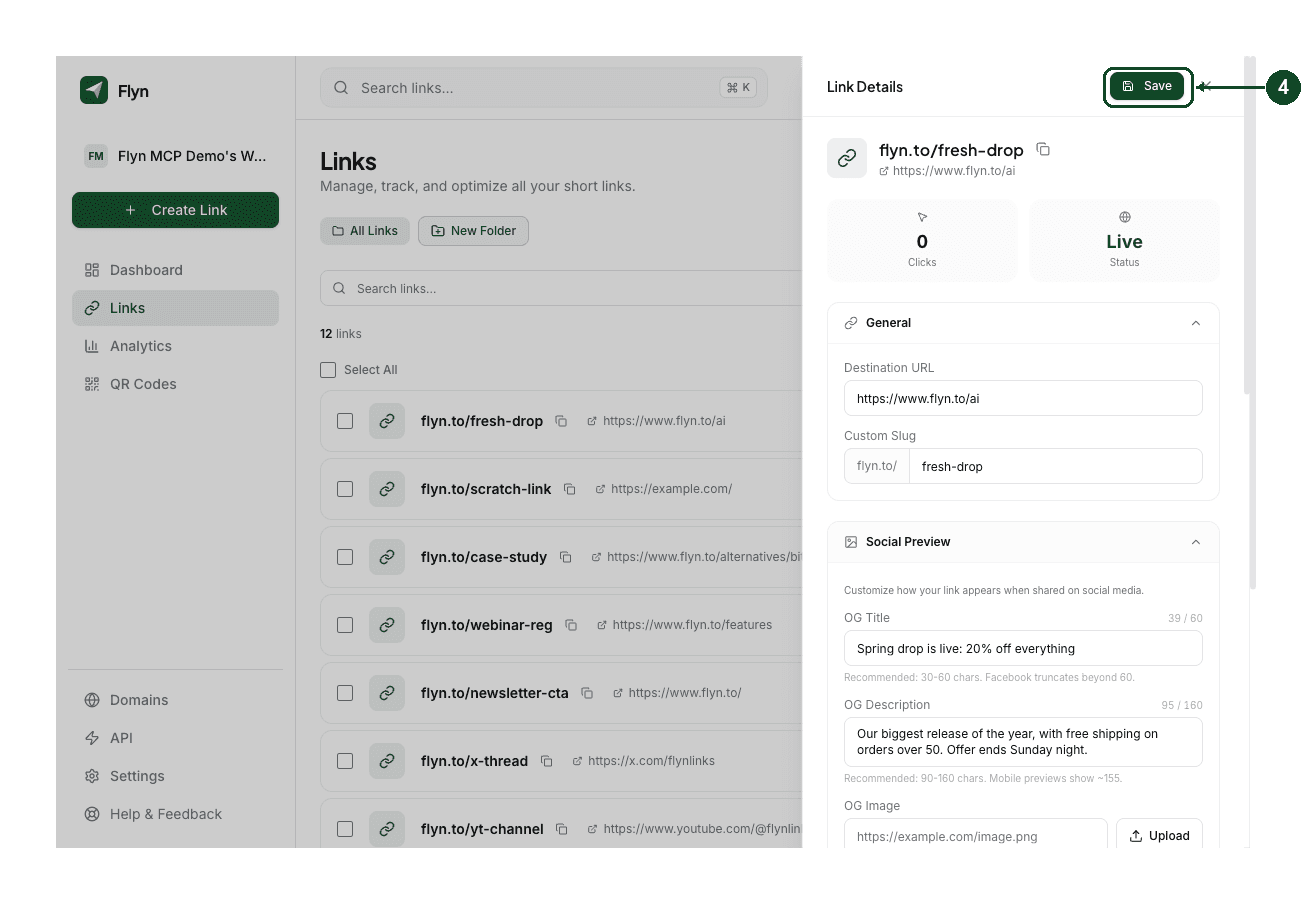
The preview is attached to the short link, so it stays the same everywhere the link is shared.
Setting a preview when you first create a link
You do not have to create the link first. The same Social Preview section appears in the link creator, so you can write the card before the link ever goes out.
That order is worth preferring, because social platforms cache previews aggressively. Setting the fields before the first share means nobody ever sees the fallback.
If the old preview is stuck
Platforms cache the card, sometimes for days, and Flyn cannot clear a cache that belongs to someone else. Two ways round it:
- Use the platform's own debugger to force a re-fetch. Facebook's Sharing Debugger and LinkedIn's Post Inspector both do this.
- Create a new short link with the preview already set, and share that one instead.
A note on password-protected links
A password-protected link normally shows a generic "Password Protected Link" card, on purpose, so the destination is not leaked in the preview. If you set custom preview fields on that link, your title, description and image are shown instead. That is useful when the card itself needs to make sense, but do not put anything in it you would not want seen by whoever the link reaches.
This is not the same as meta tags on your own site
These fields change how the Flyn short link previews. They do not touch your own web pages.
If what you want is the meta tags for a page you own, generate them with the free meta tag generator and paste the block into that page's <head>. The Open Graph checker then confirms they are live and reading correctly.
Still stuck? Email [email protected] with the exact short link and what you expected the card to say.
Common questions
Is a custom link preview a Pro feature?
No. Custom previews work on every plan, including free. They sit in the same editor as password protection, which is Pro, so the two are sometimes assumed to go together. They do not.
Why can I not find the preview fields?
They are inside the Social Preview section of the link editor, and that section starts collapsed. Open a link with the pencil icon, then click the Social Preview heading. The three fields are OG Title, OG Description and OG Image.
What happens if I leave the fields blank?
The platform reads the preview from your destination page instead. That is fine when you control the page and its tags are good. It is the reason previews look wrong or empty when you are linking to a page you do not control.
I set a preview but the old one still shows. Why?
Social platforms cache previews, often for days, and Flyn cannot clear their cache. The usual fix is the platform's own debugger, such as Facebook's Sharing Debugger or LinkedIn's Post Inspector, which re-fetches the link. A brand new short link with the preview set before its first share avoids the problem entirely.
Do preview fetches count as clicks?
No. When a chat or social app fetches your link to build the card, that is a bot, and Flyn filters those out before they reach your analytics. The click count reflects real people.
Does this change the meta tags on my own website?
No. These fields apply to the Flyn short link, not to your destination page. If you want to generate the meta tags for a page you own, use the free meta tag generator and paste the result into that page's head.
Related articles
Did this answer it? If not, email [email protected] and a human will help.
Try it yourself
Create a branded, trackable short link free and follow along with this guide.