How do I connect an AI assistant to Flyn with MCP?
Updated September 30, 2026
Add one URL to your assistant, https://www.flyn.to/mcp, and sign in when your browser opens. From then on the assistant can create short links, change where a link goes, delete links, pull click numbers, and generate QR codes for you, on any plan including free. No API key is needed for the sign-in route.
Before you start
- Use the exact URL, with the www:
https://www.flyn.to/mcp. The address without www redirects there, and clients drop their sign-in on that redirect, so the connection appears to work while every tool call fails. - Have a Flyn account. The sign-in step uses your normal Flyn login, Google or email and password. If you do not have an account yet, sign up first; any plan works, including free.
- Pick the right client. Flyn's server is remote, so the client must support remote MCP servers over HTTP. The clients below all do.
Step 1: add the Flyn server to your client
The exact menu differs per client. These are the current paths for the common ones, and the URL is the same everywhere; the per-client setup guide at flyn.to/ai is kept current as clients change.
Claude Code (terminal): run the command, then type /mcp, choose flyn, and choose Authenticate.
claude mcp add --transport http flyn https://www.flyn.to/mcp
Claude Desktop and claude.ai: open Customize (or Settings), then Connectors, click the plus button, and choose Add custom connector. Name it Flyn and paste the URL. A free Claude account can hold one custom connector. On a Team or Enterprise Claude plan only an organisation Owner can add it, under Organization settings, then Connectors; members then connect to it from Customize, then Connectors. Flyn is not in the connector directory yet, so it has to be added by URL.
ChatGPT (Plus, Pro, Business, Enterprise or Edu, on the web): first turn on Developer mode in ChatGPT's settings, then open Connectors, create a new connector with the URL, and choose OAuth as the authentication method. Free ChatGPT cannot add custom connectors. Flyn is not in ChatGPT's app directory yet, so it has to be added this way.
Cursor (.cursor/mcp.json), Windsurf (mcp_config.json) and VS Code with Copilot (.vscode/mcp.json): add a server entry with the URL. Leave out any key or header and the client starts the sign-in on first use. The field names differ per client.
Cursor:
{
  "mcpServers": {
    "flyn": {
      "url": "https://www.flyn.to/mcp"
    }
  }
}
Windsurf:
{
  "mcpServers": {
    "flyn": {
      "serverUrl": "https://www.flyn.to/mcp"
    }
  }
}
VS Code:
{
  "servers": {
    "flyn": {
      "type": "http",
      "url": "https://www.flyn.to/mcp"
    }
  }
}
Gemini CLI, Kimi CLI and ZCode: add the URL as a remote HTTP server in the client's MCP configuration. Each has its own sign-in step that opens the browser: Kimi CLI has a dedicated authorize command, and ZCode shows an Open authorization button on the server's row under Settings, then MCP.
Qwen Code and Trae: add the URL as a remote HTTP server (Qwen Code wants it under httpUrl, not url). Neither is verified with Flyn's browser sign-in, so if the client offers no sign-in step on the first tool call, use the API key route in the section Using an API key instead, below.
Perplexity and DeepSeek Harness: Flyn connects to these with an API key rather than the browser sign-in. Perplexity's custom connectors (a Perplexity Pro feature) are set up with API Key authentication, and DeepSeek Harness only passes fixed headers. Skip to the section Using an API key instead, below.
Step 2: sign in to Flyn when the browser opens
The browser opens the first time the client needs to sign in, not the moment you add the server. Flyn lists its tools to any client and asks for the sign-in only when a tool is called, so some clients open the browser as soon as you ask the assistant to do something with a link, ChatGPT starts it when you create the connector, and Claude Code waits until you choose Authenticate in the /mcp menu. If nothing has opened, ask the assistant to list your links or look for an Authenticate, Login or Open authorization action on the Flyn server entry.
If you are not signed in, you see Flyn's normal sign-in page first. Sign in with Google or with your email and password. Nothing about your password is passed to the assistant.

Step 3: allow access
After signing in, Flyn shows an authorization page. It names the application asking for access, shows the account it will use, and lists what it will be able to do: create and shorten links, view your links and their settings, edit and re-point your links, delete links, view your click analytics, and generate QR codes.
Check that the application name is the client you just set up. You will also see an amber note saying the application registered itself and is not verified by Flyn, with the address that will receive the sign-in. That note appears for every client, including Claude and ChatGPT, because MCP clients register with Flyn automatically; it is a reminder to check the name and the address, not a sign of a problem. For a terminal or editor client the address is normally a local one, localhost or 127.0.0.1 followed by a port number (Claude Code, for example, shows localhost with a port); for a web assistant it is the assistant's own website (ChatGPT uses chatgpt.com). If the address is a website you do not recognise, click Deny. Otherwise click Allow access. Deny cancels the connection.
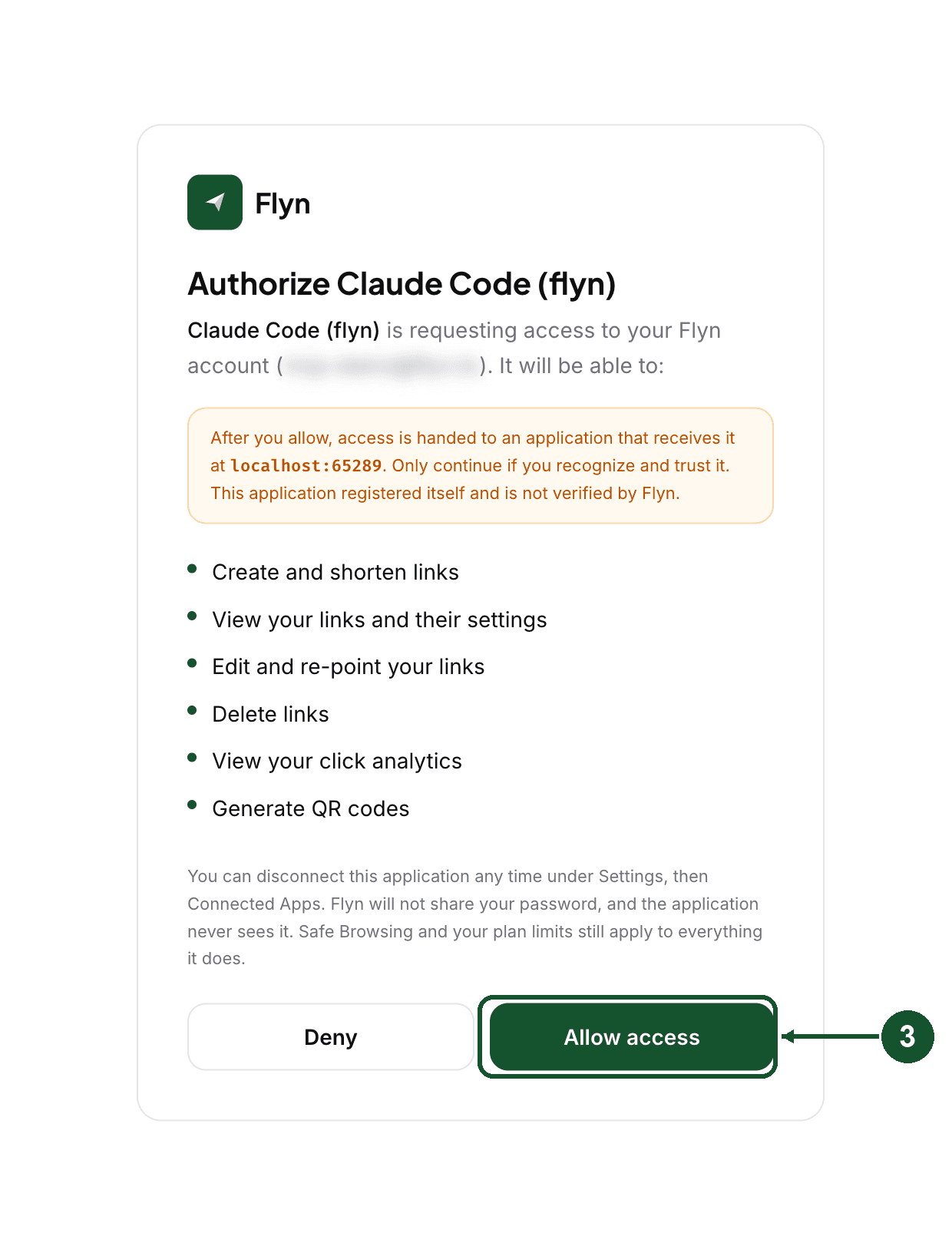

The browser then hands control back to the client, and from that point the assistant can use Flyn's tools on your account. That is the whole setup; nothing else is required in the Flyn dashboard.
Step 4: try it
Ask the assistant in plain words. Some requests that map directly onto Flyn's tools:
- "Shorten https://example.com/spring-sale and give me the link."
- "Point my spring-sale link at https://example.com/summer-sale instead."
- "List my five most recent links with their click counts."
- "Make a QR code for my spring-sale link."
Behind those requests the server offers eight tools: create_short_link, list_links, get_link, update_link, delete_link, get_link_analytics, get_link_qr_code and create_qr_code; every parameter of each is listed in the MCP server reference. The assistant works within your plan: click totals on every plan (the last 30 days of clicks on free, full history on paid), and the country, device and referrer breakdowns and click limits on Pro, Lifetime or Team. Link passwords and WiFi QR codes are the exception: they are set in the Flyn dashboard, not through the assistant. A free account can create 25 links a month this way, the same allowance as the dashboard.
Disconnecting an assistant
- In Flyn, open Settings, then Connected Apps. Every assistant that currently holds a sign-in to your account is listed with the date it connected and when it last used your account.

- Click Disconnect on the one you want to remove.

- Click Confirm Disconnect. The sign-in is revoked immediately: the next call the assistant makes is rejected, and it has to be authorized again from scratch if you ever want it back.

- Remove the Flyn server from the client so it stops trying, using its Clear authentication, Logout or sign-out action if it has one (in Claude Code, type /mcp, choose flyn, then Clear authentication).
A sign-in that is not used for 90 days expires on Flyn's side on its own. Apps connected with an API key are not in this list; revoke the key under Settings, then API Keys instead.
Using an API key instead
Some clients take a fixed header rather than the browser sign-in. DeepSeek Harness is one, and Perplexity's custom connectors are set up with a key as well. For those, connect with an API key:
- In Flyn, open Settings, then API Keys and create a key; the Zapier guide walks through it with screenshots under Create your API key in How do I connect Flyn to Zapier?. An account can hold up to 5 active keys. Creating a key requires Pro, Lifetime or Team, see How do I upgrade, cancel, or change my Flyn plan? and the authentication docs.
- Add the same server URL to the client, plus the header
Authorization: Bearer flyn_sk_live_YOUR_KEY.
claude mcp add --transport http flyn https://www.flyn.to/mcp \
  --header "Authorization: Bearer flyn_sk_live_YOUR_KEY"
An API key is not tied to the sign-in flow, so revoking it happens on the same API Keys page.
If it does not work
- Signed in, but every Flyn tool call is rejected, or the client keeps asking you to sign in: the URL is missing the www. Change it to
https://www.flyn.to/mcp, then remove and re-add the server so the client forgets the old address, and sign in again. (Older clients showed this as connected with no tools.) - The browser never opens: ask the assistant to do something with a Flyn link first, or choose the Authenticate, Login or Open authorization action on the Flyn server entry; the sign-in starts on the first tool call, not when the server is added. In Claude Code, type /mcp, choose flyn, then Authenticate. Also check that your browser is not blocking popups. Only if a tool call fails as unauthorized and the client has no sign-in action at all does it need the API key route above, which requires Pro, Lifetime or Team.
- "Cannot shorten Flyn URLs": the assistant tried to shorten a flyn.to address. Point it at the real page instead.
- A link the assistant made is refused: the destination failed Flyn's safety and acceptable-use checks, the same ones the dashboard runs: malware or phishing flagged by Google Safe Browsing, private or internal addresses, adult or gambling sites, or a link on an ad-gated or anonymity URL shortener (mainstream ones such as bit.ly or youtu.be are accepted). The tool result names the reason.
Still stuck? Email [email protected] with the name of the client you are using and the exact error text.
Common questions
Is the Flyn MCP server free?
Yes when you connect by signing in. Signing in through the browser works on every plan, and a free account can create 25 links a month through the assistant, the same allowance as the dashboard. Only the alternative route, pasting an API key, needs Pro, Lifetime or Team, because creating an API key is a paid feature.
Which AI assistants can connect to Flyn?
Any client that can reach a remote MCP server over HTTP. Verified against each vendor's own documentation: Claude Code and Claude Desktop, ChatGPT, VS Code with GitHub Copilot, Cursor, Windsurf, Gemini CLI, Kimi CLI and ZCode connect by signing in. Qwen Code and Trae take a server entry and, if the client offers no sign-in step, connect with an API key. DeepSeek Harness only passes fixed headers and Perplexity's custom connectors (a Perplexity Pro feature) are set up with an API key, and creating a Flyn API key needs Pro, Lifetime or Team.
The assistant connected, but every Flyn tool call fails or no tools appear. What is wrong?
Almost always the URL. It must be https://www.flyn.to/mcp with the www. The address without www redirects to it, and the client drops its sign-in on that redirect, so the connection looks fine but every tool call is rejected. Change the server URL, remove and re-add the server, then sign in again.
What can the assistant do with my account?
What the Allow access screen lists: create and shorten links, view your links and their settings, edit and re-point your links, delete links, view your click analytics, and generate QR codes. It never sees your Flyn password, and no Flyn tool accepts a password of any kind: link passwords and WiFi QR codes are set in the Flyn dashboard, not through the assistant. Your plan limits and Flyn's safety checks apply to everything it does, the same as in the dashboard.
How do I disconnect an assistant later?
In Flyn, open Settings, then Connected Apps, find the assistant and click Disconnect, then confirm. Its sign-in is revoked immediately: the next call it makes is rejected and it has to be authorized again from scratch. Then remove the Flyn server from the client so it stops trying. A sign-in that is not used for 90 days expires on its own.
Can I use an API key instead of signing in?
Yes, and some clients need it. If your client only takes a static header, create a key under Settings, API Keys, and pass it as Authorization: Bearer followed by the key. Creating a key requires Pro, Lifetime or Team.
Related articles
Did this answer it? If not, email [email protected] and a human will help.
Try it yourself
Create a branded, trackable short link free and follow along with this guide.