vCard QR Codes: The Business Card That Saves Itself
A paper business card gets typed into a phone maybe one time in ten. A vCard QR flips that: one scan drops your name, title, phone, and email straight into their contacts, here is how to make one that works.


Why a paper business card needs a QR code
Here's the quiet failure of the paper business card: most of them are never typed into a phone. They go in a pocket, then a drawer, then the bin. The person you met has your card but not your contact, and a contact they can't find when they need you is worth nothing.
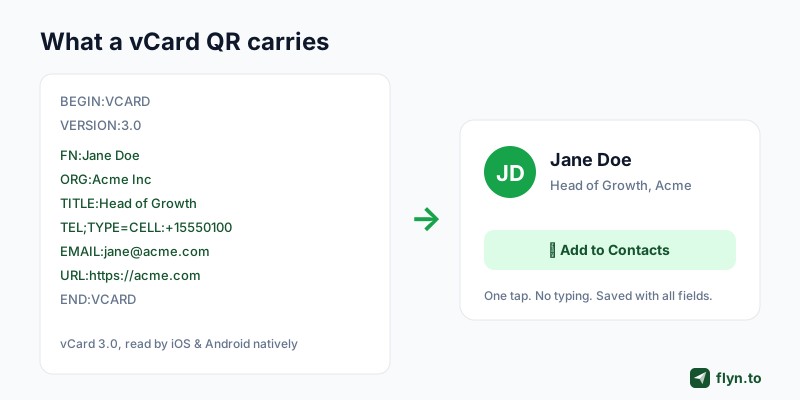
A vCard QR code fixes the weakest link in that chain. Instead of hoping someone manually types your name, title, phone, and email into their address book, they point a camera at a square on your card and tap "Add to Contacts." Every field lands at once, spelled correctly, in under two seconds. The card did its job before they put it back in their pocket.
The friction you're actually removing
Typing a contact by hand is eight or nine fields of fiddly thumb-work, and people abandon it constantly, especially mid-conversation, when stopping to type feels rude. The scan collapses all of that into a single tap they can do while still talking to you. You're not adding a gimmick; you're deleting the step where most introductions quietly die.
 Tap to enlarge
What "vCard" actually means
vCard is the decades-old standard format for an electronic contact, the same .vcf file your phone exports when you share a contact. A vCard QR simply holds that file's text inside the QR pattern. Because the format is universal, the scan works the same whether the person is on an iPhone or an Android, and the saved contact slots cleanly into their existing address book.
What a vCard QR encodes
The payload is plain text wrapped between BEGIN:VCARD and END:VCARD, with one field per line. You'll never type it by hand, the QR Code Generator builds it from a simple form, but it helps to know what each line does so you choose which fields to include.
| Field | What it holds | Include? |
|---|---|---|
FN / N | Full / structured name | Always |
ORG | Company or organization | For work contacts |
TITLE | Job title / role | Recommended |
TEL | Phone (with type, e.g. CELL) | Usually |
EMAIL | Email address | Usually |
URL | Website or portfolio | Recommended |
Keep it lean
You can pack in an address, a second phone, a fax (please don't), and a photo, but every extra field makes the QR denser and harder to scan at small sizes. For a business card, name, title, company, one phone, one email, and a URL is the sweet spot. Densely packed vCards are a common reason a card-sized code won't scan; if you're hitting that, our guide to QR codes that won't scan covers the fix.
Put your website in the URL field and make it a branded Flyn short link rather than a long path. The saved contact then carries a clean, memorable link, and you get a count of the taps through from your contact card later, something a raw URL can't tell you.
How to make a vCard QR code
The whole thing takes under a minute, free, with no signup and no expiry. Because it's a static code, the contact details live in the pattern, it works offline and never switches off.
Step by step
- Open the QR Code Generator and choose the vCard tab.
- Fill in the fields, name is required; add phone, email, company, and website as needed. Leave out anything you don't want strangers to keep.
- Style and size it, recolor if you like, and raise error correction to Q or H if you'll add a logo.
- Download, SVG for the printer, PNG for the screen, and scan-test it before you commit it to a print run.
The same generator handles a WiFi QR for your office guest network, a URL QR for your portfolio, and phone, SMS, and email QRs, so one tool covers everything you'd put on a card or a booth.
Pair it with a click-to-call or email link
If you want a person to act the moment they scan rather than just save you, a vCard isn't always the answer. A click-to-call link dials your number, a mailto link opens a pre-filled email, and a click-to-text link drafts a message. Many cards carry a vCard QR to save the contact and a separate prompt to call or email, pick based on whether the goal is "remember me" or "reach me now."
Where it goes on the card
The back of the card is ideal, it keeps the front clean for your name and logo while giving the QR room to breathe at a scannable size. Add a one-line prompt next to it ("Scan to save my contact") so people know it isn't a link to a website. A naked QR with no label gets ignored; a labelled one gets scanned.
Where to use a vCard QR code
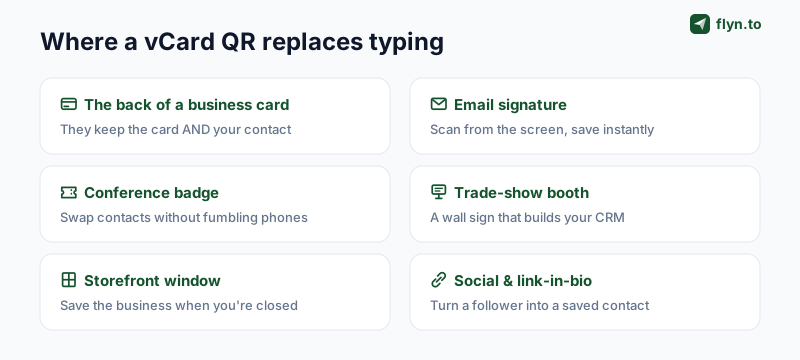
A vCard QR earns its place anywhere someone might want to keep your details but won't reliably type them. The format never changes; only the surface does.
 Tap to enlarge
- The back of your business card: the flagship use. They keep the physical card and the digital contact.
- Email signature: a small QR people can scan off their screen to save you, handy after a first introduction over email.
- Conference badges: swap contacts by scanning instead of fumbling two phones and a typo-prone form.
- Trade-show booths: a wall-sized vCard QR quietly builds your contact list while you talk to someone else.
- Storefront windows: let passersby save the business even when you're closed.
- Social and link-in-bio profiles: turn a follower into a saved contact in one tap.
Add a prompt, not just a square
Wherever it goes, label it. A bare QR is ambiguous, people can't tell a vCard from a link to a website, so they don't bother. A four-word prompt ("Scan to save me") lifts scan rates more than any design tweak, because it answers the only question the scanner has: what happens if I point my camera at this?
A business card is a bet that someone will type your details later. A vCard QR removes the bet, the typing already happened, perfectly, the moment they scanned.
Static vCard vs a contact page
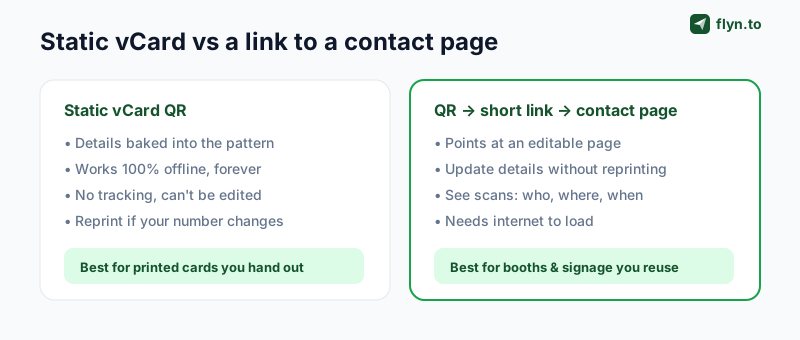
There are two ways to build a "contact QR," and the right one depends on whether your details ever change and whether you want to count scans.
 Tap to enlarge
Static vCard QR, bake it in
The contact data sits inside the pattern. It works with no internet, never expires, and reveals nothing about who scanned it. The catch: if your phone number or job title changes, the printed code is wrong forever and you reprint. For a card you hand out in person, that's usually fine, and the privacy of not phoning home is a genuine plus.
QR → short link → contact page, keep control
Instead of encoding the vCard directly, point the QR at a branded short link that loads a hosted contact page (which then offers the .vcf download). Now you can edit your details without reprinting, and every scan is a tracked event, count, location, device, and time. This is the dynamic QR approach, and it's the right call for booth signage, badges, and anything you produce in volume and reuse.
A static vCard QR is a permanent broadcast of whatever you put in it. Don't encode a personal mobile you'll regret sharing, or a home address, on a code that ends up on a public booth. Use a work number and a generic email for anything that goes out at scale, and route the rest through a contact page you control.
Design it so it actually scans
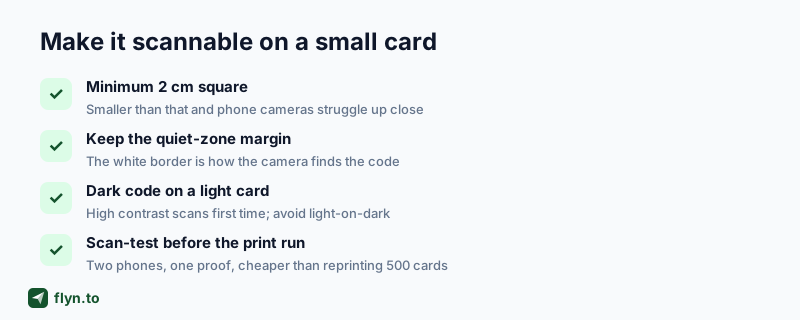
A vCard QR lives on a small surface, a card, a badge, a sign, so scannability matters more here than almost anywhere. The good news: the rules are simple and physical.
 Tap to enlarge
The four rules
- Minimum 2 cm square. On a business card that's a meaningful chunk of the back, plan the layout around it, don't shrink it to fit. For sizes at other distances, see the QR code size guide.
- Keep the quiet zone. The white margin is functional; cropping it to gain space is the fastest way to break a scan.
- Dark on light. A dark code on a light card scans first time. Light-on-dark and low-contrast color combos fail on older cameras.
- Scan-test the proof. Two phones, one printed proof, before you order 500. A code that fails on press is an expensive lesson.
Logos and color, carefully
You can tint a vCard QR to match your brand or drop a logo in the center, but raise error correction to Q or H first so the redundant data covers the logo, keep the logo under ~20% of the area, and don't sacrifice contrast for aesthetics. A branded code that doesn't scan is just a square. The full troubleshooting checklist lives in why your QR code isn't scanning.
Track what your card actually does
A static vCard QR is invisible after you hand it out, you'll never know how many people scanned versus pocketed. That's an acceptable trade for a personal card. But if you're running a booth, a campaign, or a print run of hundreds, blindness is a choice, not a constraint.
Route the QR through a Flyn short link to a contact page and every scan becomes measurable: how many scans you got at each event, which city, which device, what time of day. You can also re-point the same printed code later, from a contact page during the conference to a follow-up offer afterward, without reprinting a single card.
- Per-event attribution: a different short link per event tells you which conference actually grew your network.
- A/B your card: two designs, two links, and the scan data picks the winner, the same logic as A/B testing short links.
- Update once, everywhere: change your title or number on the contact page and every card you've ever handed out is current again.
Use a custom domain for a card that looks the part
On a Flyn Pro plan the short link can live on your own domain, go.yourname.com instead of a generic shortener, so even the URL inside your contact card is branded. The deeper case for that is in why custom domains build trust, and the same routing powers a creator link-in-bio if your card points there.
Build the trackable version free, create a Flyn account, shorten the link to your contact page, and encode that link in the vCard tab. For the wider playbook on print-to-digital measurement, see the QR marketing strategy guide and how to track clicks on a link. To verify where any existing printed code currently lands, run it through the QR Destination Audit, or decode one with the QR Code Reader to read the contact it stores.
Frequently Asked Questions
How do I make a vCard QR code?
What is the difference between a vCard QR and a regular QR code?
Do vCard QR codes work on iPhone and Android?
Can I edit a vCard QR code after printing it?
Are vCard QR codes safe to put on a public sign?
How many fields should I put in a vCard QR code?
What size should a vCard QR code be on a business card?
Can I track how many times my vCard QR code is scanned?
Free tools for this
Three Flyn tools that pair well with the strategy in this article, all free, no signup needed.
UTM Builder
Build campaign-tracked URLs in seconds.
Broken Link Checker
Scan any page for dead links and 404s.
Open Graph Checker
Preview how URLs unfurl on social.
Keep reading
Three related deep-dives from the Flyn blog.
How to Track Which Posts Drive Sales, Not Just Clicks
19 min read
Email Newsletter Click Tracking: Measure Your Real CTR
12 min read
How to Choose a Branded Short Domain for Your Links
13 min read
Ready to try Flyn?
Free plan includes 25 links/month, full analytics, and access to all 30+ free tools above. No credit card required.
Already a member? Log in
Karan Bhakuni is the founder of Flyn. He writes about branded links, click analytics, and the link-management tooling growth teams and creators actually need, drawn from building Flyn and reading a lot of user feedback.
Find these guides useful? Add Flyn as a preferred source so more of them show up in your Google results.