Why Your QR Code Isn't Scanning (and How to Fix It)
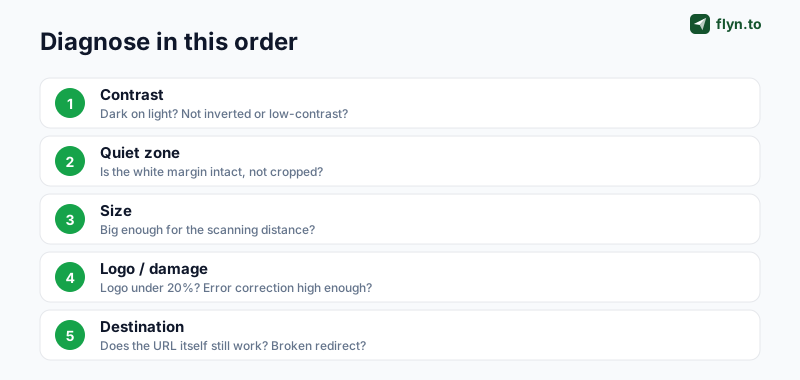
You printed the QR, you point your phone at it, and… nothing. Before you blame the printer, know this: a QR that won't scan is almost always one of six fixable problems. Here is how to diagnose yours in order.


First, rule out the obvious
A QR code that won't scan feels mysterious, but it almost never is. The pattern of black-and-white modules is just data plus a lot of redundancy, and phone cameras are forgiving. When a scan fails, it's usually because something physical got in the way of the camera reading that pattern, not because the code is "broken."
Before the deep diagnosis, clear the two non-reasons people waste time on. First, the phone: nearly every phone from 2018 onward scans QR codes straight from the native camera app, but a few need the dedicated QR mode turned on in settings, and a very old phone may need a scanner app. Second, the lighting: a glare-covered code under a spotlight, or one in near-darkness, defeats the camera before the design even matters. Tilt it out of the glare, add light, and try again.
If it still won't scan in good light on a modern phone, the cause is in the code itself, and it's one of the six below. Work through them in order; the first ones are both the most common and the easiest to fix.
Why "in order" matters
It's tempting to jump to the exotic explanations, a corrupt file, a weird phone bug, but those are vanishingly rare. The boring causes (contrast and margin) account for the large majority of failures, so checking them first saves you from regenerating a code that was never the problem. Resist the urge to rebuild from scratch until you've ruled out the cheap fixes.
 Tap to enlarge
Cause 1: Not enough contrast
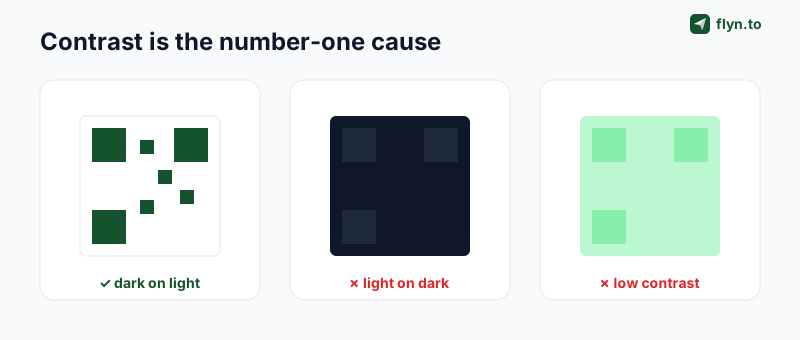
This is the single most common reason a QR won't scan, and the most common design mistake. Phone cameras find a QR code by detecting the sharp difference between its dark modules and light background. Reduce that difference and the camera can't resolve the pattern.
 Tap to enlarge
The rules that fix it
- Always go dark-on-light. A dark code on a white or very pale background is what every scanner expects.
- Don't invert. Light modules on a dark background fail on a surprising number of cameras, even though it looks striking in a mockup.
- Mind colored codes. You can tint a QR, but the dark color and the background must stay far apart in brightness. Pale green on white, or navy on black, are both too close.
If you've brand-colored a code into oblivion, regenerate it with a darker module color and a lighter background in the QR Code Generator, it keeps strong defaults and lets you preview the contrast live before you print.
Printing changes contrast. A code that looks crisp on a backlit screen can lose contrast on matte paper, colored card stock, or a glossy surface that throws glare. Always judge contrast on a printed proof under the lighting where the code will actually live, not on your monitor.
Cause 2: The quiet zone is gone
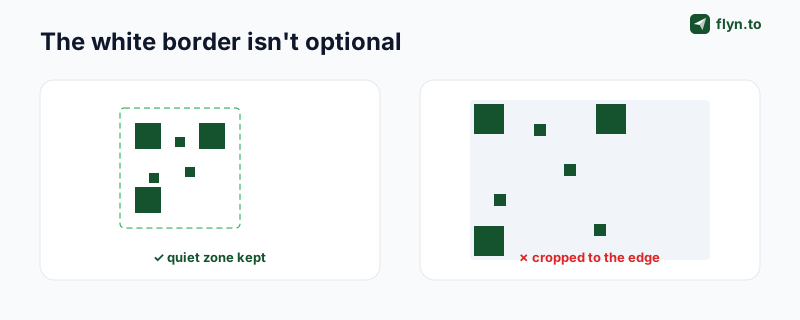
Every QR code needs a margin of empty space around it, the quiet zone. It's not decoration. Cameras use that clear border to locate the code's edges and orient the pattern. Crop it to save space, or butt the code up against text and artwork, and detection fails even though the code itself is perfect.
 Tap to enlarge
How much margin
The spec calls for a quiet zone of at least four modules wide on every side, in practice, leave a clear border roughly the width of one of the code's three corner squares. When you place a QR on a flyer, a label, or a slide, give it breathing room: don't wrap text around it, and don't let a background image bleed into the margin.
The "transparent background" trap
Exporting a QR with a transparent background and dropping it onto a colored or patterned surface effectively destroys the quiet zone, the pattern now sits directly on your artwork. Export with a solid light background, or place the code inside a white box, so the margin is always there regardless of what's behind it.
Cause 3: It's printed too small
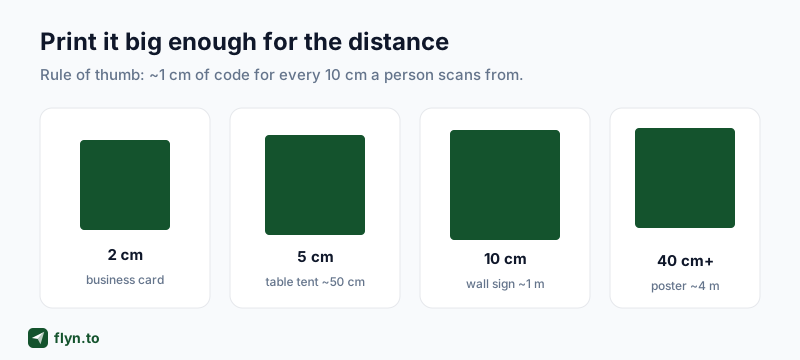
A QR has a fixed number of modules, so the smaller you print it, the smaller each module, until the camera can no longer resolve individual modules at a comfortable scanning distance. Size failures are sneaky because the code scans fine on your desk (where you hold the phone 10 cm away) and fails on the wall (where people stand back).
 Tap to enlarge
The distance rule
A reliable rule of thumb: the code should be about 1 cm wide for every 10 cm of scanning distance (our QR code size guide lists the exact minimum print sizes by surface). A business card people hold at 20 cm wants ~2 cm of code; a table tent scanned from half a metre wants ~5 cm; a wall sign scanned from a metre wants ~10 cm; a poster read from across a room wants 40 cm or more.
Reduce the data to scale down
If you genuinely can't make the code bigger, make the data smaller, fewer encoded characters means fewer modules, so each one stays larger at the same physical size. A short branded link (flyn.to/menu) encodes into a far simpler, more scannable code than a 120-character tracking URL. This is one of the underrated reasons to put a short link behind a QR rather than the raw URL.
The shorter the URL, the lower the QR's "version" (its module density), and the more it tolerates small print, scuffs, and bad light. Shortening a long campaign URL with UTM parameters before you encode it, build the tagged URL in the UTM Builder, then shorten it, can be the difference between a code that scans on a receipt and one that doesn't.
Cause 4: The logo or damage covers too much
A logo in the center of a QR is popular and perfectly workable, until it covers more of the code than the redundancy can recover. QR codes have built-in error correction: extra data that lets a scan succeed even when part of the code is missing or obscured. Add a logo without accounting for it and you eat into the data the scanner needs.
Error-correction levels
| Level | Recovers up to | Use when |
|---|---|---|
| L | ~7% | Clean digital code, no logo, tight space |
| M | ~15% | Default, most print with no logo |
| Q | ~25% | Small logo, or a surface that may scuff |
| H | ~30% | Center logo, outdoor, rough handling |
The 20% rule
Keep any center logo under about 20% of the code's area, and bump error correction to Q or H first so the redundant data covers what the logo hides. Go bigger than that and even level H can't recover the lost modules. The same applies to physical damage: a code on packaging that gets creased, or a sticker that peels, needs the headroom of high error correction to keep working.
You can set the level directly in the QR Code Generator before you download. If you've inherited a printed code with a logo that won't scan, there's no fixing the print, regenerate it at level H with a smaller logo and reprint.
Cause 5: The code is too dense
Closely related to size, but worth its own diagnosis: the more data you encode, the more modules the QR needs, and the denser and more fragile it becomes. A QR holding a 200-character URL with tracking parameters is a thicket of tiny modules; the same QR holding a 15-character short link is open and robust.
The best QR optimization isn't a fancier scanner or a bigger print, it's encoding less. A shorter destination makes the code simpler, larger-moduled, and far more forgiving of everything else that can go wrong.
How to cut the data
- Shorten the URL. Replace a long
https://example.com/campaign/spring-2026?utm_source=…with a branded short link that redirects to it. The QR now encodes ~15 characters instead of ~120. - Drop visible tracking parameters from the encoded URL, move them to the redirect side, where a short link can apply them invisibly. The UTM audit guide explains how.
- For vCards, keep fields lean, name, title, one phone, one email, one URL. A bloated vCard QR is a classic density failure on a small business card.
This is the through-line of QR reliability: a static, raw-URL QR forces you to encode the whole long string, while a dynamic QR built on a short link stays simple no matter how long or messy the real destination is.
Cause 6: It scans but goes nowhere
Sometimes the scan works, the phone reads the code and opens a browser, but the destination is dead, wrong, or stuck in a redirect loop. That's not a scan failure at all; it's a destination failure, and it's invisible until someone actually scans.
What breaks after a successful scan
- The page moved or 404'd. A static QR encodes a fixed URL; if that page is deleted or its slug changes, the code now leads nowhere.
- A redirect chain is too long or loops. Each hop adds latency and a chance of failure on mobile. Trace it with the Redirect Checker.
- It lands on HTTP, not HTTPS, triggering a browser warning that scares people off.
- The destination isn't mobile-friendly, so the scan works but the experience doesn't.
Before you print, run the encoded URL through the QR Destination Audit, it resolves the link, checks HTTPS, counts redirects, and flags mobile issues, so you catch a dead destination on your desk instead of on a thousand flyers. After printing, if a static code's destination dies, you're reprinting; a dynamic code built on a short link lets you simply re-point it.
This is the strongest argument for never encoding a raw URL directly into a printed QR. Put a Flyn short link in the code instead: if the real destination ever moves, breaks, or needs to change, you update the link and every printed code follows, no reprint, no dead scans, and you get the scan analytics as a bonus.
Test before you print, every time
Every cause above is cheap to fix before printing and expensive to fix after. The single habit that prevents almost all QR disasters is a 60-second test on a real proof.
The pre-print checklist
- Print a proof at the real size, on the real material, under the real lighting.
- Scan it with at least two phones, ideally one iPhone and one Android, from the distance people actually will.
- Confirm where it lands, the right page, on HTTPS, mobile-friendly, fast.
- Only then commit to the full run.
For codes you produce at volume or need to change later, build them as dynamic QR codes on branded short links: simpler patterns, editable destinations, and scan tracking you can't get from a static code. The full placement-and-attribution playbook is in the QR marketing strategy guide, and you can start free to make your first trackable code.
Where QR codes earn their place
Once your codes scan reliably, the question shifts from "does it work?" to "what's it worth?" A QR on a menu, a package, or a poster is a bridge from the physical world to a page you control, and the ones worth printing are the ones you can measure and re-point. If you're putting them on SMS sends, podcast show notes, or product packaging, the same reliability rules and the same branded-link approach carry across all of them.
Get the six causes right, contrast, quiet zone, size, logo, density, destination, test the proof, and your QR codes will scan first time, every time. The failures aren't random; they're a short, fixable list, and now you have it.
Frequently Asked Questions
Why won't my QR code scan?
Does a QR code need a white border to scan?
How small can a QR code be and still scan?
Can I put a logo in the middle of a QR code?
Why does my QR code scan but not open the link?
Does printing a QR code in color stop it from scanning?
How do I fix a QR code that worked before but stopped?
Do I need an app to scan QR codes?
Free tools for this
Three Flyn tools that pair well with the strategy in this article, all free, no signup needed.
UTM Builder
Build campaign-tracked URLs in seconds.
Broken Link Checker
Scan any page for dead links and 404s.
Open Graph Checker
Preview how URLs unfurl on social.
Keep reading
Three related deep-dives from the Flyn blog.
How to Track Which Posts Drive Sales, Not Just Clicks
19 min read

Email Newsletter Click Tracking: Measure Your Real CTR
12 min read

How to Choose a Branded Short Domain for Your Links
13 min read
Ready to try Flyn?
Free plan includes 25 links/month, full analytics, and access to all 30+ free tools above. No credit card required.
Already a member? Log in
Karan Bhakuni is the founder of Flyn. He writes about branded links, click analytics, and the link-management tooling growth teams and creators actually need, drawn from building Flyn and reading a lot of user feedback.
Find these guides useful? Add Flyn as a preferred source so more of them show up in your Google results.