Free QR Code Reader
Scan a QR code from any image, screenshot, or photo, right in your browser. Upload, drag, or paste it to instantly decode the URL, WiFi, contact, or text. No app, no signup, and nothing ever leaves your device.
Drop a QR code image here
or click to upload · paste with ⌘/Ctrl + V · PNG, JPG, WEBP, or a screenshot
Reading a QR you made for a campaign?
Swap static codes for Flyn QR links, edit the destination after printing and see every scan by location, device, and time.
How to Read a QR Code in 3 Steps
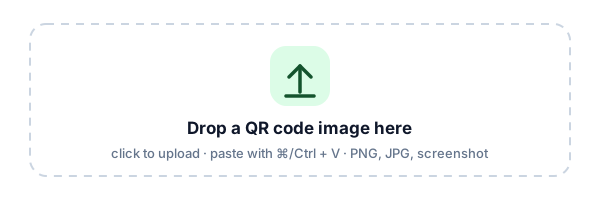
Add the QR image
Drag a QR image onto the box, click to upload, or paste a screenshot with Ctrl/Cmd + V. PNG, JPG, WEBP, and GIF all work.
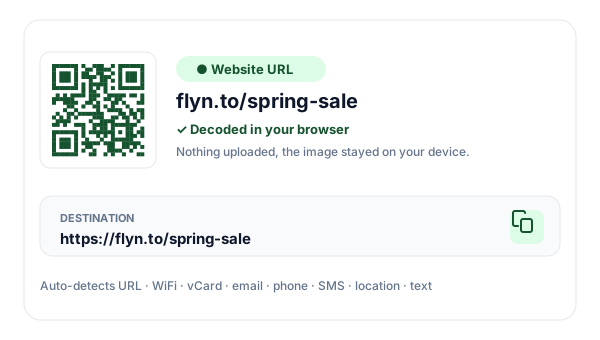
Decode it in your browser
The reader finds and decodes the code instantly on your own device, the image is never uploaded to a server.
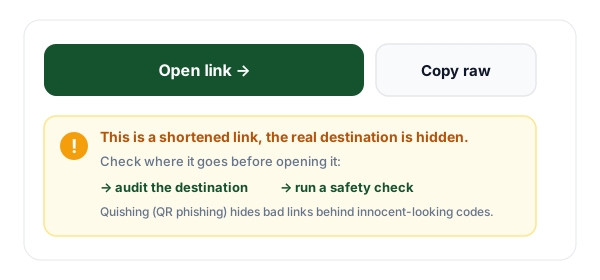
Open, copy, or verify
See exactly what the code contains, then open the link, copy the text, save the contact, or check where a short link really goes.
What Is a QR Code Reader?
A QR code reader (or QR decoder) takes an existing QR code, from an image file, a screenshot, or a photo, and turns the pattern of squares back into the data it stores: a link, WiFi credentials, a contact card, or text. It is the reverse of a QR code generator, which encodes data into a code.
Phones do this with the camera, but laptops and desktops usually have no built-in scanner, so when a QR arrives in a chat, an email, a PDF, or on screen, there is no easy way to read it. This tool fills that gap: drop in the image and it decodes everything locally, in your browser, with nothing uploaded. New to QR codes? Our guides cover WiFi QR codes, vCard business-card QRs, why a QR won't scan, and how to track QR code scans.
Every QR Type, Decoded
The reader detects the payload automatically and gives you the right action for each one.
Website URLs
See the full destination before you open it, with a warning if it is shortened or insecure.
WiFi credentials
Reveal the network name, security type, and password from a printed WiFi QR code.
vCard contacts
Parse name, company, phone, and email, then save it straight to your contacts as a .vcf.
Email, phone, SMS & geo
Decode mailto, tel, SMS, and map-location codes and act on them in one tap.
Is It Safe to Scan a QR Code?
Reading a QR code is always safe, it just reveals data. The risk is in opening what it points to. "Quishing" (QR phishing) hides a malicious link behind an innocent-looking code on a poster, parking meter, or email, betting you will scan and tap without ever seeing the URL.
This reader flips that around: it shows you the full destination first and flags anything risky, an insecure http:// link, or a shortener that hides the real address. When in doubt, send it to the QR Destination Audit or the Short Link Safety Checker to expand and inspect the chain before you click.
Want people to trust your QR codes?
Flyn turns your codes into branded short links on your own domain, so scanners see who they are trusting, and shows you every scan by location, device, and time.
When You'll Reach for It
QR codes on your computer
Laptops and desktops have no built-in scanner, upload or paste the image and read it instantly.
Codes sent in chat or email
Screenshot a QR someone messaged you and decode it here without reaching for your phone.
Printed WiFi codes
Pull the WiFi password off a café or rental sign to type into a smart TV or laptop that can't scan.
Checking a code before you trust it
Reveal a suspicious code's real link first, instead of pointing your camera and opening it blind.
Reading codes in PDFs & docs
Screenshot a QR embedded in a flyer, invoice, or slide deck and decode it on the spot.
Saving a contact from a badge
Scan a vCard QR from a business card photo and import the contact in one click.
Why Use Flyn's QR Code Reader?
100% private
Decoding happens in your browser. Your image, and any WiFi password or contact in it, never leaves your device.
Reads every type
URL, WiFi, vCard, email, phone, SMS, geo, and text, auto-detected, with the right action for each.
Safety built in
Flags insecure and shortened links and points you to a full destination audit before you open them.
Track what you share
Pair it with a Flyn link to brand your own QR codes and measure every scan in real time.
Frequently Asked Questions
Is this QR code reader really free?
Does my image get uploaded to your server?
How do I scan a QR code from an image on my computer?
Can I read a QR code from a screenshot?
What types of QR codes can it read?
Can I read a WiFi QR code to see the password?
Is it safe to open a link from a QR code I scanned?
The QR points to a shortened link, how do I see where it really goes?
Why is my QR code not being detected?
Can it read a damaged, partially covered, or low-contrast QR code?
Do I need an app to read a QR code on my laptop or PC?
Can I save a contact from a vCard QR code?
How is reading different from generating a QR code?
More Free Link Tools
Read, make, brand, and verify your links with the rest of Flyn's free toolkit.
QR Code Generator
Make custom QR codes for a URL, WiFi, vCard, and more, download PNG or SVG.
QR Destination Audit
Check where a QR code lands, HTTPS, redirects, mobile readiness, and scan speed.
Short Link Safety Checker
Expand a short link and score its risk before you open the destination.
URL Expander
Reveal the real destination behind any short link before you click.
Make QR codes worth scanning
Reading a code is the easy part. With Flyn, the codes you share are branded, editable after printing, and tracked, so every scan turns into an insight, not a dead end.