WiFi QR Code: Share Your Network Without the Password
Reading your WiFi password out loud is a small, daily friction. A WiFi QR code kills it: guests point a camera, tap once, and they're online, here is exactly how to make one that works on every phone.


What a WiFi QR code actually is
A WiFi QR code is a square barcode that holds your network's name, password, and security type in a single, machine-readable string. Point a phone camera at it and the operating system offers a one-tap "Join Network" prompt, no typing a 16-character password, no spelling out S-as-in-Sierra across a noisy café.
It works because Apple and Google both built native support for one specific text format directly into the camera app. You don't need a separate scanner, and your guests don't need to install anything. That native support is the whole reason WiFi QR codes went from a nerdy trick to something you see taped to the wall of every third coffee shop.
 Tap to enlarge
The format, field by field
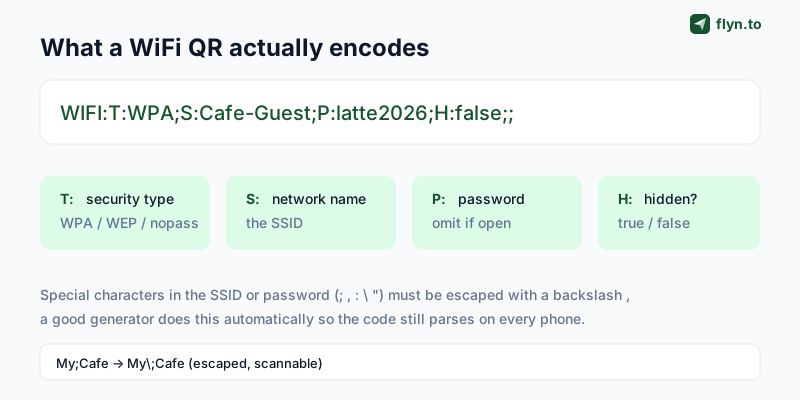
The payload looks intimidating but it's just four key-value pairs separated by semicolons. WIFI:T:WPA;S:Cafe-Guest;P:latte2026;H:false;; breaks down as:
T:, security type.WPAcovers WPA, WPA2, and WPA3 (use it for almost every modern router).WEPis for ancient hardware you should really replace.nopassmeans an open network with no password.S:, the SSID, i.e. the network name exactly as it appears in your WiFi settings, capitalization included.P:, the password. Omit it entirely whenT:isnopass.H:, hidden flag.trueif your network doesn't broadcast its name, otherwisefalseor left out.
You will almost never type this by hand. Paste your details into the WiFi tab of the free QR Code Generator and it assembles the string, escapes the tricky characters, and renders a scannable code live as you type, the same way you'd build a click-to-chat WhatsApp link or a pre-filled SMS link without memorizing any syntax.
How to make a WiFi QR code in three steps
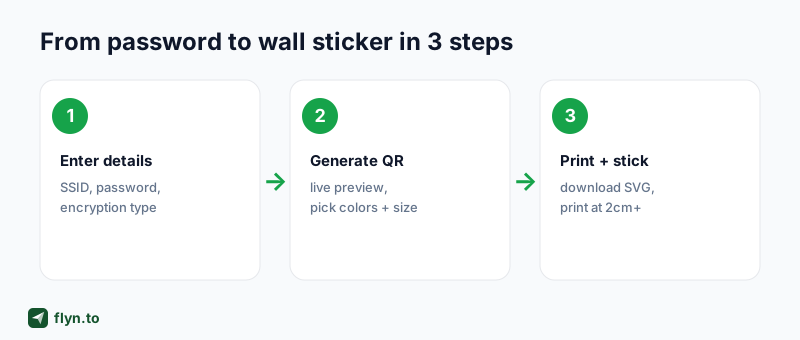
Start to finish, this takes under a minute. There's no account, no watermark, and the code never expires, the data lives in the pattern itself, so it keeps working as long as the password does.
 Tap to enlarge
Step 1, Enter your network details
Open the QR Code Generator, choose the WiFi tab, and fill in the network name (SSID), the password, and the encryption type. If you run an open network with no password, switch the encryption to None and the password field disappears, the tool then drops the P: field automatically so the code parses correctly.
Step 2, Generate and style it
The code renders instantly. You can recolor it, resize it, and set the error-correction level. For a wall sticker that might get scuffed or that you want to drop a small logo onto, bump error correction to Q or H, that adds redundant data so the code still scans with part of it obscured.
Step 3, Download and print
Grab a PNG for digital use (a welcome email, a slide, a Notion page) or an SVG for anything printed. SVG is a vector, so it stays razor-sharp whether you print it on a business card or blow it up to A3 for a conference backdrop. Then do the one thing most people skip: scan it with a couple of different phones before you commit it to print.
Generate the code while connected to the network you're encoding, and copy the SSID straight from your phone's WiFi settings rather than retyping it. A single wrong character, Cafe_Guest vs Cafe-Guest, produces a code that scans perfectly and then fails to connect, which is maddening to debug after it's printed.
Where to put a WiFi QR code
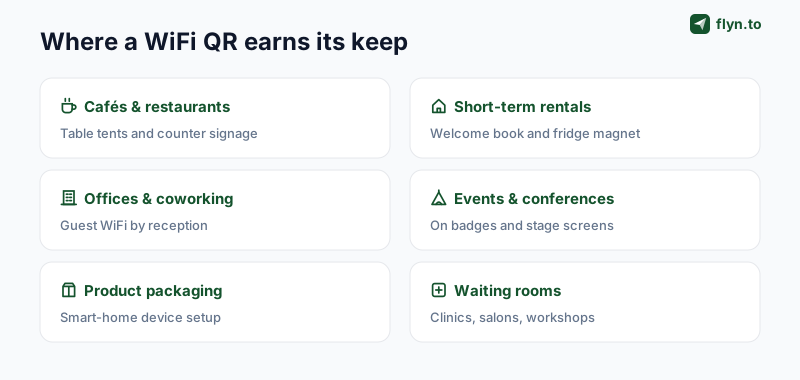
A WiFi QR is most valuable anywhere a guest would otherwise have to ask for the password, which is to say, anywhere people who aren't you use your internet. The format is the same; only the placement changes.
 Tap to enlarge
- Cafés and restaurants: a table tent or a sticker by the counter. It cuts a repetitive question out of every shift.
- Short-term rentals: in the welcome book and on a fridge magnet. Guests connect before they've put their bags down, and your review mentions how easy check-in was.
- Offices and coworking spaces: guest WiFi by reception so visitors and contractors self-serve.
- Events and conferences: on badges, table cards, and the welcome slide. For a one-time event, this is the lowest-friction way to get a room online.
- Product packaging: smart-home devices that need WiFi during setup can ship a QR that joins the right band automatically.
- Waiting rooms: clinics, salons, and workshops where people sit and want to get online without flagging down staff.
If you want to go a step further than WiFi and route guests to a menu, a booking page, or a review link once they're online, that's a different job, a standard URL QR. The QR codes marketing strategy playbook covers placement and attribution for those, and the dynamic QR codes guide explains how to make a printed code you can re-point later.
The security rule everyone forgets
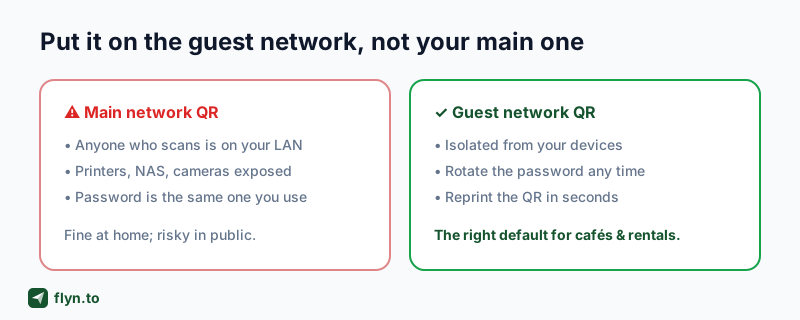
Here's the uncomfortable part. A WiFi QR code is a picture of your password. Anyone who can see it, including someone photographing your café wall from across the street, can join your network. For a home you trust, that's fine. For anywhere public, it isn't.
 Tap to enlarge
A scannable password is a password you no longer control. Treat any QR you print in public as if it were taped to the front door, because functionally, it is.
Use a separate guest network
Almost every modern router can broadcast a second guest network that's isolated from your main LAN. Devices on it can reach the internet but not your printers, network storage, security cameras, or other computers. Point your public WiFi QR at that network, and the worst case becomes "a stranger used my internet" rather than "a stranger is on the same network as my files."
Rotate the password on your schedule
Because the guest password isn't the one you use for everything else, you can rotate it whenever you like, monthly, after an event, or the moment something feels off, and simply reprint the QR. The code is free to regenerate, so the cost of rotating is a sheet of paper. If you ever need to verify where a printed code actually leads (for a URL QR, not a WiFi one), the QR Destination Audit tool resolves and inspects the destination before you trust it.
WiFi QR codes are static, the network details are baked into the pattern. If you change the password, the old printed code stops working and you reprint. That's a feature for security (the code can't be silently hijacked) but it means you should keep the editable source, not just the printout.
Design and print so it actually scans
A WiFi QR that looks beautiful but won't scan is worse than an ugly one that works. Scannability comes down to a handful of physical rules that have nothing to do with the data and everything to do with how phone cameras read contrast.
Contrast, margin, and size
- Keep it dark-on-light. A dark code on a white or very light background scans most reliably. Light-on-dark inverts the pattern and trips up a surprising number of scanners.
- Leave the quiet zone. That white border around the code isn't decoration, cameras use it to find the code's edges. Don't crop it to save space.
- Print at 2 cm or larger for close-range scanning, and scale up for distance: roughly 1 cm of code per 10 cm of scanning distance. A code people scan from a metre away wants to be around 10 cm. The QR code size guide has the full size-by-distance table.
Logos and color
You can tint the code or drop a small logo in the center, but raise the error correction to Q or H first so the redundant data covers what the logo hides. Keep any logo under about 20% of the code's area, and keep enough contrast between the code color and the background that a phone in dim light still resolves it.
The same scannability rules apply to every QR you make, not just WiFi ones. If a code refuses to scan, the cause is nearly always one of these physical factors rather than the data, our full guide to why QR codes don't scan walks through the fixes in order.
Export the WiFi QR as SVG for print, not PNG. Vector stays crisp at any size, so the same file works for a business-card-sized sticker and a conference banner. Keep a PNG too for screens and email, where pixel images render more predictably.
WiFi QR vs typing the password
It's worth being honest about when a WiFi QR is genuinely better and when it's overkill. For a household of three who already know the password, a sticker on the router is a nice-to-have. The value scales with how many strangers touch your network.
| Scenario | Type the password | WiFi QR code |
|---|---|---|
| Your own home, known guests | Fine | Marginal gain |
| Café / restaurant with daily turnover | Repetitive, error-prone | Scan once, done |
| Airbnb / rental check-in | Buried in a manual | Connected before unpacking |
| Conference with hundreds of attendees | Doesn't scale | One slide gets the room online |
| Long, random guest password | Painful to read aloud | No human reads it at all |
The pattern is clear: the more often someone who isn't you needs to connect, and the stronger your password, the more a QR pays for itself. And because a strong, random guest password is exactly the kind nobody wants to type, the QR quietly lets you use a better password than you otherwise would.
Beyond WiFi: one tool, many QR types
WiFi is one of seven things the QR Code Generator can encode. The same workflow makes a vCard QR for your business card, a URL QR for a menu or landing page, or a phone, SMS, or email QR that pre-fills the action. If you're putting QR codes on anything you print, it's worth learning the one tool rather than juggling several.
When a branded link beats a raw URL
For any QR that points at a web page, shorten the destination with a branded Flyn short link before you encode it. You get a clean, on-brand URL, the ability to swap the destination later, and per-scan analytics a raw link can never give you. The case for branded short links applies just as much to a printed QR as to one you tap online, and a Pro custom domain lets the QR resolve through your own brand.
Track what happens after the scan
A WiFi QR connects a guest and then its job is done, there's nothing to measure, because joining a network isn't a click you can attribute. But the moment you put a URL QR next to it (a menu, a review request, a booking link), you can and should measure it.
Plain URL QR codes are invisible after printing: you have no idea how many people scanned. Point the QR at a Flyn short link instead of the raw URL and every scan becomes a tracked event, count, location, device, and time, and you can change the destination after the code is printed without reprinting a thing. That's the difference between a static code and a dynamic one.
- Menu QR: see how many times diners actually open it, and which location scans most.
- Review-request QR: measure scans against reviews left, and re-point to a new review platform any time.
- Event QR: watch scans spike during a talk, then redirect the same printed code to a post-event survey.
You can build that trackable destination free, start with a Flyn account, shorten your URL, and drop it into the URL tab of the generator. For the deeper playbook on QR attribution, the QR marketing strategy guide and how to track clicks on a link cover the full setup. And if you're auditing existing printed codes, the QR Destination Audit tells you exactly where each one currently lands, or decode a printed code back to its credentials with the QR Code Reader.
Frequently Asked Questions
How do I make a WiFi QR code?
Do WiFi QR codes work on both iPhone and Android?
Is it safe to put a WiFi QR code on the wall?
Do WiFi QR codes expire?
How do I make a QR code for an open WiFi network with no password?
Why does my WiFi QR code scan but fail to connect?
Can I add my logo or brand colors to a WiFi QR code?
What size should I print a WiFi QR code?
Free tools for this
Three Flyn tools that pair well with the strategy in this article, all free, no signup needed.
UTM Builder
Build campaign-tracked URLs in seconds.
Broken Link Checker
Scan any page for dead links and 404s.
Open Graph Checker
Preview how URLs unfurl on social.
Keep reading
Three related deep-dives from the Flyn blog.
How to Track Which Posts Drive Sales, Not Just Clicks
19 min read
Email Newsletter Click Tracking: Measure Your Real CTR
12 min read
How to Choose a Branded Short Domain for Your Links
13 min read
Ready to try Flyn?
Free plan includes 25 links/month, full analytics, and access to all 30+ free tools above. No credit card required.
Already a member? Log in
Karan Bhakuni is the founder of Flyn. He writes about branded links, click analytics, and the link-management tooling growth teams and creators actually need, drawn from building Flyn and reading a lot of user feedback.
Find these guides useful? Add Flyn as a preferred source so more of them show up in your Google results.