How to Add a Meta (Facebook) Pixel to Any Link
The Meta Pixel is supposed to live on the destination page. Here is how to fire it from a short link's redirect instead, so it works on any link you share, including pages you do not control.


Why the Meta Pixel's placement is the whole problem
You want to run Facebook and Instagram ads to people who clicked a specific link. But there is a catch that stops most people cold: the Meta Pixel is a snippet of JavaScript that has to sit on the page a visitor lands on. If you do not own that page, you cannot install it. And a huge share of the links you share point at pages you will never control: an affiliate offer, a partner's product page, an app store listing, a client's site, a YouTube video description, a link in your bio.
What the Meta Pixel actually does
The pixel is Meta's tracking tag. When it loads on a page, it fires a PageView event and hands Meta a signal: this browser visited this URL. Over time those signals build a Custom Audience you can advertise to, and feed Meta's optimization so it finds more people like your best visitors. Without the pixel firing somewhere in the journey, Meta has no idea who clicked, and you are left boosting posts to strangers.
The placement gap in one sentence
The pixel wants to live on the destination, but your reach lives on links you share, and those two things rarely overlap. That gap is exactly why so many affiliates, creators, and agencies never retarget their link clickers at all. If this sounds familiar, the companion piece on retargeting affiliate link clicks walks through the same problem from the affiliate angle.
The fix: move the pixel to the redirect
Here is the shift. Instead of putting the pixel on the destination, you put it on the hop in between. A short link does not jump straight to the destination; it passes through the shortener's domain first. That in-between moment is a page you do own. Fire the pixel there and you capture the click no matter where it is headed. That is the entire trick, and it is what Flyn's retargeting pixels automate for you.
How firing the pixel from a short link works
A Flyn short link is not a plain 301 that vanishes instantly. When someone clicks, Flyn serves a lightweight interstitial, a near-invisible split-second page on the flyn.to domain, fires any pixels you attached, then forwards the browser to the real destination. Because that interstitial is served from a domain you control through Flyn, the Meta Pixel is allowed to run there.
Why this beats editing the destination
- No access needed. You never touch the merchant, sponsor, or partner site. You do not need FTP, a CMS login, or a developer.
- One pixel, many links. Save the Pixel ID once and tick it onto as many links as you like.
- It travels. Move the link into a Reel caption, a DM, a newsletter, a QR code: the pixel goes with it.
What the clicker experiences
Almost nothing. The interstitial is engineered to be fast, so the human sees a blink and lands on the destination. Meanwhile Meta has quietly logged the visit and added that browser to your audience. This is the same mechanism described in retargeting links you do not own, applied specifically to the Meta Pixel.
It is not only Facebook
Meta is one of 13 platforms Flyn can fire on the same redirect: Meta, Google Ads, GA4, Google Tag Manager, LinkedIn, X, TikTok, Pinterest, Quora, Reddit, Snapchat, Microsoft Advertising, and AdRoll. If you are running TikTok too, the add a TikTok pixel to a link guide covers that platform's quirks.
Getting your Pixel ID from Meta Events Manager
You do not need the pixel code, only the numeric Pixel ID. Meta calls the pixel a dataset now, but the ID is the same 15-or-16-digit number it always was.
Step by step in Events Manager
- Go to Meta Events Manager from your Business account.
- In the left rail, open Data sources and select your pixel (or click the green plus to create one if you have none).
- The Pixel ID is shown under the pixel's name at the top of the Overview panel. It is a long number, nothing else.
- Click it to copy, or copy it from the pixel's Settings tab.
If you have never made a pixel
Create one in under a minute: Data sources, Connect data, Web, name it, done. You can ignore every prompt about installing code on a site, because Flyn fires the pixel for you. You are only there to mint the ID.
Do not paste the whole base-code snippet or the fbq('init', ...) line into Flyn. Flyn wants the bare Pixel ID number only. Pasting the full script will not match and the pixel will not fire. Strip it down to just the digits.
Business Manager vs personal
Pixels created inside a personal ad account still work, but if you plan to share audiences with clients or a team, create the pixel inside a Business Manager first. Reassigning a pixel later is more painful than starting in the right place.
The 3-step Flyn setup
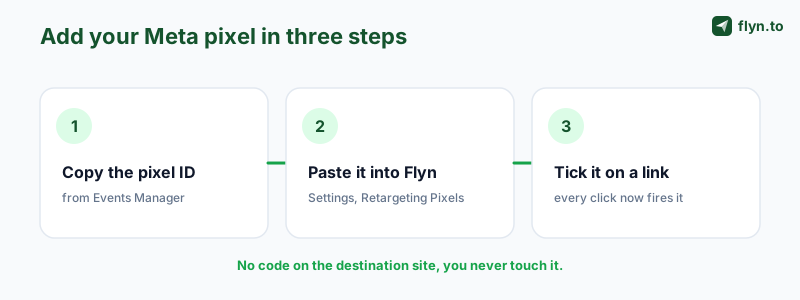
Once you have the ID, wiring it up takes about a minute. There is no code, no plugin, no tag manager container to publish.
 Tap to enlarge
Step 1: save the pixel in Settings
Open Settings, Retargeting Pixels, choose Meta as the platform, paste your Pixel ID, and give it a nickname you will recognize later (for example "Main store pixel"). Save. You only do this once per pixel, ever.
Step 2: attach it to a link
Create or edit any short link. In the link's settings you will see your saved pixels with a checkbox each. Tick Meta. That link now fires your Facebook pixel on every click. Attach it to one link or a hundred.
Step 3: share the link as normal
Copy the short link and use it anywhere: a Facebook post, an Instagram bio, an email, a QR code. Nothing about how you share changes. The pixel rides along invisibly.
Add your UTM parameters to the destination before you shorten. The pixel tells Meta who clicked, and clean UTMs tell your analytics which campaign drove that click. Together they close the loop between the ad, the click, and the eventual conversion.
Combine with cloaking or rotation
You can stack a pixel with other link behaviors. Pair it with the link cloaker to keep an ugly affiliate URL tidy, or the link rotator to split traffic across offers while still capturing every clicker into one audience.
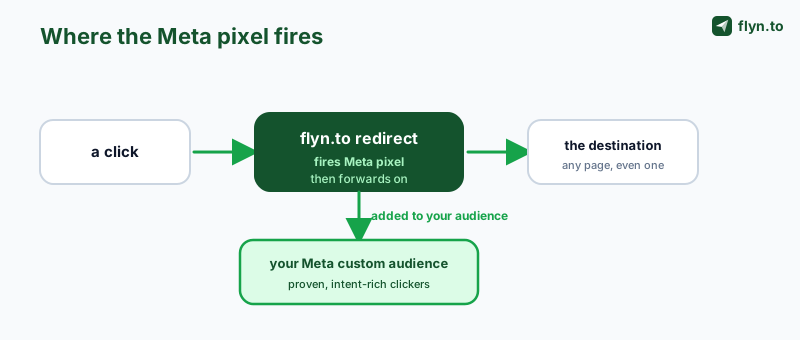
Where and how the pixel fires on the redirect
Understanding the exact moment the pixel fires helps you trust the data and debug it when something looks off.
 Tap to enlarge
The sequence, precisely
- A person clicks your flyn.to link.
- Flyn serves the interstitial on its own domain.
- Meta's pixel loads and fires a
PageViewfor that browser. - Flyn forwards the browser to the destination.
- Meta adds the browser to any audience whose rule matches that pixel activity.
The pixel does not care where the link points. It only cares that a real browser passed through your redirect, and that is a page you own.
What event gets sent
By default the redirect sends a standard PageView, the same event a homepage visit sends. That is enough to build a Custom Audience of everyone who clicked. You do not need a purchase or lead event on the redirect itself; the click is the signal you are capturing.
Why the destination staying pixel-free is fine
People worry that without the pixel on the destination they lose data. For retargeting, you do not. The audience you are building is "people who clicked this link," and the redirect captures exactly that group. If you also own the destination and want conversion events, you can still install the pixel there too; the two are not mutually exclusive.
Verifying the pixel in Events Manager and Pixel Helper
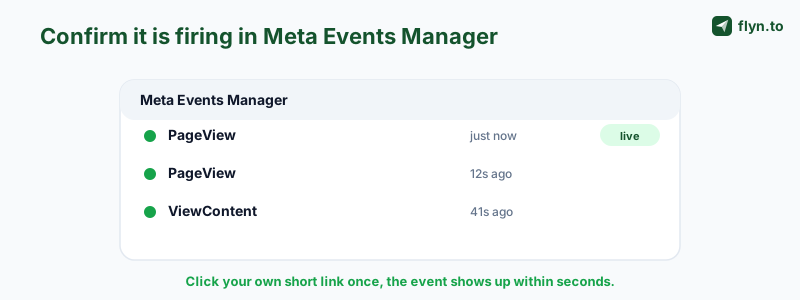
Never trust a pixel you have not seen fire. Two quick checks confirm everything is wired correctly before you spend a cent on ads.
 Tap to enlarge
Check 1: the Meta Pixel Helper
Install the Meta Pixel Helper Chrome extension. Click your own short link. During the split second the interstitial is on screen, the Helper icon should light up and show your Pixel ID with a fired PageView. Because the redirect is fast, watch the icon closely, or slow things down using the tip below.
Check 2: Test Events in Events Manager
In Events Manager, open your pixel and go to the Test Events tab. Click your short link. Within a few seconds a PageView row should appear with the browser and source URL. This is the definitive proof the pixel fired on the redirect.
If nothing shows up
- Wrong ID. Re-copy the Pixel ID from Events Manager and confirm it matches what is saved in Settings, Retargeting Pixels.
- Pixel not ticked. Confirm the Meta checkbox is actually enabled on that specific link, not just saved in Settings.
- Ad blocker. Test in a clean browser profile with no content blockers, which strip pixels client-side.
- Consent gate. If you have a consent banner in front of tracking, the pixel may be waiting on consent. See the compliance section below.
For a deeper troubleshooting checklist, the retargeting pixels documentation lists every failure mode by symptom.
Turning link clickers into audiences and ads
Capturing clicks is the means. Building profitable audiences is the point. Once your pixel is collecting clickers, here is what to do with them inside Meta Ads Manager.
Build a Custom Audience
In Ads Manager, create a Custom Audience from your website, choose your pixel, and set the rule to people who fired PageView in the last 30, 60, or 180 days. Because your redirect only fires for people who clicked that link, this audience is precisely your link clickers. Give it a retention window that matches your sales cycle.
Scale with lookalikes
Once a Custom Audience has enough people (Meta likes at least a few hundred, ideally 1,000-plus), spin up a Lookalike Audience from it. Meta finds new users who resemble your clickers, turning a warm retargeting pool into a cold-prospecting engine.
Let Advantage+ use the signal
Even if you do not build manual audiences, the pixel data feeds Advantage+ campaigns and broad-targeting optimization. More clean signal means Meta's algorithm spends your budget on people more likely to convert. The pixel is doing work for you whether or not you segment by hand.
Compare the placement approaches
| Approach | Where pixel lives | Works on pages you do not own | Setup effort |
|---|---|---|---|
| Pixel on destination | Destination page code | No | Needs site access and a developer |
| Tag manager on destination | GTM container on the site | No | Container plus publish, still needs site access |
| Pixel on Flyn redirect | flyn.to interstitial | Yes | Paste ID once, tick a box |
The redirect approach is the only one that survives when you cannot edit the landing page, which is most of the time for affiliates and creators.
Consent, compliance, and common mistakes
Firing a pixel means tracking a real person, so the same privacy rules that apply to any pixel apply here. Get this right before you scale.
Consent is not optional in the EU and UK
If you retarget EU or UK clickers, you generally need a lawful basis and, in practice, consent before the Meta Pixel fires. Flyn's redirect can respect that, but you are responsible for the legal setup. The dedicated guide on consent and GDPR for retargeting pixels covers banners, lawful basis, and what to document, and your privacy policy should disclose the tracking.
Common mistakes that quietly waste spend
- Pixel saved but never ticked. Saving it in Settings does nothing until you enable it on a link.
- Testing with an ad blocker on. You will conclude it is broken when it is not.
- One pixel for unrelated projects. Mixing clients or offers into one pixel pollutes your audiences. Save a separate pixel per project.
- Ignoring UTMs. The pixel tells you who; UTMs tell you which campaign. Build them with the UTM builder.
- Forgetting disclosure. If the link is an affiliate or sponsored link, disclose it. See how to disclose affiliate and sponsored links.
This is a Pro feature
Retargeting pixels, including the Meta Pixel, are part of Flyn's Pro and Lifetime plans. If you have not yet, create a free account to try shortening first, then upgrade when you are ready to attach pixels.
Where to go next
Confirm the mechanics in the retargeting pixels docs, save your first pixel in Settings, Retargeting Pixels, and if TikTok is next on your list, follow the add a TikTok pixel to a link guide.
Frequently Asked Questions
Can I add a Facebook pixel to a link that goes to a page I do not own?
Where do I find my Meta Pixel ID?
fbq('init') line, because Flyn only needs the bare ID number. If you have no pixel yet, create one via Data sources, Connect data, Web, then grab the new ID.Do I need to install any code on the destination site?
How do I verify the Meta pixel is actually firing?
PageView during the brief interstitial. Second, open the Test Events tab in Events Manager and click your link; a PageView row should appear within seconds showing the source URL. If nothing fires, disable ad blockers, confirm the correct ID is saved, and confirm the pixel is ticked on that specific link. The docs list every failure mode.Is adding a pixel to a link a free feature on Flyn?
Will the pixel firing slow down my link for the person who clicks?
PageView during that moment, then the browser forwards immediately. For the human it feels like a normal short link. The tiny delay is the cost of capturing the click into your audience, and in practice most people never notice it. If you want to observe the sequence, click your own link with the Meta Pixel Helper open.What event does the pixel send from the redirect?
PageView event, the same one a homepage visit sends. That is all you need to build a Custom Audience of everyone who clicked the link, because the audience rule simply matches browsers that fired PageView on your pixel. You do not need a purchase or lead event on the redirect itself; the click is the signal you are capturing. If you also own the destination and want conversion events like Purchase, you can still install the pixel there separately.Can I use the same pixel on multiple links?
How do I turn link clickers into a Facebook ad audience?
PageView within your chosen window (30, 60, or 180 days). Because your redirect only fires for people who clicked that link, this audience is precisely your link clickers. Once it grows past a few hundred people, build a Lookalike Audience from it to reach new prospects who resemble your clickers. The pixel data also strengthens Advantage+ and broad-targeting campaigns automatically.Does this work for Instagram links and bio links too?
Do I need consent before the pixel fires?
Can I add pixels for platforms other than Meta on the same link?
Free tools for this
Three Flyn tools that pair well with the strategy in this article, all free, no signup needed.
UTM Builder
Build campaign-tracked URLs in seconds.
Broken Link Checker
Scan any page for dead links and 404s.
Open Graph Checker
Preview how URLs unfurl on social.
Keep reading
Three related deep-dives from the Flyn blog.
How to Track Which Posts Drive Sales, Not Just Clicks
19 min read
Email Newsletter Click Tracking: Measure Your Real CTR
12 min read

How to Choose a Branded Short Domain for Your Links
13 min read
Ready to try Flyn?
Free plan includes 25 links/month, full analytics, and access to all 30+ free tools above. No credit card required.
Already a member? Log in
Karan Bhakuni is the founder of Flyn. He writes about branded links, click analytics, and the link-management tooling growth teams and creators actually need, drawn from building Flyn and reading a lot of user feedback.
Find these guides useful? Add Flyn as a preferred source so more of them show up in your Google results.