YouTube Description Links: Add Clickable Links Fast
Your description is the most valuable real estate on YouTube, and most creators waste it. Here is exactly how to add clickable links, fix the ones that stay plain text, and track which video actually drives the click.

Why the YouTube Description Is Your Best Free Real Estate
You spent hours filming and editing, you wrote a title that earns the click, and then you dropped your most important link on line nine of the description where literally nobody will read it. The YouTube description is the single most valuable piece of owned real estate on your channel, and most creators treat it like an afterthought. It is the one place you fully control, it sits under every view, and it is where a casual viewer turns into an email subscriber, a customer, or a follower on another platform.
The problem is that the description does not behave the way you expect. Only the first 3 lines show before the "...more" button, links do not always turn blue, timestamps quietly become chapters, and YouTube has rules that can silently strip your links of their clickability. This guide walks through exactly how YouTube description links work, how to add a clickable link in under a minute, why a link sometimes refuses to become clickable, and how to attach a single tracked short link to each video so you finally know which upload is sending traffic.
 Tap to enlarge
The fold is the whole game
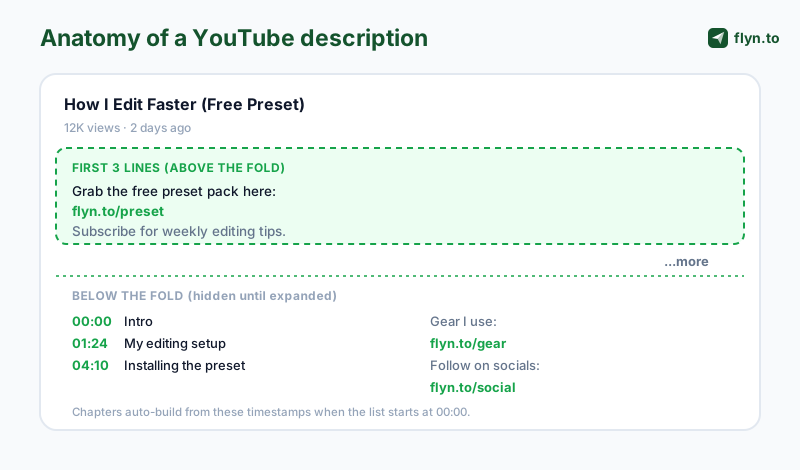
On both desktop and the mobile app, YouTube collapses the description after roughly three short lines (about 100 to 157 characters, depending on screen width). Anything past that is hidden until someone taps "...more", and the data is brutal: the vast majority of viewers never expand it. So the single highest-leverage decision you make is which one link earns a spot above the fold. Lead with your primary call to action, not boilerplate.
What the description is actually for
A great description does four jobs at once. Used well, it quietly compounds every view you earn:
- Drives the next action: your one most important link (newsletter, product, free download) in the first 3 lines.
- Organizes the video: timestamps and chapters that improve watch time and accessibility.
- Sends viewers to your other platforms: your Instagram, TikTok, and other social links.
- Feeds search: natural keywords that help YouTube and Google understand the video.
How to Add a Clickable Link to Your YouTube Description
The good news: you do not need any special formatting, HTML, or a markdown trick. YouTube auto-linkifies any properly formed URL the moment you publish. Type the full web address and it becomes a clickable, blue link on its own. Here is the exact flow.
Step by step in YouTube Studio
- Open YouTube Studio and go to Content, then click the video you want to edit (or do this in the upload flow for a new video).
- Find the Description box under the title.
- Paste the full URL including the protocol: it must start with
https://(orhttp://).https://flyn.to/guidebecomes clickable;flyn.to/guideon its own usually does not. - Add a short label on the line above so people know what they are clicking, for example "Free preset pack:" then the link on the next line.
- Click Save. Open the public watch page and confirm the link is blue and tappable.
That is the entire process. The most common reason a beginner's link "does not work" is simply that they typed the bare domain without https://, so YouTube treated it as plain text.
Do not paste a raw, ugly destination URL with a long query string. Run it through a YouTube link shortener first so the description shows a clean flyn.to/guide. It looks trustworthy, it is easy to read aloud in the video ("link in the description, flyn dot to slash guide"), and crucially it logs every click. We cover that tracking payoff below.
Where links are allowed (and where they render differently)
You can place links in several spots, and they behave differently in each:
- The description body: auto-linkified, always visible (once expanded), the default home for links.
- Pinned comment: clickable, great for a single highlighted CTA, but lives in the comments tab.
- Channel links / banner: for evergreen links (your site, socials) that apply to the whole channel, not one video.
- Cards and end screens: on-screen clickable elements, but limited to YouTube destinations and approved external sites.
For anything outside the video frame, the description and pinned comment are your workhorses. Browse our full kit of free link tools if you want presets for building these links cleanly.
Why Your YouTube Description Link Is Not Clickable
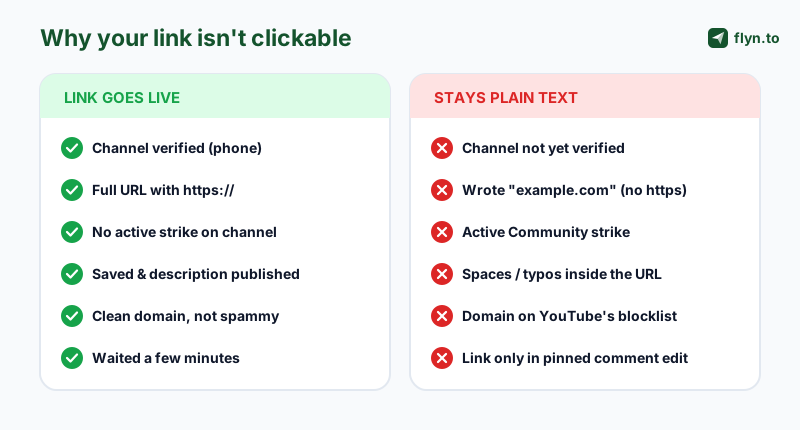
You added a link, saved, and it is sitting there as dull gray text instead of a blue, tappable link. This is one of the most-searched YouTube problems, and it almost always comes down to one of a handful of causes. Work through them in order.
 Tap to enlarge
The usual suspects
- Your channel is not verified. New or unverified channels often cannot post clickable external links. Verify your account (the phone-number verification at the channel level) and the restriction typically lifts.
- You left off
https://. The single most common cause. The URL must be complete and well formed. - There is a typo or a space inside the URL. A stray space, a smart quote pasted from a doc, or a missing slash breaks the auto-linkify.
- You have an active Community Guidelines strike. Channels with an active strike can lose the ability to post clickable links until it expires.
- The domain is flagged. If the destination has a history of spam or malware, YouTube may refuse to make it clickable. A clean branded short link on a reputable domain avoids this.
- You did not actually save and publish. Edits in Studio need to be saved, and changes can take a few minutes to appear on the public page.
How to fix it fast
Re-type the link by hand rather than pasting (to kill invisible characters), confirm the https:// prefix, check your channel verification status, and give it five minutes. If you suspect the destination itself is the problem, test the underlying URL with our short link safety checker and confirm the redirect resolves cleanly with the redirect checker before blaming YouTube.
Do not try to dodge a link restriction by spelling out a URL as "flyn dot to slash guide" and hoping viewers retype it, or by stuffing the description with the same link ten times. Both hurt the viewer experience and can look like spam to YouTube. Fix the underlying cause (verify the channel, clean the domain) instead of working around it.
Description vs Pinned Comment: Where Should the Link Go?
A long-running debate among creators: should your call-to-action link live in the description or in a pinned comment? The honest answer is that they do different jobs, and the best channels use both deliberately.
What each one is good at
| Factor | Description | Pinned comment |
|---|---|---|
| Visibility | First 3 lines show above the fold under every view | Top of comments; needs the viewer to scroll down |
| Best for | Your primary CTA, timestamps, all secondary links | One highlighted offer, a correction, or a discussion prompt |
| Clickable? | Yes (auto-linkified) | Yes |
| Editable later | Yes, anytime | Yes, but re-pinning can reset engagement |
| Drives comments | No | Yes, a pinned question seeds the comment section |
Put your single most important link in the first line of the description so it survives the fold. Then use the pinned comment for a friendly, human nudge toward that same offer plus a question that sparks replies ("Which tip are you trying first?"). You get above-the-fold reach and an engagement boost, and because both point at the same tracked short link, you can see in your dashboard which placement actually earns the clicks.
The creators who win are not the ones who pick description or pinned comment. They are the ones who put the same trackable link in both, then read the data to learn which one their audience actually uses.
Track Which Video Drives Clicks With One Short Link Per Video
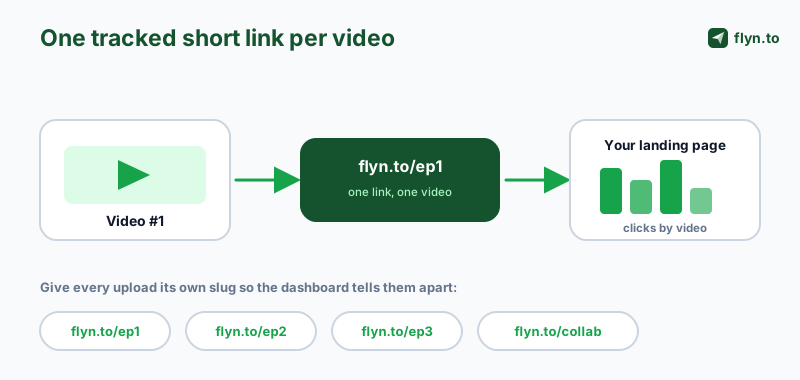
Here is the part almost every creator skips, and it is the difference between guessing and knowing. If you paste your homepage URL into every video's description, you have no idea which video sent a visitor. A tracked branded short link, unique to each video, fixes that completely. The link logs every click with country, device, browser, and referrer before forwarding to your real page, so your analytics finally map clicks back to specific uploads.
 Tap to enlarge
How to set it up
- Shorten your destination with a YouTube link shortener, giving each video a memorable slug like
flyn.to/ep1orflyn.to/preset. - Paste that short link into the first lines of the description (and the pinned comment).
- Watch the clicks roll into a real-time dashboard, broken down by geo, device, and referrer.
- Compare videos to see which topics, thumbnails, and CTAs actually move people to click, then make more of what works.
Why branded beats a generic shortener
A link on your own brand (like go.yourname.com/ep1) earns measurably higher click-through than a generic one because viewers trust a name they recognize, especially when you say it out loud in the video. That trust effect is real and documented in our piece on why branded short links increase CTR. You can read the full method for reading the numbers in how to track clicks on a link, and developers can pull the same data via the click analytics API.
For the cleanest reporting, layer UTM parameters under the short link. Build them with the free UTM Builder (use utm_source=youtube and the video as the utm_campaign), then shorten the tagged URL. You get the short link's own click log and Google Analytics on-site attribution, two independent data sources you can cross-check.
Add Timestamps and Chapters the Right Way
Timestamps are the most-loved feature you can add to a description, and YouTube turns them into clickable chapters on the progress bar automatically if you format them correctly. Chapters improve watch time, accessibility, and even how your video surfaces in search, because Google can deep-link viewers straight to the relevant moment.
The exact rules for auto-chapters
YouTube generates chapters from your description only when all of these are true:
- The first timestamp is
00:00. The chapter list must start at the very beginning. - There are at least 3 timestamps, in ascending order.
- Each chapter is at least 10 seconds long.
- Each timestamp sits on its own line, followed by the chapter title.
A correctly formatted block looks like this:
00:00 Intro01:24 My editing setup04:10 Installing the preset
Why chapters are worth the two minutes
Chapters are not just a courtesy. They raise watch time because a viewer who can jump to the part they care about is far less likely to bounce, and watch time is one of the strongest ranking signals on the platform. They also feed Google's key moments feature, which can surface an individual chapter directly in search results and deep-link a searcher into the exact second of your video. On top of that, chapters make long content genuinely accessible: someone scanning on a phone or using a screen reader can navigate your tutorial instead of hunting through a twenty-minute timeline.
Timestamps are also links
Even outside the chapter bar, every timestamp you write becomes a clickable link that jumps to that moment in the video, both in your description and in comments. That makes them perfect for long tutorials: a viewer can skip straight to the section they need. Just remember chapters only render when you meet the 00:00-plus-three rule above.
Write descriptive chapter titles, not generic ones. "Installing the preset" beats "Step 3" because the chapter title is indexable text that helps the right viewers find the right moment from search. Keep them short enough to read on a mobile scrubber.
Subscribe Links and Deep Links That Open the App
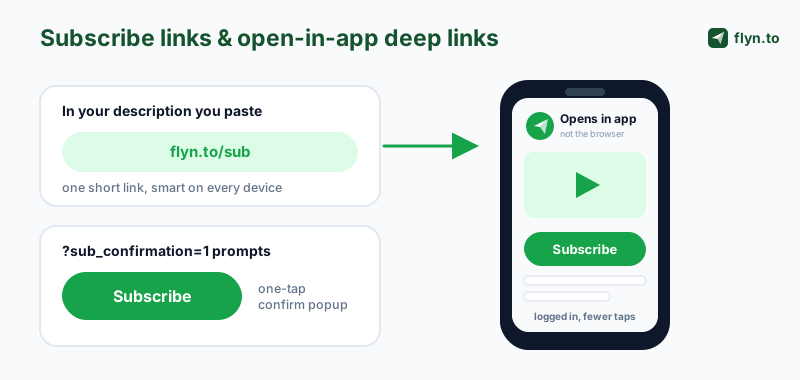
Beyond your main CTA, two specialized links punch above their weight in a YouTube description: a one-tap subscribe link and a deep link that opens the YouTube app instead of a mobile browser.
 Tap to enlarge
The one-click subscribe link
Adding ?sub_confirmation=1 to your channel URL makes YouTube pop a "Subscribe?" confirmation the moment someone clicks, turning a multi-step action into a single tap. Generate a clean, correct version with our YouTube subscribe link generator, then shorten it so the description shows a tidy flyn.to/sub instead of a long parameter string. Drop it in your first 3 lines and verbally point to it in your outro.
Deep links: open the app, not the browser
When a mobile viewer taps a plain web link, it often opens in an in-app browser where they are not signed in, adding friction to every action. A deep link routes them into the native YouTube app (or your own app) where they are already logged in, so subscribing or buying takes fewer taps. The mechanics, and how to make one link behave correctly across iOS, Android, and desktop, are covered in deep links that open in native apps, and you can sanity-check yours with the deep link tester.
Cards and end screens vs description links
Description links and in-frame elements solve different problems, so use them together. Cards and end screens are clickable elements layered on the video itself, but they are limited to YouTube destinations and a short list of approved external sites, and end screens only appear in the last 5 to 20 seconds. Your description link has none of those limits: it can point anywhere, it is visible the whole time the video is open, and it is the only one a viewer can copy or revisit later. The practical rule is to drive the in-video action (subscribe, watch next) with cards and end screens, and drive the off-platform action (your site, your offer) with the tracked link in your description.
A QR code on screen lets desktop-to-mobile viewers scan straight to your link without retyping anything. Encode a tracked short link in the QR with our QR code generator so even scans become measured clicks, and because a short link sits behind it you can change the destination later without re-rendering or re-uploading the video.
Common YouTube Description Mistakes (and the Fixes)
Even experienced creators leak clicks through avoidable description mistakes. Run this list against your last upload.
The biggest leaks
- Burying the link below the fold. If your CTA is on line eight, almost nobody sees it. Move your primary link into the first 3 lines.
- Using one generic link everywhere. You lose all per-video attribution. Give each video its own tracked slug with a link shortener.
- Pasting raw, ugly URLs. Long query-string links look untrustworthy and are impossible to say aloud. Shorten and brand them.
- Forgetting
https://. The number-one reason a link stays plain text. - Over-stuffing links. Ten links compete with each other and look spammy. Lead with one, group the rest below the fold.
- Never updating old videos. An evergreen video with a dead link is a daily leak. Audit your back catalog and swap in fresh short links (the destination behind a short link can be changed without touching the video).
A simple pre-publish checklist
Before you hit publish, confirm: primary link is above the fold and clickable, it is a branded short link unique to this video, timestamps start at 00:00 with three or more entries, the subscribe link works, and any QR code resolves. Keep your campaign tags consistent by validating them with the campaign URL QA checker.
Put your links on autopilot
Once you have more than a handful of videos, managing links in your head stops scaling. A dedicated link platform gives you branded short links, a real-time click dashboard, UTM building, QR codes, and the ability to swap any destination after the fact, all in one place. You can start free in under a minute with a Flyn account, no credit card, with total click tracking and bot filtering on by default, then upgrade to Pro (from $9/mo) for full geo and device analytics. When you are ready for custom branded domains and team features, the pricing scales with your channel. See everything Flyn does on the homepage, or browse more guides on the blog.
Frequently Asked Questions
How do I add a clickable link to my YouTube description?
Why is my YouTube description link not clickable?
How many links can I put in a YouTube description?
Should I put links in the description or a pinned comment?
How do I track clicks from my YouTube description?
How do I add timestamps and chapters to a YouTube video?
How do I make a one-click subscribe link for YouTube?
Free tools for this
Three Flyn tools that pair well with the strategy in this article, all free, no signup needed.
UTM Builder
Build campaign-tracked URLs in seconds.
Broken Link Checker
Scan any page for dead links and 404s.
Open Graph Checker
Preview how URLs unfurl on social.
Keep reading
Three related deep-dives from the Flyn blog.
QR Codes for Events: Tickets & Check-In
12 min read

How to Add a Link to Your TikTok Bio
12 min read

Instagram Bio Link: How to Add One and Track Clicks
12 min read
Ready to try Flyn?
Free plan includes 25 links/month, full analytics, and access to all 30+ free tools above. No credit card required.
Already a member? Log in
Karan Bhakuni is the founder of Flyn. He writes about branded links, click analytics, and the link-management tooling growth teams and creators actually need, drawn from building Flyn and reading a lot of user feedback.
Find these guides useful? Add Flyn as a preferred source so more of them show up in your Google results.