Free Bulk URL Opener
Open multiple URLs at once from a list, a spreadsheet column, or any text. The tool cleans the list, opens it in batches you control, and tells you exactly what to do when your browser blocks tabs. No extension needed.
When you paste rich text that contains links, the addresses behind the linked words are collected too. Everything runs in your browser. Ctrl+Enter (Cmd+Enter on a Mac) opens the next batch.
Sharing these links, not just opening them?
Turn them into Flyn short links and every one counts its clicks on the free plan, with country, device, and referrer breakdowns on Pro. Change a destination later without resending anything.
How to Open Multiple URLs at Once in 3 Steps
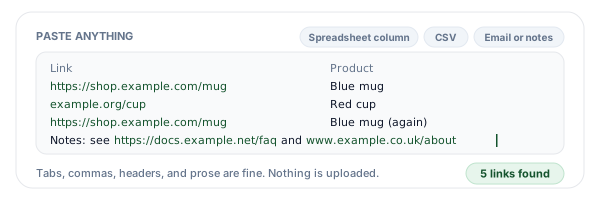
Paste your links
Paste a list, a copied spreadsheet column, CSV rows, or any text. The tool finds every http and https URL, adds https:// to bare domains, and keeps the addresses behind linked words when you paste rich text.
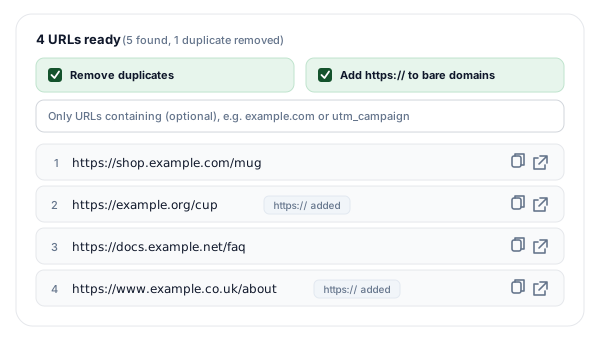
Review the clean list
See how many URLs were found, with duplicates removed and an optional "only URLs containing" filter. Rows that had https:// added are marked, so you can spot anything odd before a single tab opens.
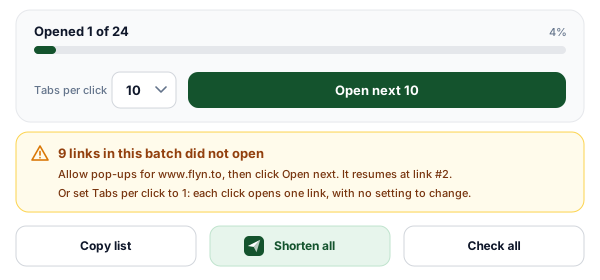
Open in batches
Pick 1 to 50 tabs per click and press Open next. Every opened link is marked, blocked tabs are detected with the fix for your browser, and the next click resumes exactly where the last one stopped.
What a Bulk URL Opener Does, and Why It Opens in Batches
A bulk URL opener takes a list of links and opens each one in its own browser tab, so you do not click through them one by one. People use one to review a batch of product pages, check every link in a newsletter before it goes out, open the results a teammate sent over, or work through a spreadsheet of leads.
The simplest versions are a text box and a loop that opens every line. They break in two predictable ways: messy input (a spreadsheet column with a header, a CSV row, an email with links in the middle of sentences) and the browser's pop-up blocker, which usually lets one tab through per click and drops the rest. This URL opener online cleans the list first, opens it in batches you control, remembers what already opened, and tells you when the browser blocked something, so nothing gets skipped.
Pulls URLs out of any text
One per line, a spreadsheet column, CSV rows, Markdown, or an email. Every http and https link is found, bare domains get https:// added, and email addresses are skipped.
Keeps the links behind linked words
When you paste rich text that contains links, the addresses behind the linked words are collected too and added to the box, where you can see and edit them.
Opens in batches that resume
Choose 1 to 50 tabs per click. Every opened link is marked, and once you start opening, the list (up to its first 500 URLs) and your progress are saved in this browser, so you can close the page and resume later.
Notices blocked tabs
If the browser's pop-up blocker stops part of a batch, the tool stops at the first blocked link, shows how to allow pop-ups for the site, and resumes from exactly that link.
How to Open Multiple Links from Excel or Google Sheets
The same four steps work in Excel and in Google Sheets.
- 1
Select the cells that hold the links
Click the column letter to take the whole column. Header rows and cells without a URL are ignored, so there is no need to tidy them first.
- 2
Copy and paste them into the box above
Press Ctrl+C (Cmd+C on a Mac). Spreadsheets copy cells as tab-separated text, one row per line, which the tool reads as it is. You can paste several columns at once.
- 3
Check the count and trim the list
Leave Remove duplicates on, and use "Only URLs containing" to keep one domain or one campaign if you only need part of the sheet.
- 4
Open in batches
Press Open next. From the first click, your progress is saved in this browser, so you can close the tab and resume later from Recent lists. Lists are saved up to their first 500 URLs.
When the cells show a name, not the address
If a cell shows text like "Product page" and the address sits behind it as a hyperlink, whether the address comes along when you copy depends on the app and on where you paste. When you paste rich text that contains links, this tool also collects the addresses behind the linked words and tells you how many it added.
If none come through and the cells use the HYPERLINK function, add a helper column with =FORMULATEXT(A2) (both Excel and Google Sheets have it), fill it down, and paste that column here. When the address is typed into the formula, the formula text shows it in plain view and the tool pulls it out. If the formula builds the address from other cells, paste those cells instead. Links added with Insert, Link have no formula, and neither app has a standard worksheet function that returns their address.
The macro alternative, honestly
The usual Excel answer is a short VBA macro that loops over the selected cells and hands each address to FollowHyperlink, which opens it in your default browser. The pop-up blocker is not involved, because Excel asks the system to open each link, and it can read the address behind a hyperlinked cell directly.
The trade-offs: it needs desktop Excel with macros enabled (VBA does not run in Excel for the web), the macro has to live in a macro-enabled workbook or your personal macro workbook, and it runs with your permissions, so only run code you have read. Google Sheets has no VBA. Its Apps Script runs on Google's servers, so the usual scripts that open tabs do it through a small dialog in your browser and run into the same pop-up rules as this page.
Why Browsers Block Pop-ups, and How to Allow Them for One Site
Pop-up blocking goes back to the early 2000s, when pages opened ad windows the moment they loaded. Modern browsers only let a page open a new tab or window as a direct result of something you did, such as a click or a key press. Most of them treat that permission as used up once the first tab opens, so a single click that asks for ten tabs usually gets one, and the other nine are blocked. You will typically see a small blocked pop-up icon or a notice bar near the address bar when that happens.
Allowing pop-ups for one site lifts that limit for that site only. Every other site stays blocked, and you can remove the exception later from the same setting. If you would rather not change anything, set Tabs per click to 1: each click then opens exactly one link, which browsers allow.
Chrome
After a batch is blocked, click the blocked pop-up icon at the right end of the address bar, choose "Always allow pop-ups and redirects from https://www.flyn.to", and click Done. The same list lives in Settings, Privacy and security, Site settings, Pop-ups and redirects.
Microsoft Edge
Click the blocked pop-up icon in the address bar and choose to always allow pop-ups and redirects from the site. You can also search Settings for "pop-ups" and add https://www.flyn.to to the Allow list.
Firefox
Firefox shows a bar under the toolbar saying it prevented the site from opening pop-up windows. Click the button at the right end of that bar and choose "Allow pop-ups for www.flyn.to". The exceptions list is in Settings, Privacy & Security, Permissions.
Safari on Mac
With the page open, go to Safari, Settings (Preferences in older versions), Websites, then Pop-up Windows in the sidebar, and set www.flyn.to to Allow.
Phones and tablets
Safari on iPhone and iPad has a single Block Pop-ups switch in the Settings app that applies to every site, and Chrome on Android keeps its Pop-ups and redirects setting under Site settings. Mobile browsers also tend to switch you to each new tab as it opens, so on a phone, one tab per click is usually the practical choice.
Menu names shift a little between browser versions. If a step does not match what you see, search your browser's settings for "pop-ups".
Web Opener vs Browser Extension vs Spreadsheet Macro
Three ways to open all links in a list, and what each one costs you.
| This web opener | Browser extension | Excel VBA macro | |
|---|---|---|---|
| Install | Nothing, open the page | From the browser's add-on store | Nothing new, but macros must be enabled |
| Works in | Any modern browser, desktop or mobile | The browser family it was built for | Desktop Excel on Windows or Mac |
| Pop-up blocker | Allow pop-ups for the site once, or open 1 per click | Not involved: extensions open tabs directly | Not involved: links open through the system |
| Access it needs | None beyond this page | Varies, often your tabs or all sites | Runs with your user permissions |
| Messy input | Finds URLs in any text, CSV, or spreadsheet paste | Varies, many expect one URL per line | Only the cells you select |
| Batches and resume | 1 to 50 per click, resumes where it stopped | Some offer delays or batches | Everything at once unless you add a pause |
Short version: use this page when you open lists now and then, or on a computer where you cannot or would rather not install anything. An extension earns its place if you open big lists every day in one browser and are happy with the permissions it asks for. A macro fits when the links already live in a workbook you use daily.
How to Open Unfamiliar Links Safely
Opening twenty links in one go means twenty pages you have not looked at yet. A few habits keep that safe.
Expand short links first
A short link hides where it goes. Run unknown ones through the URL Expander to see the final destination and every redirect before you open them.
Check anything that looks off
The Link Safety Checker traces redirects, verifies HTTPS, and flags risk signals such as raw IP destinations, embedded credentials, and look-alike punycode domains before anyone clicks.
Opened tabs cannot reach back
This page cuts the link between each new tab and itself (the window opener), so a page you open cannot quietly redirect this tab to a look-alike site, a trick known as reverse tabnabbing.
Look twice at login pages
A tab from an unfamiliar list that asks you to sign in to your email, bank, or work account deserves a second look at the address bar. Phishing pages copy real login screens closely.
Do not run surprise downloads
Some links start a file download instead of opening a page. Do not open files you were not expecting, especially installers, APKs, or Office documents that ask you to enable macros.
Keep batches small
Ten tabs at a time keeps memory use sane and makes it easier to spot the one page that looks wrong before you move on to the next batch.
Bulk URL Opener + Flyn Short Links: Better Together
Open and review a list for free, then turn the links you share into short links you can measure and change later.
Your list stays in this browser
Parsing, cleaning, and opening all run in your browser. The URLs are not sent to Flyn unless you choose Shorten or Check all, and history lives in this browser only.
Shorten the list
Send the cleaned list to the Bulk URL Shortener in one click: one free batch of up to 10 links a day, kept in your account if you sign in. Pro imports unlimited links from a CSV.
Clicks counted in your account
Short links you make in a free Flyn account count every click. Pro breaks each click down by country, device, browser, and referrer.
Change destinations later
Edit where a short link in your account points after you share it, so a moved page never breaks a link that is already out.
Frequently Asked Questions
What is a bulk URL opener?
How do I open multiple URLs at once?
Why does only one tab open when I ask for ten?
Is it safe to allow pop-ups for www.flyn.to?
How do I open multiple links from Excel?
Can I open multiple links in Google Sheets?
Do I need a browser extension to open multiple URLs?
How many URLs can I open at once?
What kinds of input does it accept?
Does it work on a phone?
Is my list uploaded or stored anywhere?
Can I shorten or check the links after opening them?
More Free Link List Tools
Build, clean, shorten, and check lists of links. Free, in your browser, no sign-up required.
URL Extractor
Pull every link out of an email, document, or CSV, then export the list.
Bulk URL Shortener
Turn a list of URLs into short links in one go: a free batch of up to 10 a day, unlimited with Pro.
Short Link Bulk Health Checker
Check up to 25 links per run for broken pages, HTTPS, and long redirect chains.
URL to Domain Extractor
Reduce a list of URLs to root domains or hostnames, counted, with CSV export.
Ready to put your links to work?
Open lists for free, then turn the links you share into Flyn short links: free click counts and QR codes, with analytics breakdowns and branded domains on Pro, all in one platform.