Free Slack Invite Link Generator
Paste your Slack workspace invite link to clean, validate, and format it into a shareable URL plus HTML and Markdown. Then brand and track it with a Flyn short link.
Where do I get my invite link?
In Slack, open your workspace name, choose Invite people (admins: Settings & administration), then Copy invite link. Paste that join.slack.com link below to clean, format, and brand it.Track who joins your Slack
Wrap your invite in a Flyn short link to get a branded URL and see who clicked, from where, on what device, all before they join.
How to Share a Slack Invite Link in 3 Steps
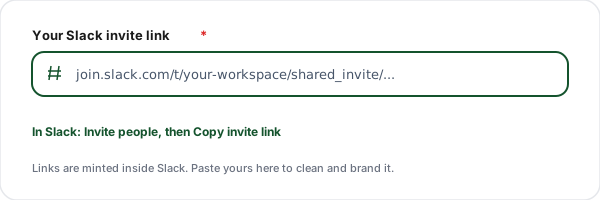
Copy your invite link from Slack
In Slack, open your workspace name, choose Invite people, then click Copy invite link. Slack mints the real join.slack.com token for you, this tool does not and cannot create it.
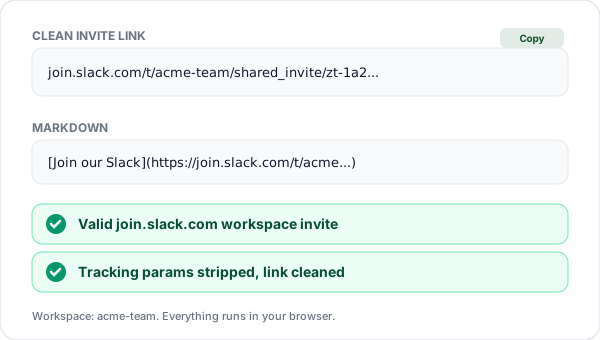
Paste and clean the link
Paste the invite into the tool. It checks the join.slack.com/t/WORKSPACE/shared_invite/TOKEN format, strips any tracking parameters, and shows a clean canonical URL.
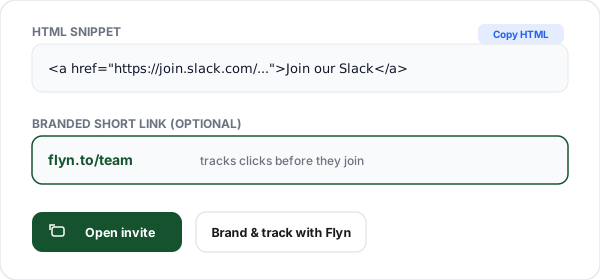
Copy, brand, and share
Copy the clean link, the HTML anchor, or the Markdown snippet. Optionally wrap it in a Flyn short link for a branded flyn.to/team URL and join analytics.
What is a Slack Invite Link?
A Slack invite link is a special URL that lets people join your Slack workspace by clicking it. It always lives on the join.slack.com domain and follows the shape join.slack.com/t/WORKSPACE/shared_invite/TOKEN. The token is a long, server-generated string that Slack ties to your workspace.
Here is the honest part: this token is minted inside Slack, not by any third-party tool. You generate it from Settings, by opening your workspace name and choosing Invite people, then Copy invite link. No external generator can fabricate a working Slack invite, and any site that claims to is not telling the truth. What an external tool can do, and what this one does, is take the link you copied and make it cleaner and easier to share.
This generator validates that your pasted link is a genuine join.slack.com workspace invite, removes tracking query parameters and fragments, and rebuilds a minimal canonical URL. It then produces ready-to- paste HTML and Markdown snippets so you can drop the invite into a website, README, or docs page in seconds.
The final step, optional but powerful, is to wrap the clean invite in a Flyn short link. You get a branded URL like flyn.to/team instead of a long token, plus a dashboard showing how many people clicked, when, and from where, all before they reach Slack. The destination never changes; the tracking happens on the redirect.
Where to Get Your Invite Link Inside Slack
Slack invite links are created in the app, not here. Follow these steps once, then paste the result above to clean and brand it.
- A
Click your workspace name in the top-left corner of Slack (desktop or mobile).
- B
Choose Invite people. Admins find this under Settings and administration, then Manage members.
- C
Enable the option to let anyone with the link join, then click Copy invite link.
- D
Paste that join.slack.com link into the tool above to clean, format, and brand it.
Invite Link vs Email Invite
Slack offers two ways to bring people in. An open invite link is best for communities and public sign-ups; an email invite is best for tight, controlled access.
| Aspect | Open Invite Link | Email Invite |
|---|---|---|
| Where it is created | Inside Slack (Copy invite link) | Inside Slack (enter emails) |
| Who can join | Anyone holding the link | Only invited email addresses |
| Best for | Communities, public sign-ups | Teammates, controlled access |
| Expiry | Optional (admin sets) | Per-invite, time-limited |
| Shareable on a website | Yes, ideal | No, one address at a time |
| Can be branded + tracked | Yes, via a Flyn short link | No |
Common Use Cases
Community sign-up button
Put a clean "Join our Slack" button on your landing page so visitors can join your community in one tap.
Open-source project README
Add a Markdown invite link to your GitHub README so contributors can jump into your support workspace.
Course or cohort onboarding
Share one branded invite link with every new student so they land in the right Slack workspace.
Newsletter or social CTA
Drop a short branded invite link in your newsletter and see exactly how many subscribers joined.
Conference or event group
Print a QR code that resolves to your branded invite so attendees can join the event Slack on the spot.
Client or partner workspace
Send a single tidy invite link instead of a long raw token when onboarding an external partner.
Why Use Flyn for Slack Invites?
100% Client-side
Validation and formatting run in your browser. Your invite link never touches our servers.
Branded short links
Turn a long token into a memorable flyn.to/team URL that builds trust at the click.
Join analytics
See how many people clicked, when, from which country and device, before they reach Slack.
HTML + Markdown
Copy a ready anchor for your site or a Markdown link for your README in one tap.
Frequently Asked Questions
Does this tool create a Slack invite link for me?
No, and no tool honestly can. Slack workspace invite links are minted inside Slack itself. Open your workspace name menu, choose Invite people (admins use Settings and administration), and click Copy invite link. That produces a real join.slack.com URL tied to a server-side token. This generator takes that URL, validates it, strips tracking junk, and gives you a clean, brandable, shareable version plus HTML and Markdown.
Where exactly do I find the invite link in Slack?
On desktop, click your workspace name in the top-left, then Invite people to Workspace. In the dialog, look for a Copy invite link option (sometimes under a toggle that lets anyone with the link join). Admins can manage this under Settings and administration, then Manage members, then Invitations. On mobile, tap your workspace name, then Invite people. Copy the full https://join.slack.com/t/... link and paste it here.
What does a real Slack invite link look like?
A valid Slack workspace invite link uses the format https://join.slack.com/t/WORKSPACE/shared_invite/TOKEN, where WORKSPACE is your workspace slug and TOKEN is a long server-generated string. Anything that is not on join.slack.com with a shared_invite path is not a workspace join link. Our validator checks for exactly this shape and rejects anything else.
Why should I clean my invite link before sharing it?
Invite links you copy can pick up extra query parameters and fragments depending on how you grabbed them. A clean canonical link is shorter, looks more trustworthy, and is less likely to break when pasted into chat apps that mangle long URLs. Our tool rebuilds the URL from just the workspace slug and invite token so what you share is the minimal, correct form.
How do I brand and track who joins from my invite link?
Wrap the clean join.slack.com link in a Flyn short link. You get a memorable branded URL like flyn.to/team instead of a long token, and a dashboard showing how many people clicked, when, from which country, and on what device, all before they reach Slack. The destination stays exactly the same: your real invite link. Tracking happens on the redirect, not inside Slack.
Do Slack invite links expire?
It depends on how the link was created. Slack lets admins generate invite links that never expire (anyone with the link can join) or time-limited invites. If your link stops working, return to Slack, generate a fresh invite link, and run it through this tool again. Wrapping it in a Flyn short link is handy here: you can keep the same branded short URL and just point it at the new invite when you rotate it.
Can anyone with the invite link join my workspace?
If you enabled the open Copy invite link option in Slack, then yes, anyone holding that URL can join, so treat it like a semi-public credential. For tighter control, send individual email invites from Slack instead, or restrict joins to specific email domains in your workspace settings. Only share open invite links in places you control.
Is it safe to post my Slack invite link publicly?
An open invite link is effectively a shared password to your workspace. Posting it on a public website, social post, or forum means strangers and bots may join. If you do share publicly, use a workspace setting that restricts sign-ups to approved email domains, enable admin approval for new members, and rotate the link periodically. For communities that want public joins, that is fine, just monitor membership.
How do I add the invite link to a website or README?
Use the HTML snippet for a webpage (a standard anchor tag with your chosen link text) or the Markdown snippet for a README, Notion page, or docs file. Both are generated automatically once you paste a valid invite link. Just copy the snippet and drop it in. The link text defaults to Join our Slack but you can set anything you like.
Does this tool store my invite link?
No. Everything runs in your browser. The parsing, validation, and snippet generation happen client-side with JavaScript, your invite link is never sent to or stored on our servers. The optional history feature saves recent links only in your own browser via localStorage, and you can clear it anytime.
What is the difference between a Slack invite link and a channel link?
A workspace invite link (join.slack.com/t/...) lets someone join your entire Slack workspace. A channel link (a slack.com or app.slack.com URL with a channel ID) only opens a specific channel and requires the person to already be a member of the workspace. This tool is for workspace invite links. To bring new people in, you need a join.slack.com invite, not a channel link.
Can I use this for Slack Connect or shared channels?
No. Slack Connect invitations to share a single channel with an external organization are sent from inside Slack to a specific email or as a Connect link, and they follow a different flow with approvals. This tool handles standard workspace join links (join.slack.com/t/...). For Slack Connect, use the Share channel option inside Slack directly.
Why does the tool reject my link?
The most common reasons: the URL is not on join.slack.com (you may have copied a channel or message link instead), the shared_invite path or token is missing (you copied a partial link), or there is a typo. Go back to Slack, use Invite people then Copy invite link to grab the complete URL, and paste the whole thing. The link must contain /t/WORKSPACE/shared_invite/TOKEN to be valid.
Related Tools
Telegram Link Shortener
Shorten and brand t.me group, channel, and invite links, then track joins.
Reddit Link Shortener
Shorten Reddit post, subreddit, and profile links into clean branded URLs.
URL Shortener
Shorten any link for free, add custom slugs, and track every click in real time.
Discord Link Shortener
Brand and shorten Discord server invite links and track how many people join.
Ready to grow your Slack community?
Clean your invite link here for free, then wrap it in a Flyn short link to get a branded URL and see exactly how many people click before they join.